- See AI Discovery for setting up asset discovery.
View AI Asset Discovery
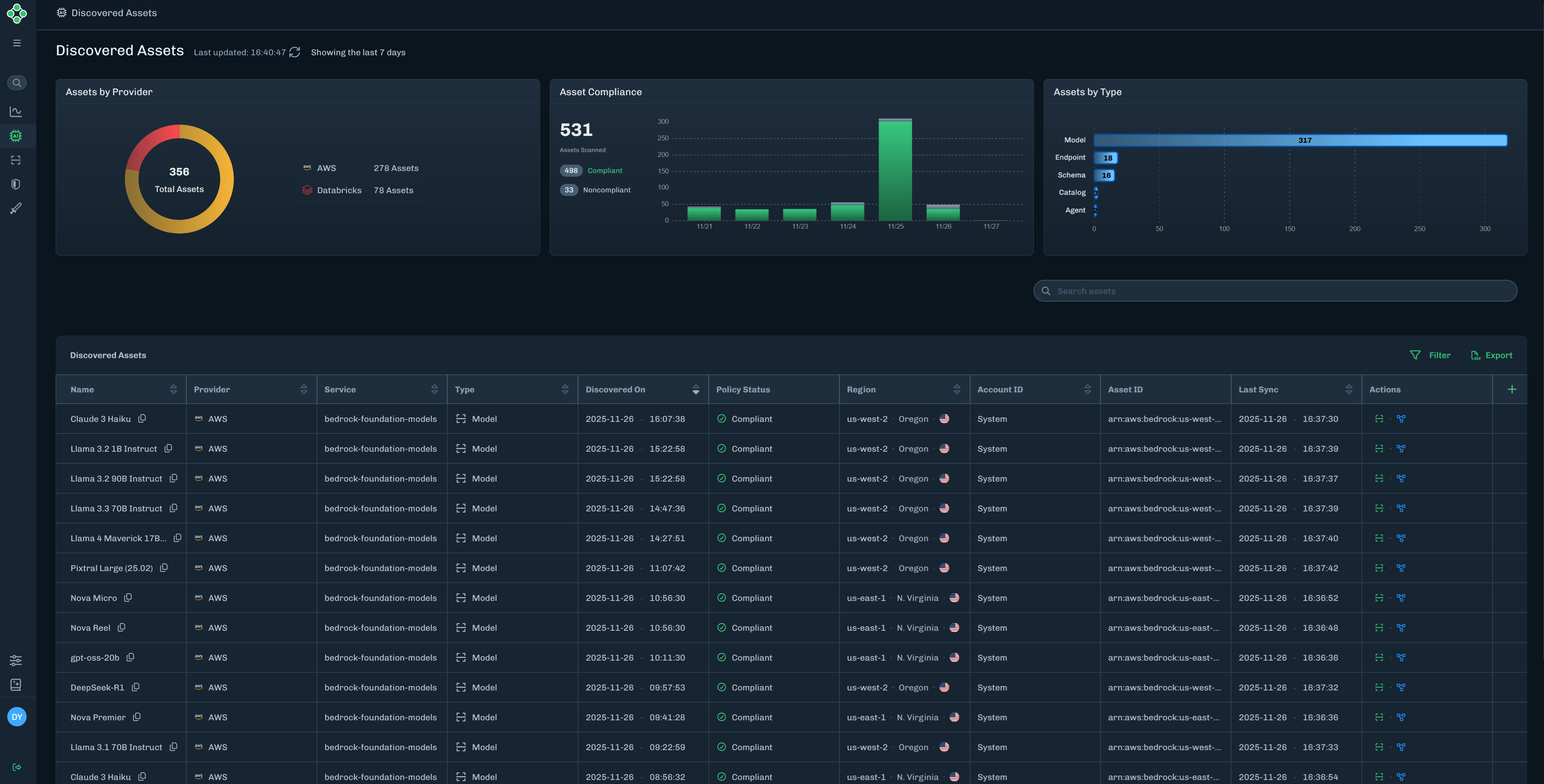
After your Databricks AI Asset Discovery integration is set up, discovered assets are added to the AI Asset Discovery page. Assets are discovered every 5 minutes.-
In the HiddenLayer Console, click Discovery in the side navigation.
- Assets by Provider: A pie graph that showcases a breakdown of assets by cloud provider.
- Asset Compliance: A bar chart that showcases a breakdown of assets that are in compliance or non-compliance according to AI Supply Chain Security policy, over the last seven days.
-
Assets by Type: A bar chart that showcases a breakdown of discovered assets by the following types:
- Model
- Schema
- Endpoint
- Catalog
- Agent
Use View Filters
Use View Filters to help you find the AI assets you are looking for.- Click View Filters.
-
Expand the filter section to view available filters.
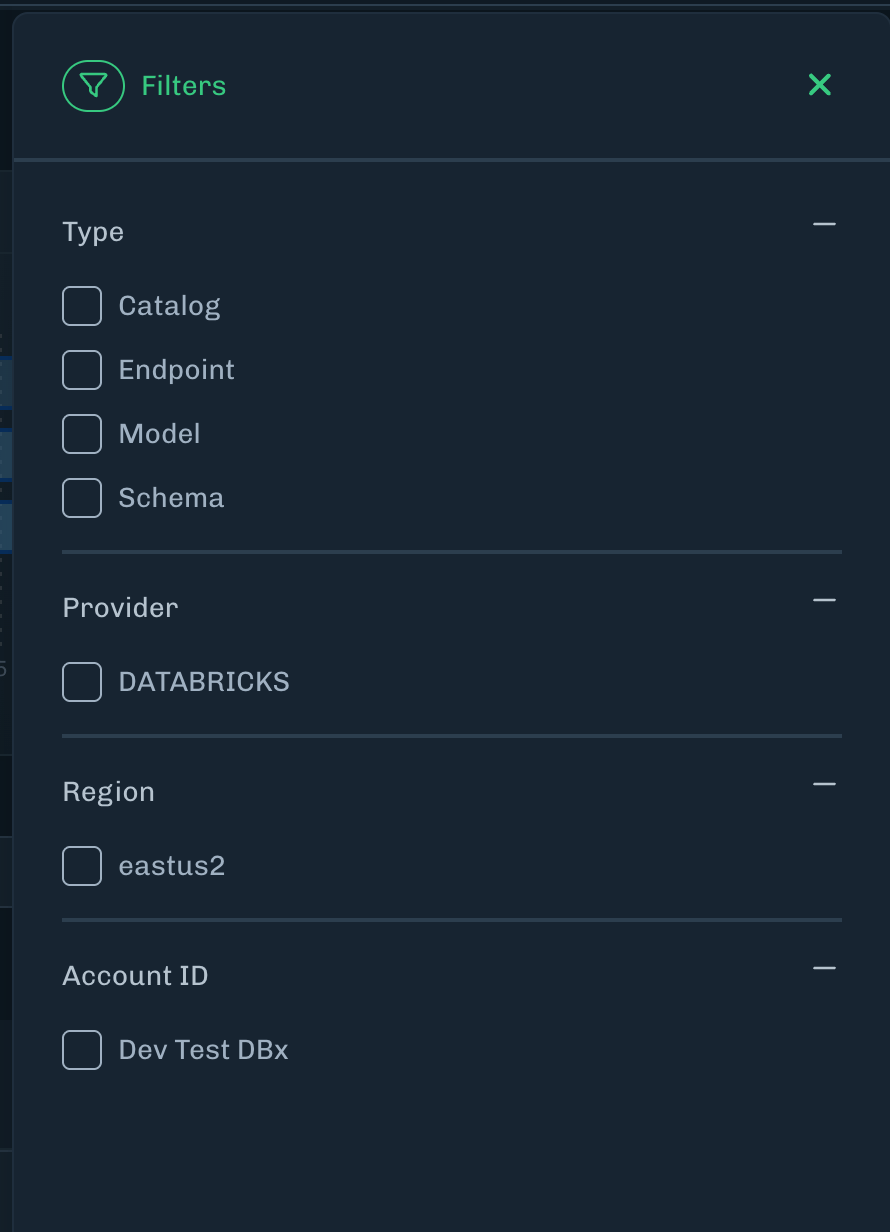
- Select filters to apply to the AI Asset Discovery page.
- Click Show Results.
AI Asset Discovery Descriptions
Asset Relationships
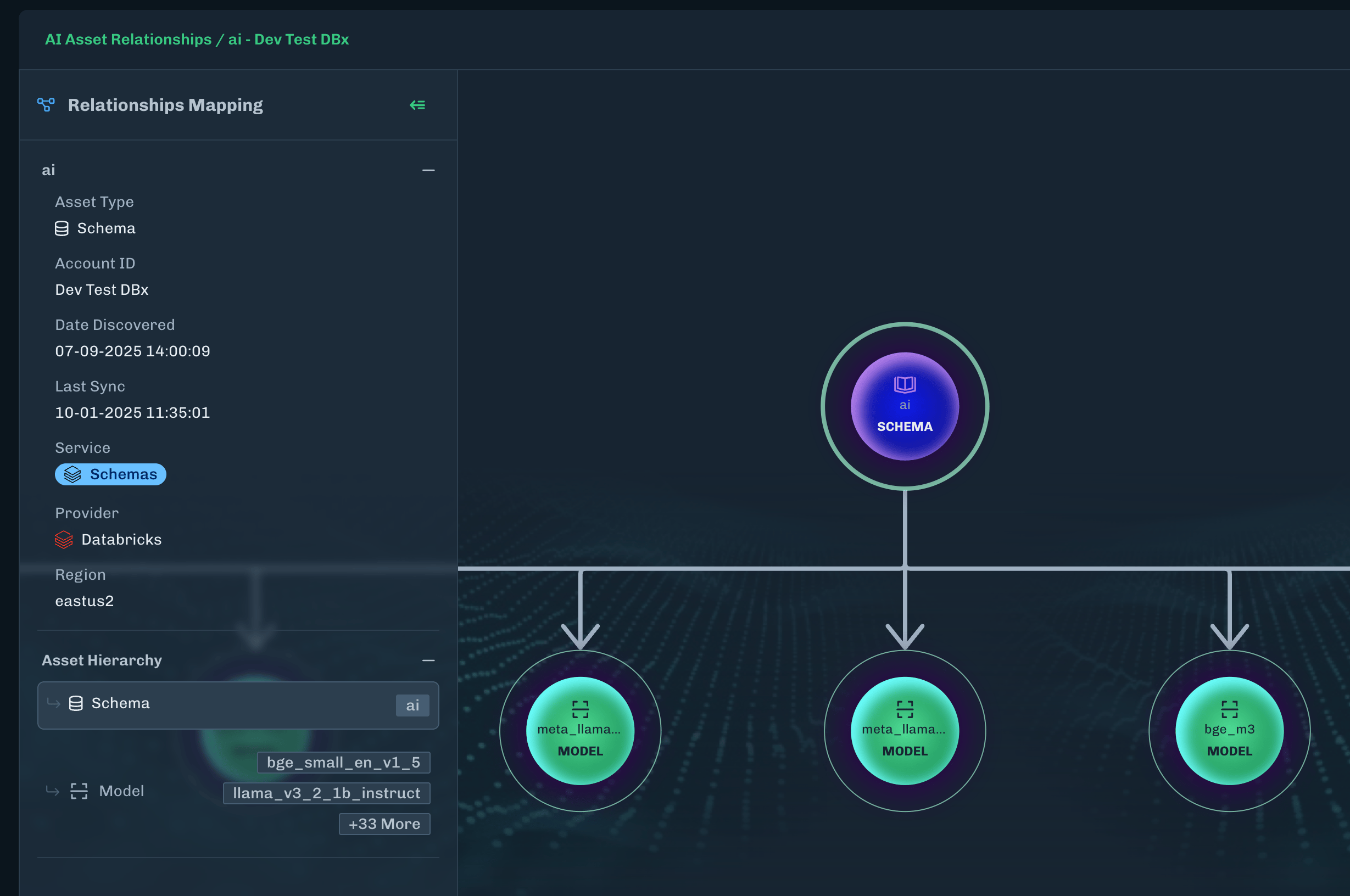
Asset Relationships adds a relationships mapping that maps how assets are connected to each other in a hierarchical view. The following Databricks assets are supported and viewed in a top down hierarchy: Databricks-
Catalog
-
Schema
-
Model
- Endpoint
-
Model
-
Schema
-
Agent
- Model
-
Endpoint
- Model

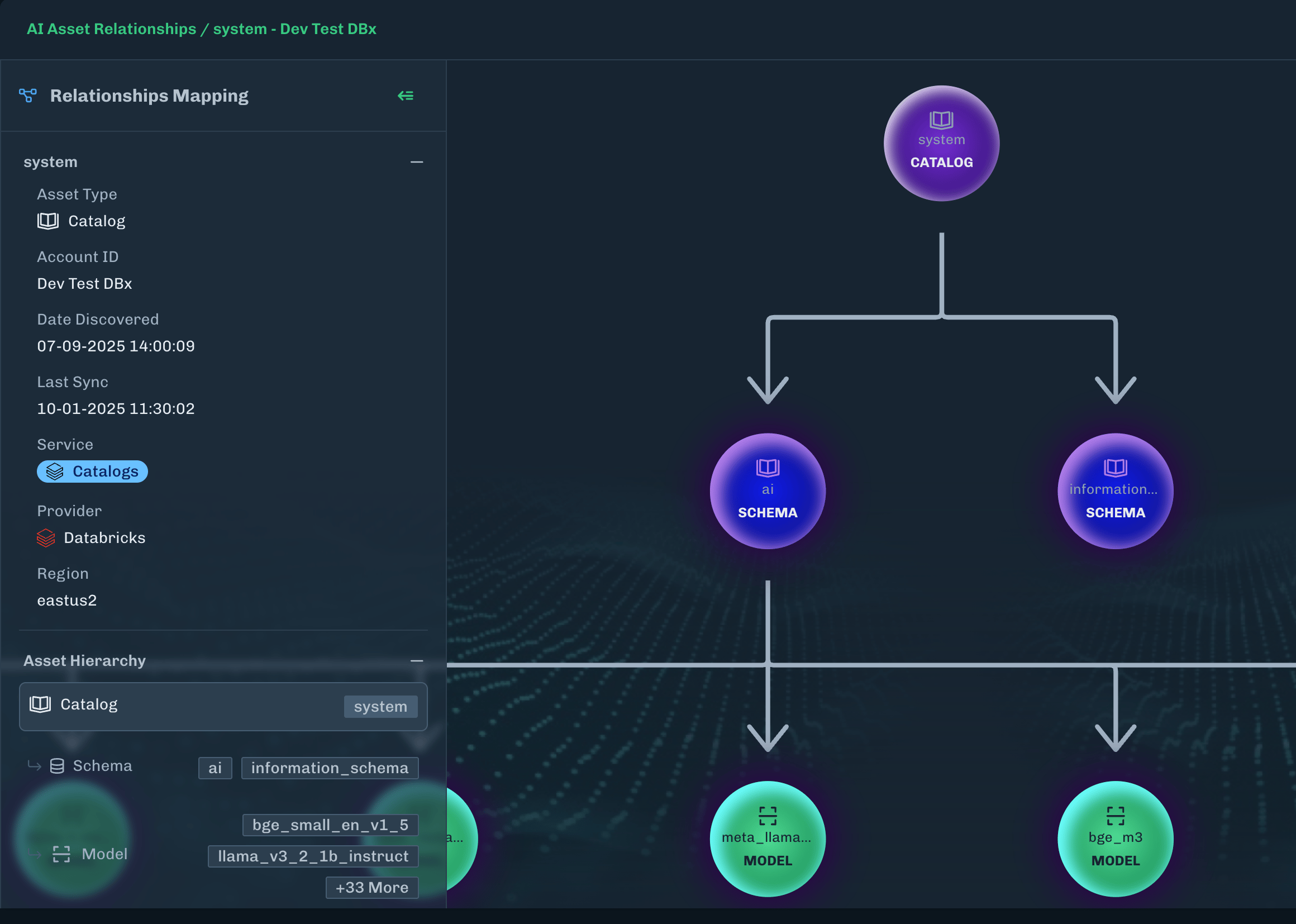
Important Limitation: The relationship mapping currently displays a hierarchy from top to bottom, but not from bottom top.
-
Example: Schemas with associated Models will have a relationship mapping, but an associated Catalog will not be displayed.
- Further: Viewing a Model’s relationship mapping will only display the model. To view the full relationship hierarchy, it is recommended to start at the Catalog level.
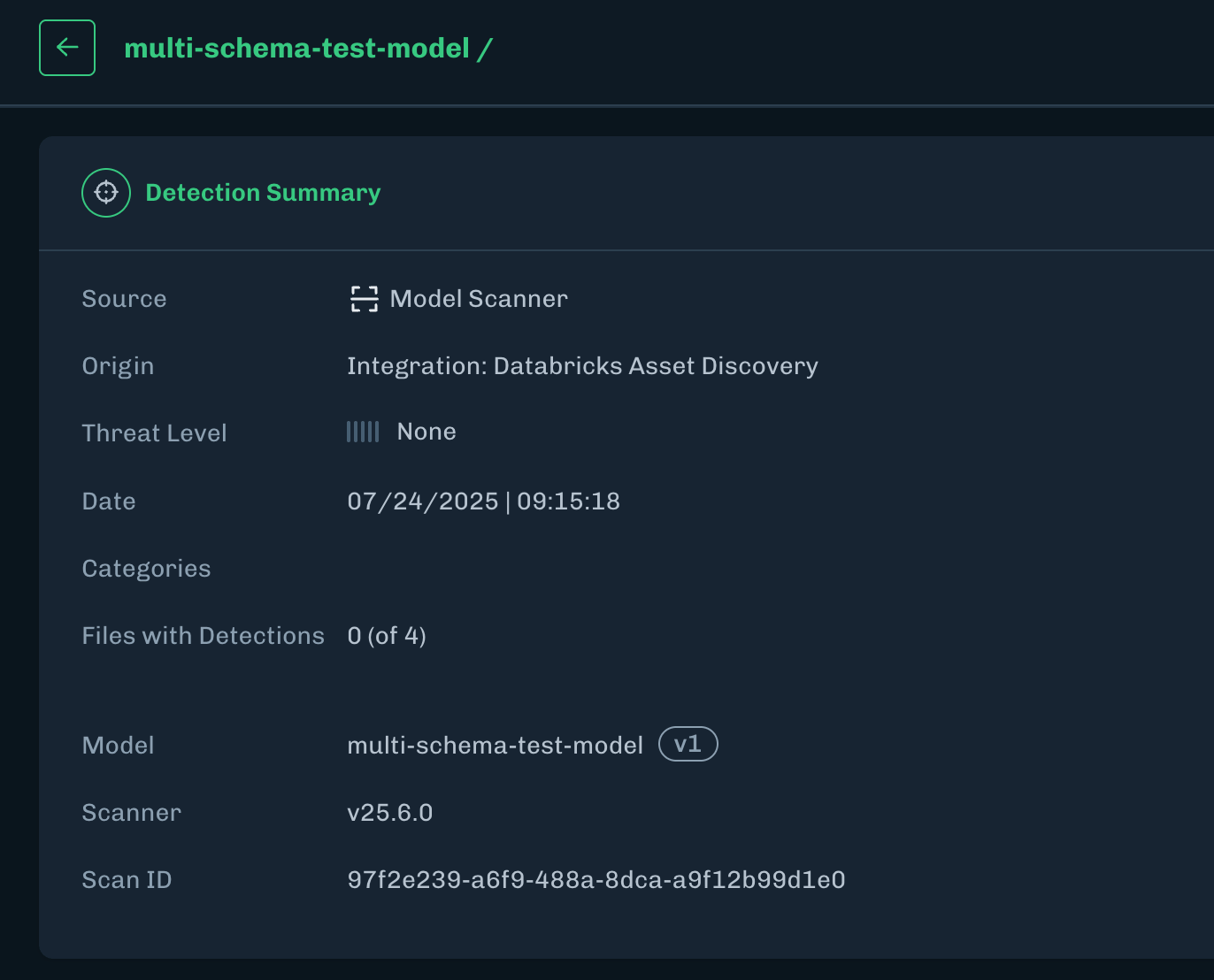
AI Asset Discovery and Viewing Model Scan Results
When a model asset is discovered, it is automatically scanned and it is possible to view model scan results for a discovered model asset. For discovered models:-
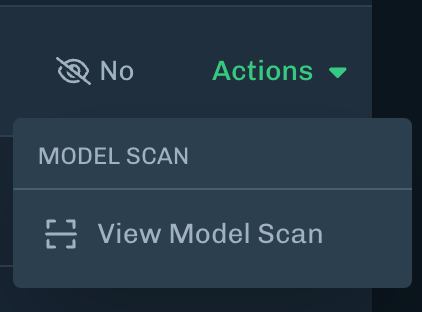
Click Actions under the HL Resources column for the target model.

-
Click View Model Scan.
-
The page will then be redirected to the Detection Summary of the scanned model.