

Pre-Requisites
To follow this tutorial, you need:-
Computer with at least 16GB of memory: Docker requires a lot of memory.
- For Windows, use WSL2 and an Ubuntu distro.
- Docker Desktop: Docker Desktop is used to deploy the container to your Kubernetes cluster.
- Runtime Security License Key: HiddenLayer Support will provide you with a license key. This key is required to start the LLM proxy container, and it will not run without a valid key. The license can be set as an environment variable and the installer will not run without the license being set as a value.
- Credentials to download Runtime Security container: Credentials for the HidHiddenLayerdenLayer container repository are required to download the appropriate images. These can also be obtained from HiddenLayer Support or from your HiddenLayer technical contact.
- API Client ID and Client Secret: HiddenLayer API Clent ID and Client Secret to generate an access token. Get these from the Console or your Console Admin.
Install and Spin Up Local Containers
- Make sure that you have Docker Desktop open before starting.
-
To run the deployment script, you will need to set the following three environment variables (you can do so via the terminal or by using a env file – whichever method you prefer). Don’t forget to add your values instead of the placeholders between the < > :
-
Copy and save the following script to your local drive as deploy.sh (shell/bash script):
-
From within the terminal, navigate to the folder on your drive where you’ve saved the script above. From there, run the
deploy.shscript with the following command.10+ minutesThis process can take 10 minutes or longer, depending on your Internet connection.-
What this script is doing during these 10 minutes:
- Pulling (downloading) the container image (the recipe + ingredients) from the HiddenLayer image registry for the HiddenLayer Runtime Security container
- Pulling (downloading) the container image (the recipe + ingredients) for the tiniest Ollama model out there, tinyllama
- Putting those images into Docker and using them to spin up the two linked containers
-
If the script completes correctly, you should see this in the terminal:

-
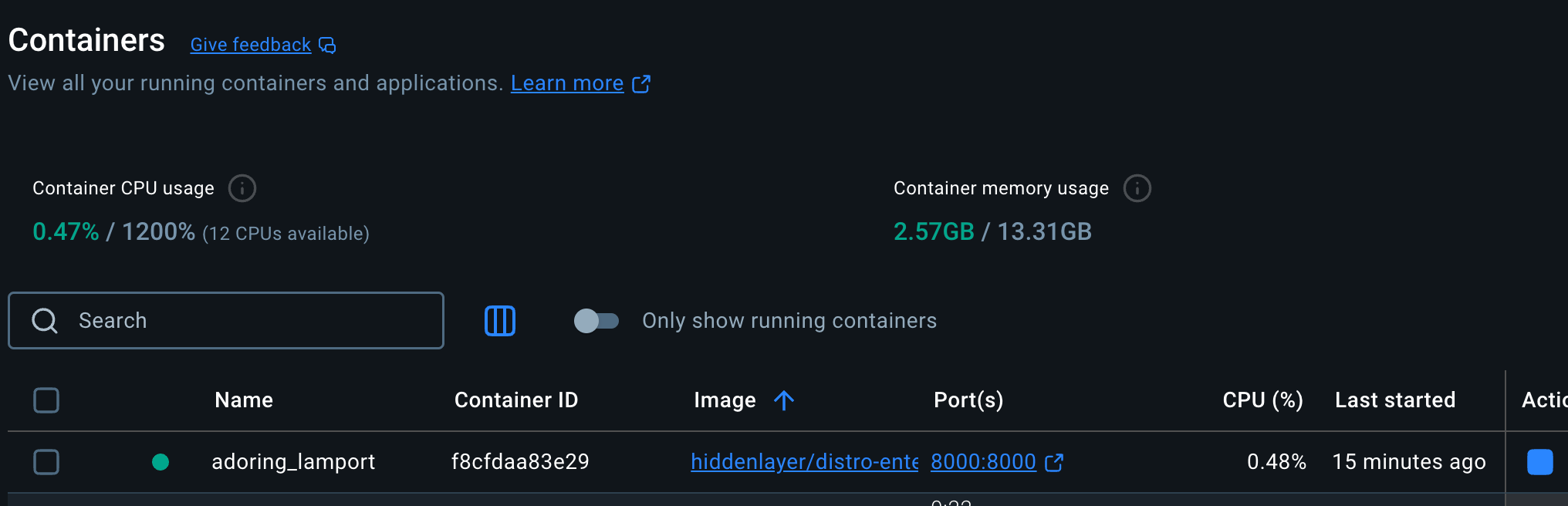
And this under the “Containers” tab in Docker Desktop:

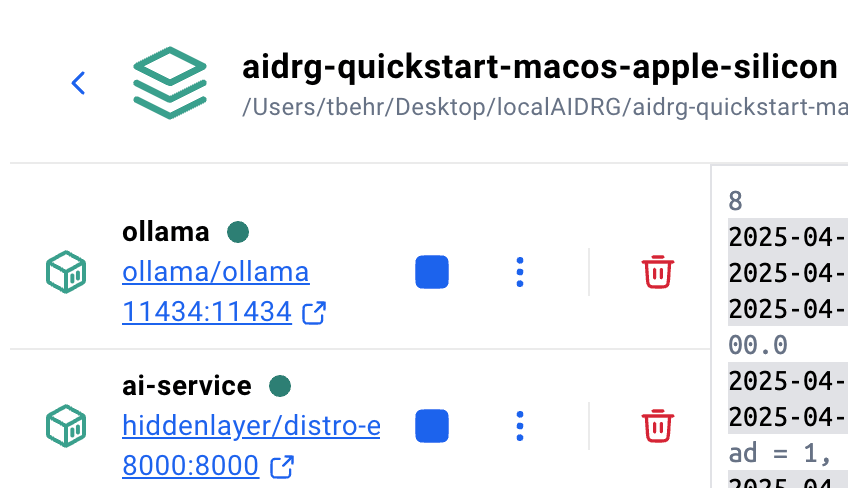
-
What this script is doing during these 10 minutes:
- The Runtime Security container logs are streamed in that terminal window as you interact with the proxy. Consider that your window into the backend, and how you can see what the proxy is doing under the hood.
Optional - Verify Runtime Security and Model are Running
To verify that both the model and the proxy are running as expected, open a new terminal window without closing the deployment window.EXPAND: Verify Runtime Security and Model are running as expected
EXPAND: Verify Runtime Security and Model are running as expected
Copy and save the following script as From the new window, navigate to and run the 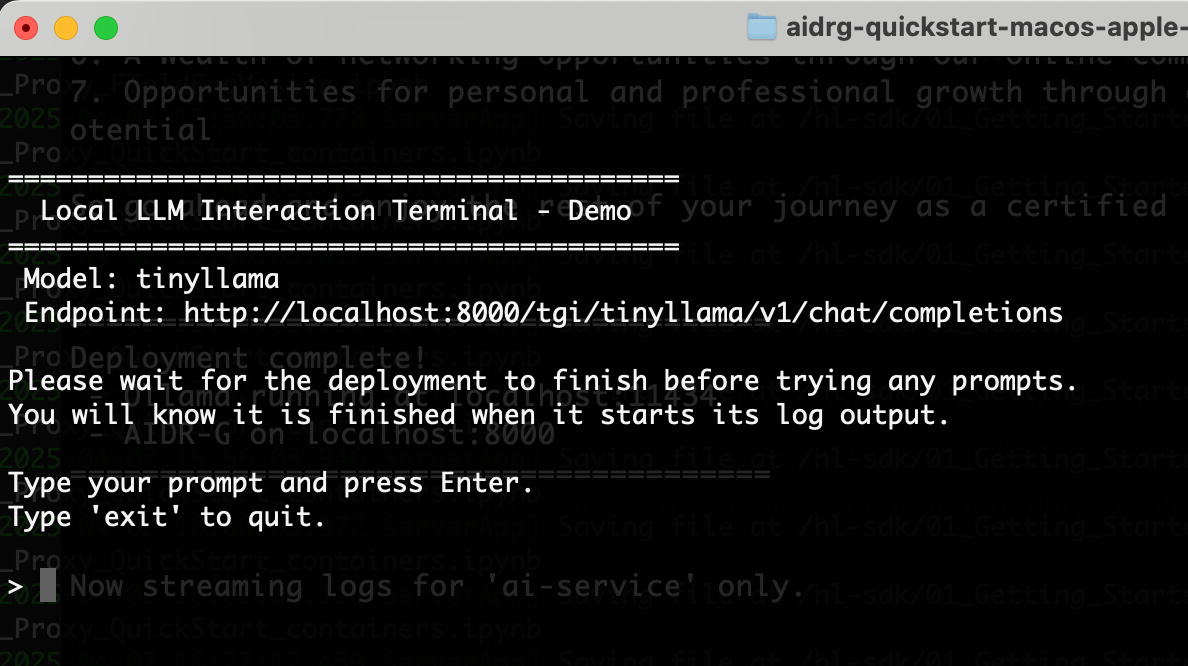
terminal-gui.sh.terminal-gui.sh script. This will give you a very simple app in the terminal where you can send a prompt to the locally running LLM and see how the proxy behaves; think of this as the frontend of your application, so that you can directly see the output that a user would see.To keep this quickstart lightweight and make sure it can run on most systems, the llama model we are using is the tiniest llama model (hence the name
tinyllama). To be clear: this means that the quality of the answers may not be as high as with some other, bigger LLMs. Don’t let that deter you – you can use the same setup with a bigger and better LLM later. This quickstart is, as the name says, just to get you started quickly.Test Inputs and Outputs against Runtime Security
You can copy and save the script to your local drive, and use it to interact with the locally-running proxy instance (note that it contains requests for both forward-proxy and reverse-proxy modes of operation).Jupyter Notebook
Alternatively, if you would prefer to run the steps below from within a Jupyter notebook, you can download the notebook here that contains the content from the following script:EXPAND: Alternate Jupyter Notebook
EXPAND: Alternate Jupyter Notebook
Notes
Some notes on using this script and on the LLM Proxy:- Because everything is running locally on your computer, no additional environment variables need to be called in the script. To see the configured environment variables in the container, you can look into the deploy.sh script – lines 40-44 show how environment variables are used to configure the connection to the LLM.
- When running a local or self-hosted container, policy configuration options can be set at the container level by using additional environment variables, or at runtime by passing in additional headers. Feel free to experiment with both options. More information on policy configuration options can be found on this page.
- The script includes a block to configure a requester id, which is passed in through a header. This header is optional, but it is highly recommended to always include it and to use it effectively. This header allows detections to be grouped by user id or test series and can be configured to contain useful information allowing data scientists, security teams, and anyone with access to the logs to trace detections back to the source. Even though your model is “only” running locally, using the requester id is best practice that should consistent be followed.
Once You Are Finished Testing
You should stop and break down the running containers. To both stop and tear them down in order to recreate later, you can use the following script (tear-down.sh).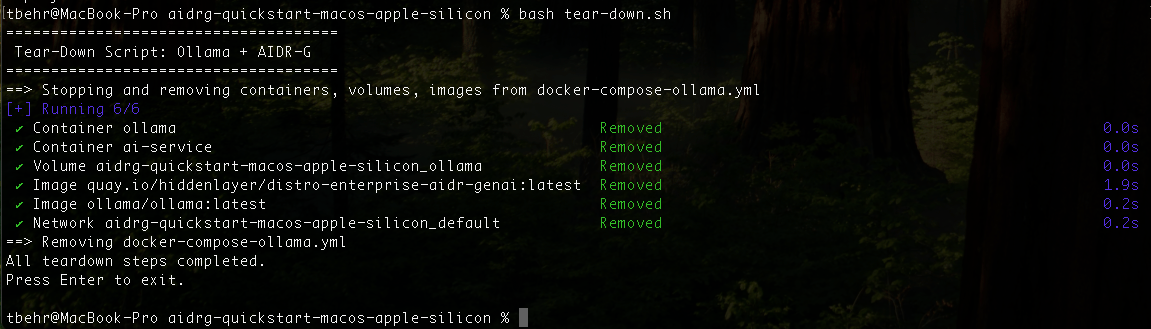
Other Things to Try
Configure Hybrid Mode and Send Detections to the Console
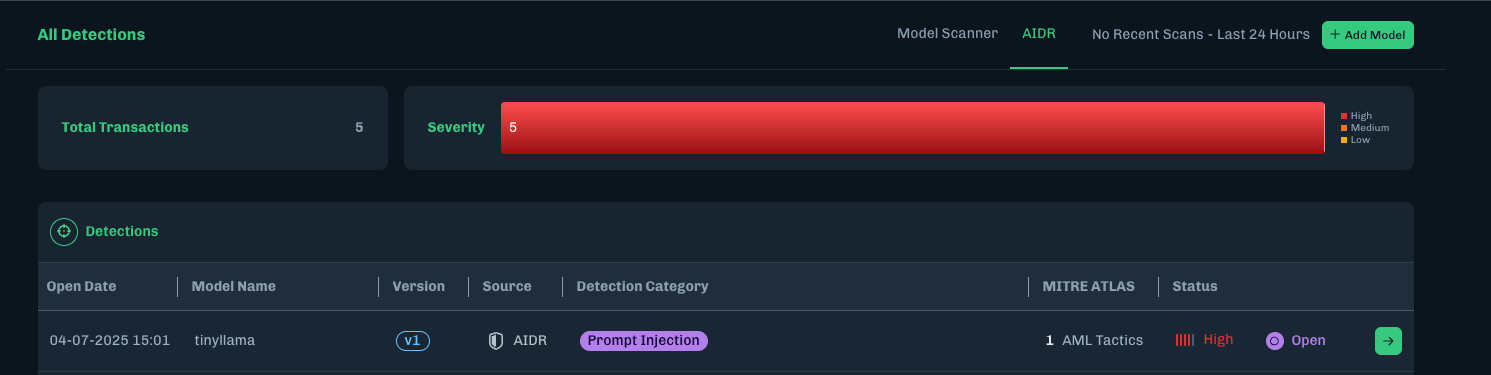
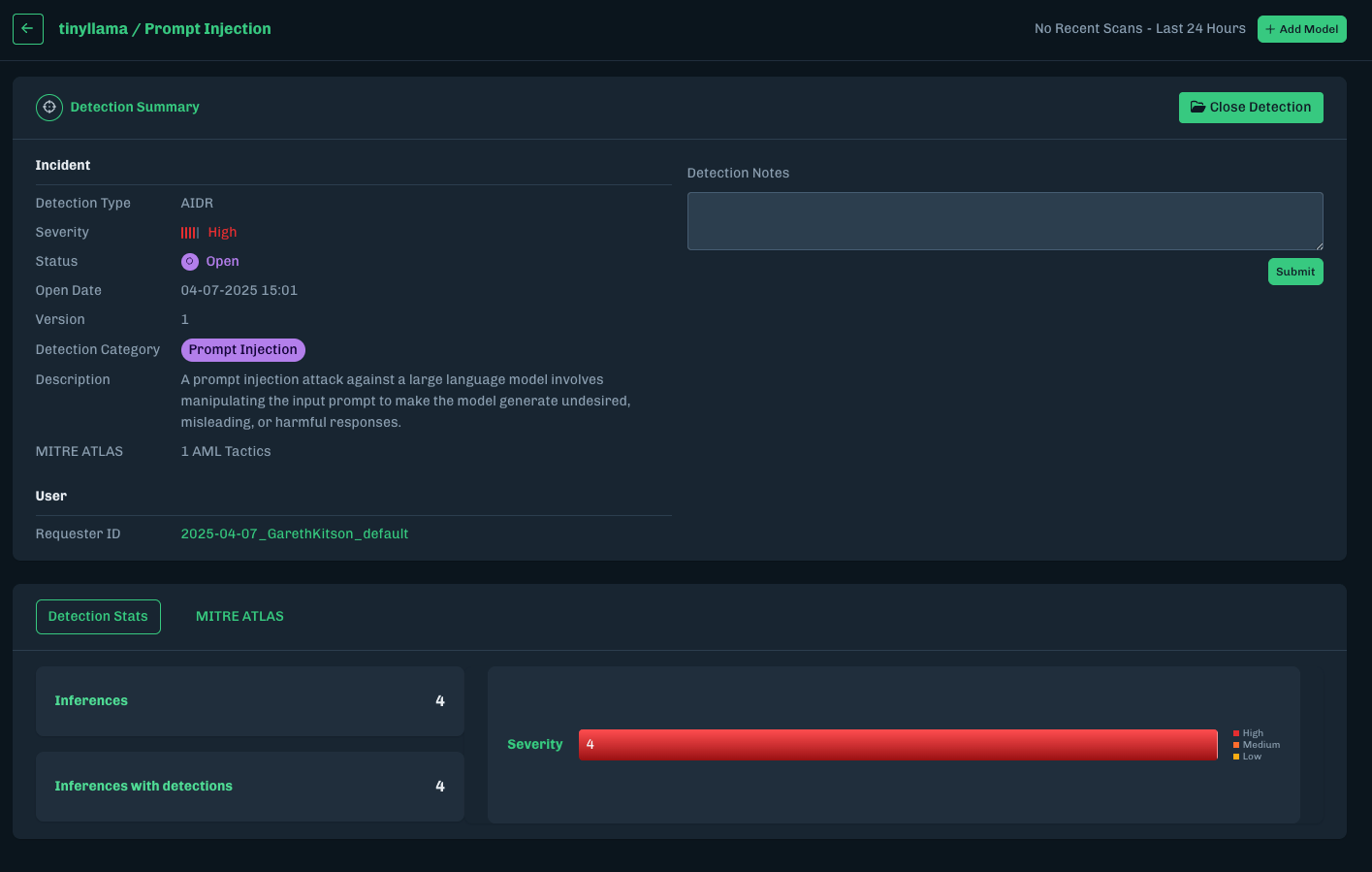
Deploying in hybrid mode means that detections will be sent to the HiddenLayer Console for visualization. In order to do so, you will change the container configuration slightly from the previous one.EXPAND: Deploy Runtime Security in Hybrid Mode
EXPAND: Deploy Runtime Security in Hybrid Mode
To deploy Runtime Security in 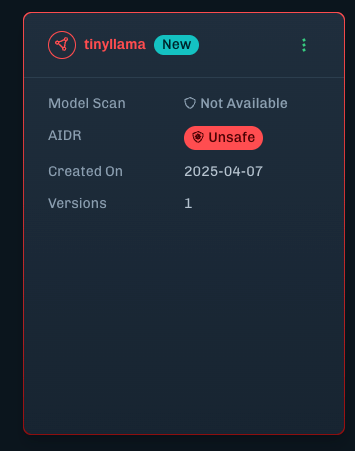
hybrid mode:- Delete any existing containers (make sure you have run the tear-down.sh script above).
- Before re-running the deploy.sh script, you are going to change one environment variable and add 3 additional environment variables to establish the connection to the HL console in your region. (You can also copy and save the script below, where we have already made these changes for you.)
- In line 40 of the script, change the value of HL_LLM_PROXY_MLDR_CONNECTION_TYPE to hybrid.
- In line 42, set the value of HL_LLM_PROXY_MLDR_BASE_URL to either https://api.eu.hiddenlayer.ai or https://api.us.hiddenlayer.ai depending on your region.
- Note that we have added HL_LLM_PROXY_CLIENT_SECRET in line 43 and set it to be filled by the environment variable containing your HL ClientID that you added at the top of the page.
- Note that we have added HL_LLM_PROXY_CLIENT_ID in line 44 and set it to be filled by the environment variable containing your HL ClientSecret that you added at the top of the page.
- Before running the updated deployment script, make sure that your environment variables contain the 5 below (you should have set all of them in previous tutorials, but in case you have not yet, make sure to do so now, as the deployment script will not run successfully without them:
- Re-run the updated deployment script from your terminal:
- Once deployment is completed, when you run the Python script to send a request to the LLM proxy, you should be able to see the detection results in the cloud console within your tenant.
- Once you are finished testing, you should stop and break down the running containers. To both stop and tear them down in order to recreate later, you can use the same tear-down.sh script as in the previous section.
Run Proxy as a Single Container using a Cloud / Public Model Endpoint
Typically you will want to connect your Runtime Security deployment, not to a locally running model, but to a cloud endpoint such as OpenAI, Azure, AWS, or another model being run somewhere else on the cloud. This guide shows you how to configure your container to connect to a running cloud model elsewhere, in this case an OpenAI model.EXPAND: Run Runtime Security connected to Cloud / Public endpoint
EXPAND: Run Runtime Security connected to Cloud / Public endpoint
To run the proxy in reverse-proxy (“unenriched”) mode, the API key for the underlying LLM can typically be passed in as an additional header value; however, to run the proxy in forward-proxy (“enriched”) mode, the LLM connection needs to be configured in the container itself through environment variables. This tutorial shows you how to do so for a basic OpenAI model.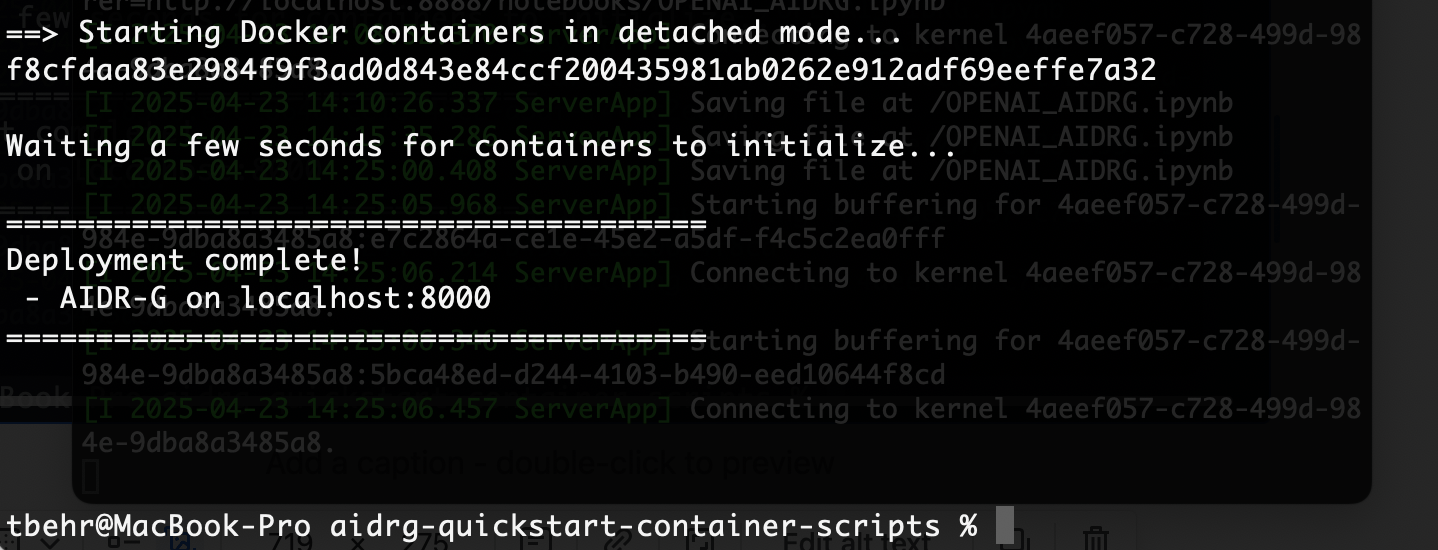
- Delete any existing containers. Make sure you have run the tear-down.sh script above.
- You will need to add an additional environment variable for your OpenAI model; whether via the terminal or via your environment file, add an environment variable called OPENAI_API_KEY.
- Copy and save the deploy-openai.sh script below. Before running, take a look at the section with the environment variables. You will see that we have removed the environment variables that configure the proxy to use the local llama model, and added an environment variable to access an OpenAI model. Note: we have left the configuration in place for the proxy to run in hybrid mode, meaning detections will be sent to the HiddenLayer console. If you would like, you can change the HL_LLM_PROXY_MLDR_CONNECTION_TYPE back to disabled and remove the env variables for ClientID and ClientSecret.
- Before running the script, check that all of the necessary environment variables are available and configured (in the terminal, you can do this by using the printenv command).
- Use the following example to create a
deploy-openai.shscript.
- Run the deploy-openai.sh script with the following command.
- Once the script has run successfully, you should see this in the terminal.
localhost:8000.
8. Optional - Test inputs and outputs against Runtime Security.
If you would prefer to run the steps below from within a Jupyter notebook, you can download the notebook here that contains the content from the following script.
Expand the following section to see the script.Jupyter Notebook
Jupyter Notebook
�PLACEHOLDER2�
- Alternatively, you can copy and save the following script and use it to test requests to the OpenAI endpoint via HiddenLayer’s Runtime Security. Expand the following section to see the script.
OpenAI Requests Python Script
OpenAI Requests Python Script
�PLACEHOLDER3�
- Once you are finished testing, you should stop and break down the running containers. You can simply go into your Docker Desktop application to stop the running container and delete it if you have no further use for it, or leave it to be restarted later.