

Requirements
To enable a webhook integration, you need:- Administrator access to the HiddenLayer Console (or have an administrator configure it for you).
- A URL for your webhook.
Configure Webhook
The configuration settings allow you to submit models to the HiddenLayer SaaS AI Supply Chain Security service. Scan results are posted in the HiddenLayer Console.- In the HiddenLayer Console, go to Settings > Integrations.
-
For Webhook, click the menu (three vertical dots).
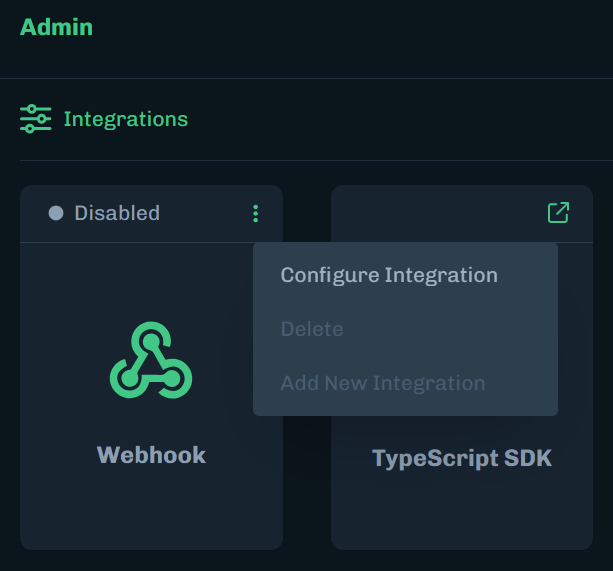
- Select Configure Integration.
-
Enter a unique name for the webhook.
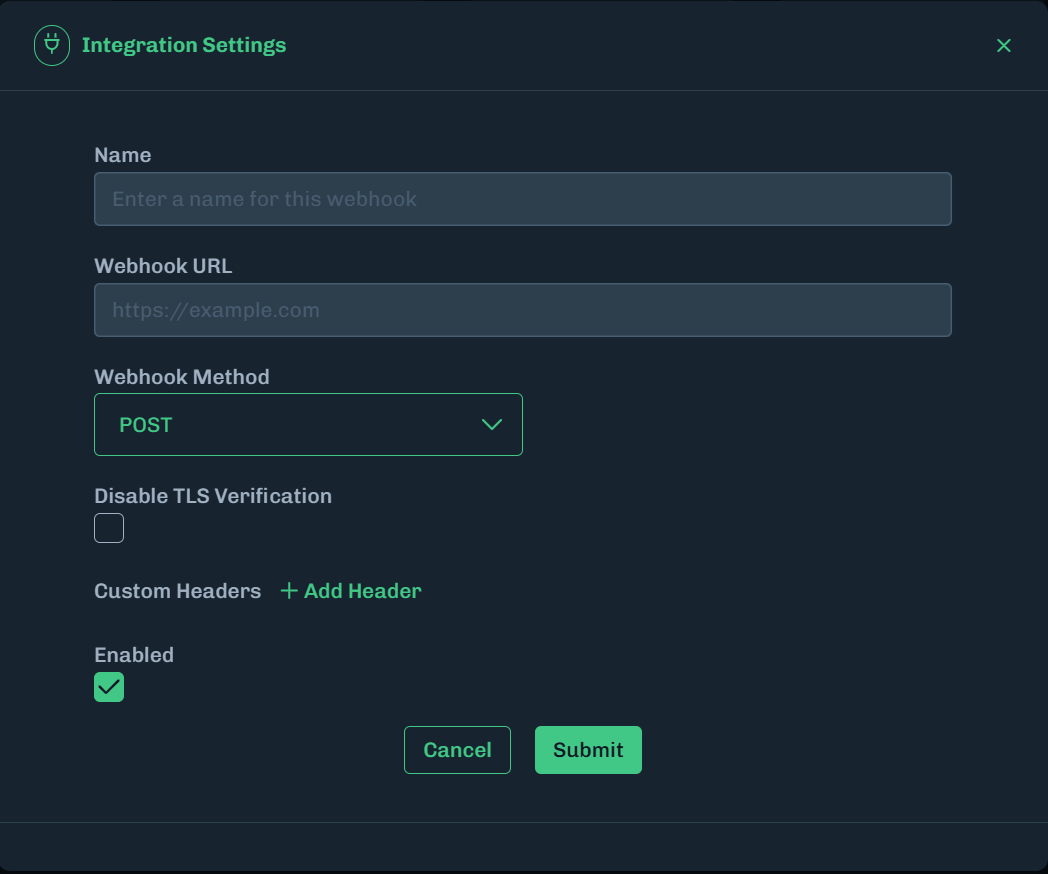
- Enter the webhook URL.
- Select the Webhook Method (POST or PUT).
- To disable TLS verification, select the Disable TLS Verification checkbox.
-
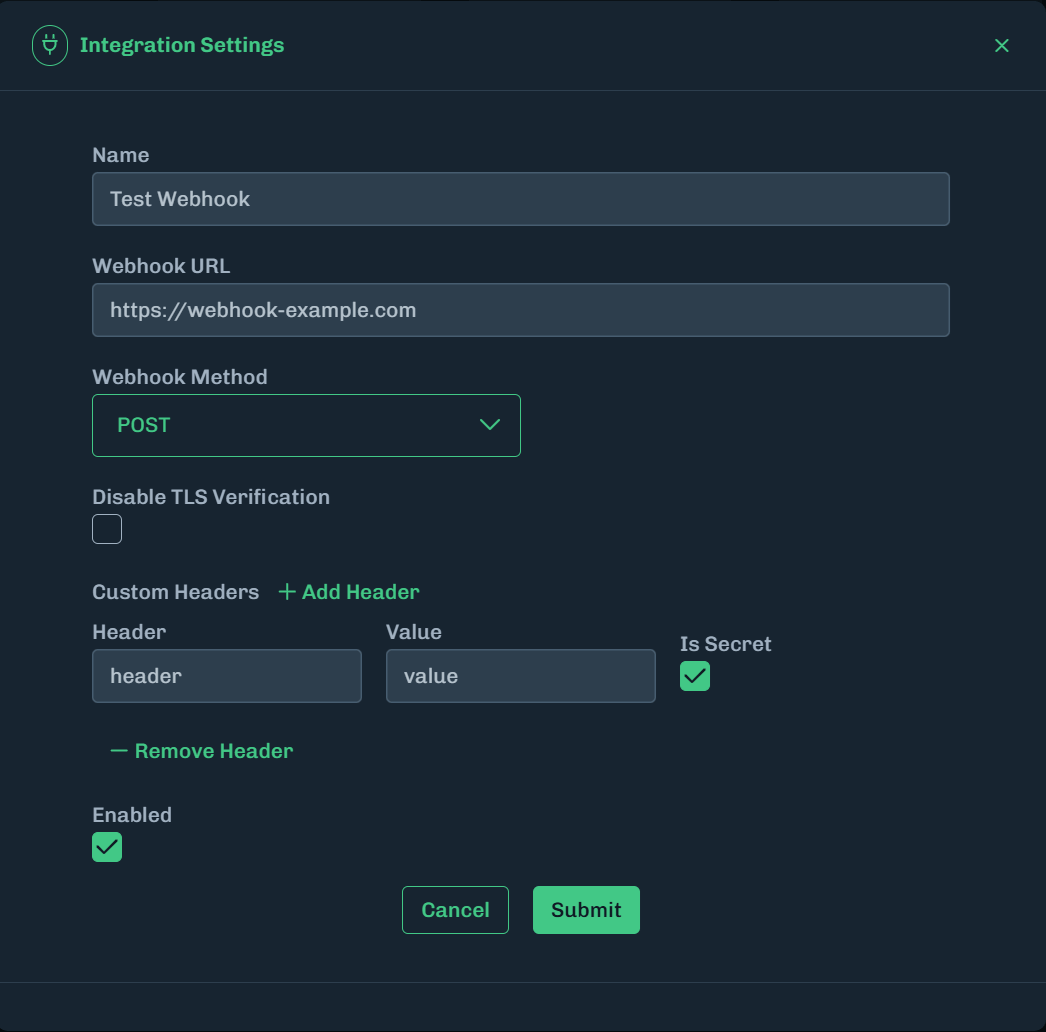
To add a custom header.
- Click + Add Header.
- Enter the header and the value.
- If this header is a secret, select the Is Secret checkbox.
- Custom headers supports Auth headers.
- Under Data Sources, select one or more data sources to deliver to this webhook. See Data Formats for what each one exports.
- Click Submit to save the webhook integration.
Disable Webhook
You can disable a webhook to stop the integration while retaining the webhook configuration for later use.-
In the Console, on the Settings > Integrations page, edit the webhook.
- Click the menu for the webhook (three vertical dots), then select Configure Integration.
-
Deselect the Enabled checkbox.
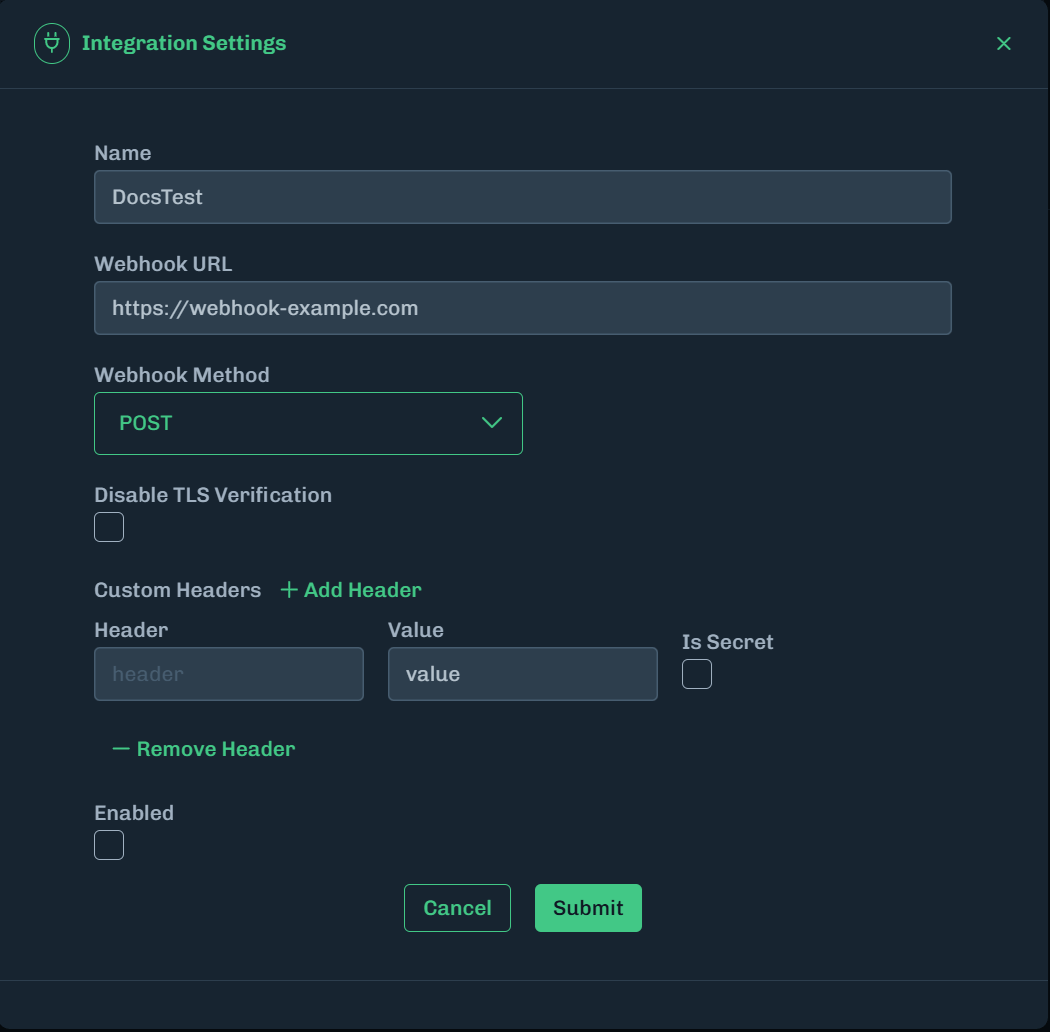
- Click Submit.
Delete Webhook
You can delete a webhook when it is no longer needed.-
In the Console, on the Settings > Integrations page, delete the webhook.
- Click the menu for the webhook (three vertical dots), then select Delete.
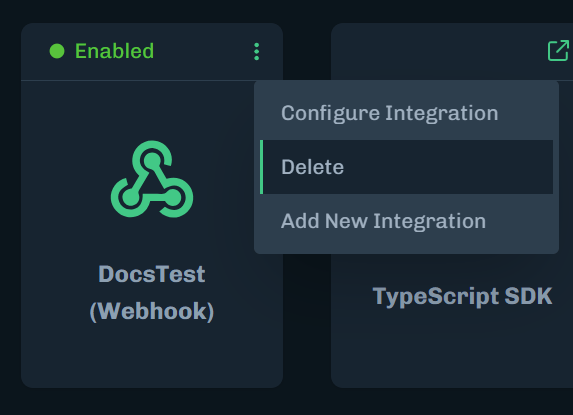
- A message displays, asking you to confirm deleting the webhook.
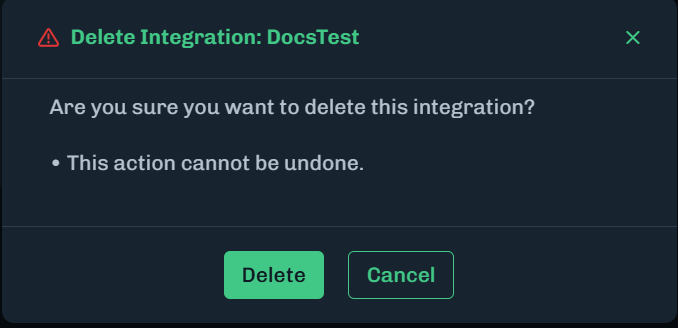
- Click Delete.