There are 3 parts to deploy for the full Airgap AISec Platform experience:
- Airgap AISec Platform Consoles (Admin Console and Platform Console)
- Supply Chain CLI
- AIDR
Download the AISec Platform file and transfer it to the system where it will be deployed.
Run the following command in terminal.
- Replace
<License ID>with your AISec Platform License ID. - For information about licenses, see Prerequisites.
sudo curl -f "https://updates.hiddenlayer.ai/embedded/aisec-platform/stable?airgap=true" -H "Authorization: <License ID>" -o aisec-platform-stable.tgz- Replace
Transfer the file to the system where the AISec Platform will be deployed.
The Admin Console allows you to manage your controller and worker nodes used by the platform. The Admin Console is not the HiddenLayer Console UI (Platform Console).
About the Admin Console (Click to expand)
When the Admin Console is deployed, the following are created:
- Admin Console
- A controller node
Some Admin Console features include:
- Add new nodes
- Edit the platform configuration
- Use the troubleshooting feature to collect logs, resources, and other data to send to HiddenLayer for support
Open a terminal and unpack the installer file.
sudo tar -xvzf aisec-platform-stable.tgzInstall the the Airgap Platform and follow the on-screen instructions.
sudo ./aisec-platform install --license license.yaml --airgap-bundle aisec-platform.airgapSet the Admin Console password. This password will be used to login to the Admin Console in the next step.
Navigate to the outputted URL to login the Admin Console.
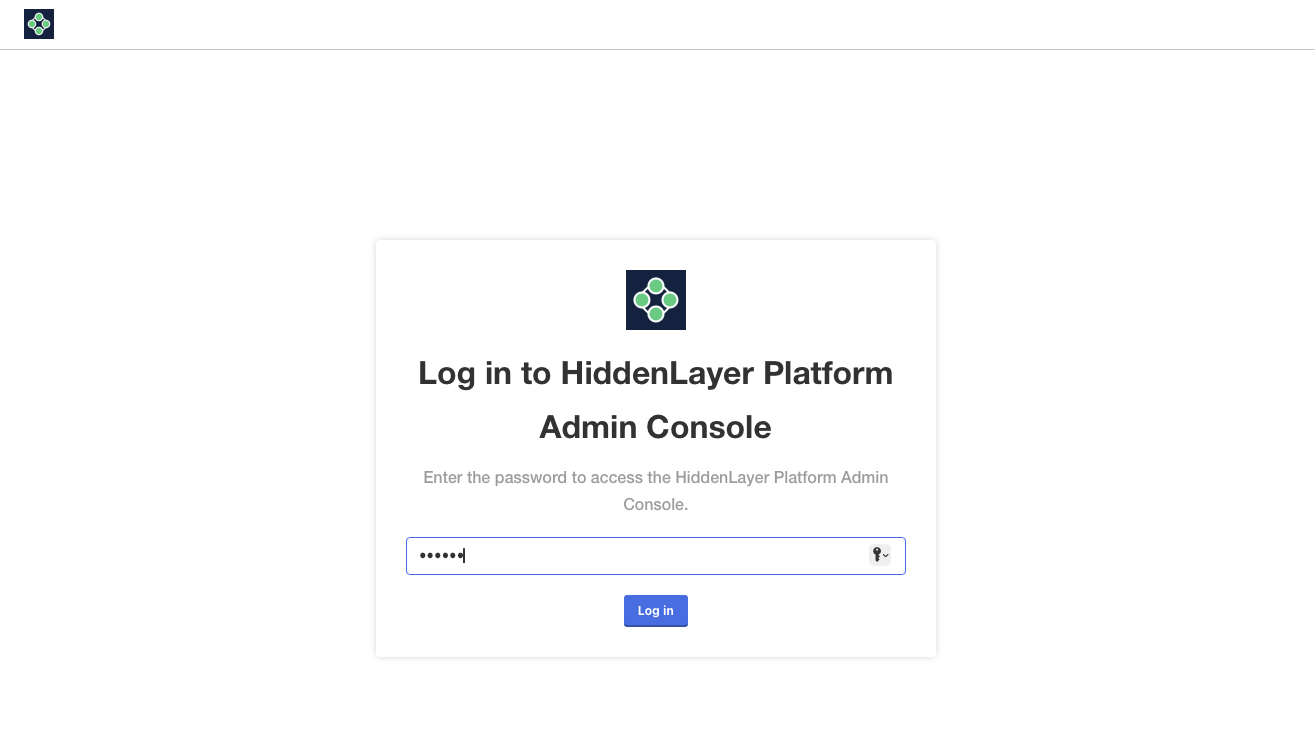
After logging in to the Admin Console, follow the onscreen instructions to complete setup and installation of the HiddenLayer Airgap Platform.
Choose what certificate to use, then click Continue.
- Self-signed: The installer will create a private key and SSL certificate. Can be used for testing.
- Upload your own: You need to upload a private key and an SSL certificate. Recommended for production.
- Hostname (optional)
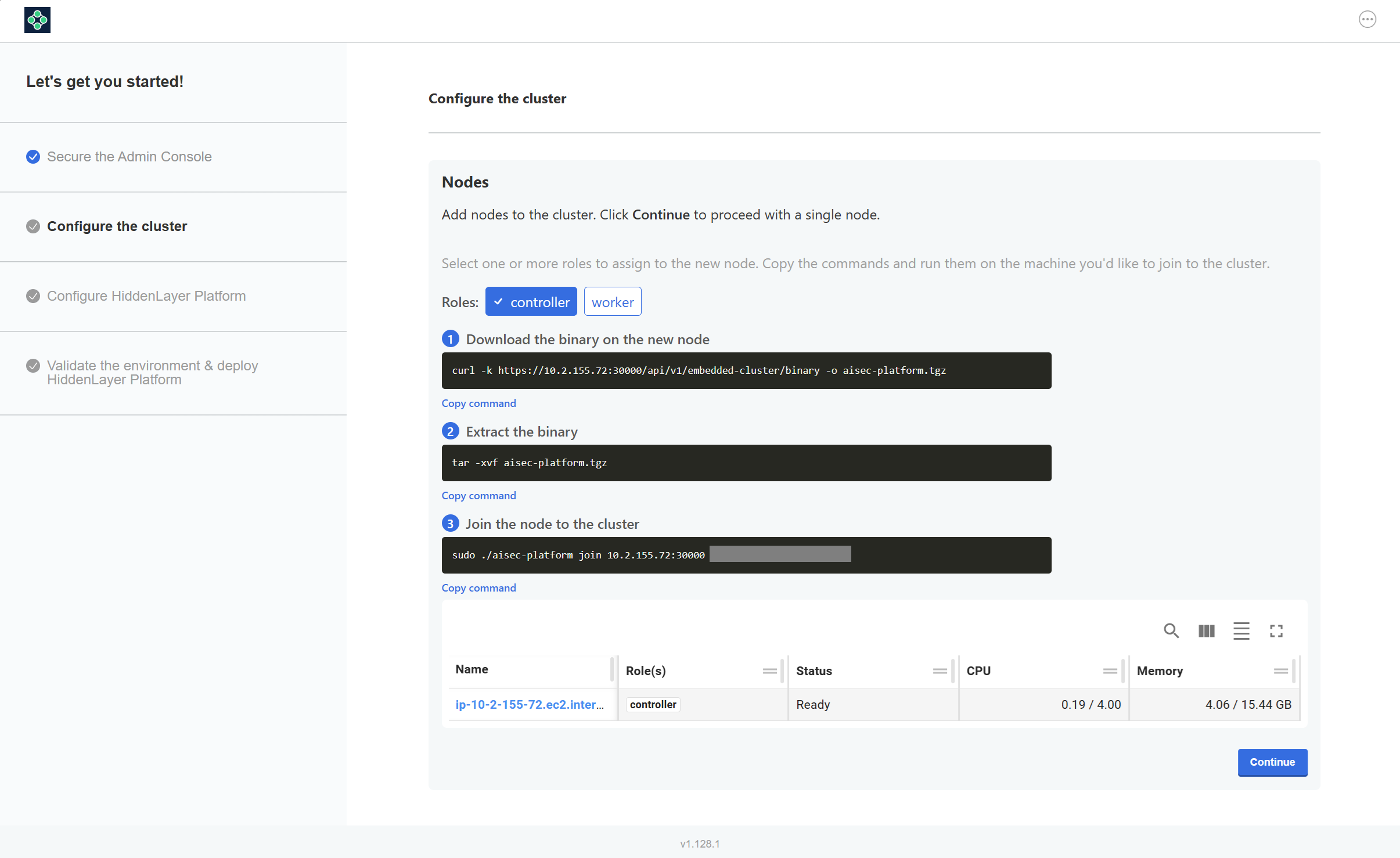
Configure the cluster, then click Continue.
Note: The initial deployment of the Admin Console includes one controller node.
Add more controller and worker nodes to meet your organization's requirements.
- To add a controller, select controller and deselect worker. Use the commands on the systems to run the controller nodes.
- To add a worker node, select worker and deselect controller. Use the commands on the systems to run the worker nodes.
- Do not install a controller and worker on the same system.
Configure HiddenLayer Platform. The following steps describe each configuration field.
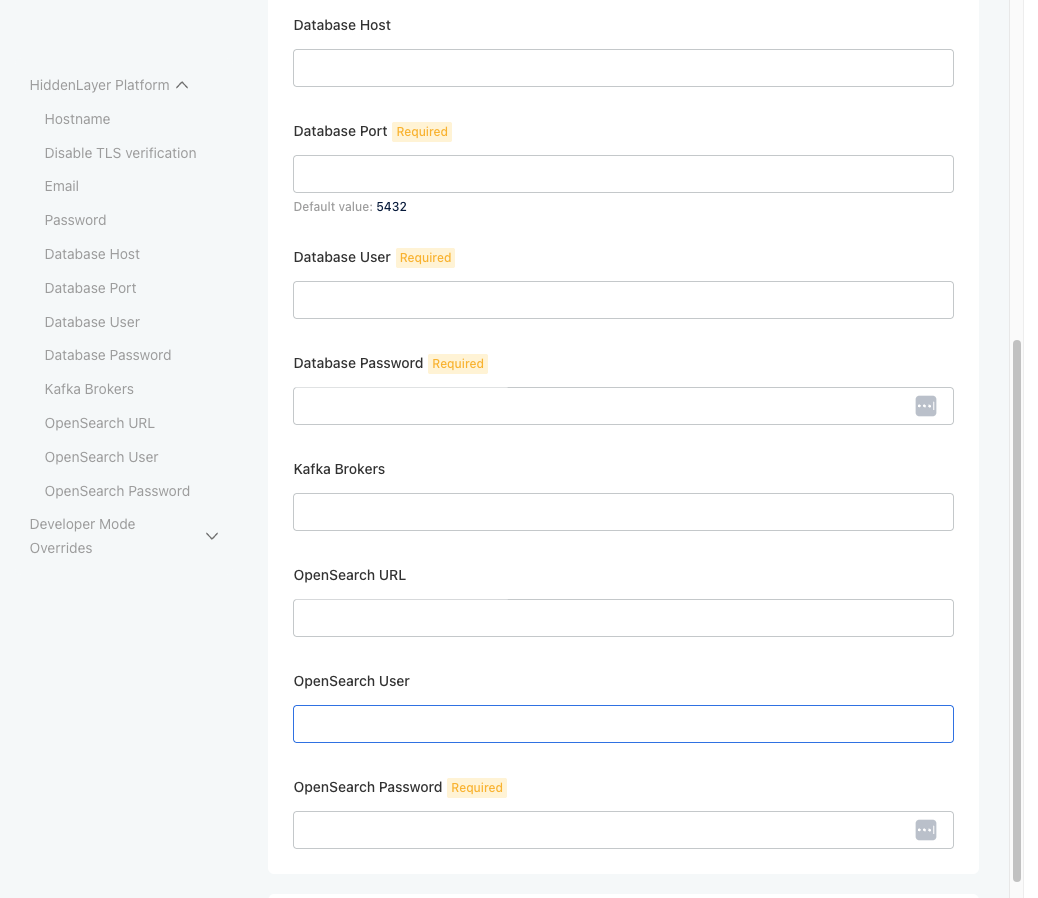 Notes
NotesSome fields appear when a value is entered into the parent field, such as Database Host or OpenSearch URL.
Leaving the fields blank for Database Host, Kafka Brokers, and OpenSearch URL will cause the installer to enter “Sandbox Mode” and use embedded services.
- Sandbox Mode is for testing and POC purposes only, it is not supported for production environments. Sandbox Mode may not have all features available.
Hostname
- This hostname will be used to login to the Platform Console.
Disable TLS verification
- Enable this option if using a self-signed certificate.
- This option should not be enabled if using your own certificate.
Email
- This email will be the user name to login to the Platform Console.
- The initial user created is an Administrator for the Platform Console.
Password
- This password is for the initial user login.
- The password must be a minimum of 8 characters and a maximum of 256.
Database Host
Example:
your.database.hostname.comWhen you enter a hostname, other database fields display. Enter the required information.
Database Port
- Example:
5432
- Example:
Database User
Database Password
Kafka Brokers
- The broker entries can be entered as comma separated values.
- Example:
broker-1.your.kafka.domain.com:9092, broker-2.your.kafka.domain.com:9092,
OpenSearch URL
Example:
https://your.opensearch.hostname.com:443When you enter a URL, other Kafka fields display. Enter the required information.
- OpenSearch User
- OpenSearch Password
Click Continue.
After the initial setup is complete, you will be re-directed to the Admin Console.
- The Airgap AISec Platform will take time to complete installation after the package is deployed.
- The Platform Console will be accessible when the status changes to “Ready” as seen in the Admin Console.

To run Supply Chain CLI and AIDR, you need an API client ID and client secret. These are created in the Platform Console.
Log in to the Platform Console. Enter the email and password you used during the Admin Console Setup, or enter your email and password provided by your Platform Console administrator.
In the side navigation, click Admin.

Click API Keys (upper-right).
Click New. A Create API Key window displays.
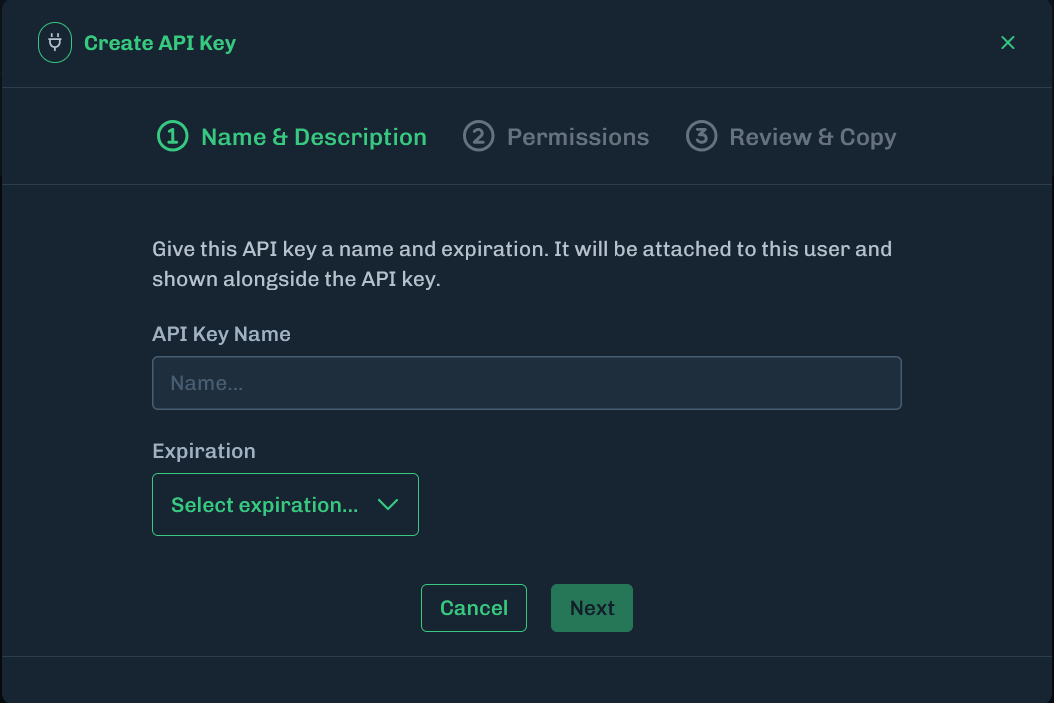
Enter a name for the API key, then select an expiration from the drop-down menu.
Click Next.
Select the permissions for this API key. See API Keys for details about API key permissions.
For Supply Chain CLI, enable the following permissions:
- Model Inventory: Read, Write
- Model Scanner: Write
For AIDR, enable the following permissions:
- Inferences: Read, Write
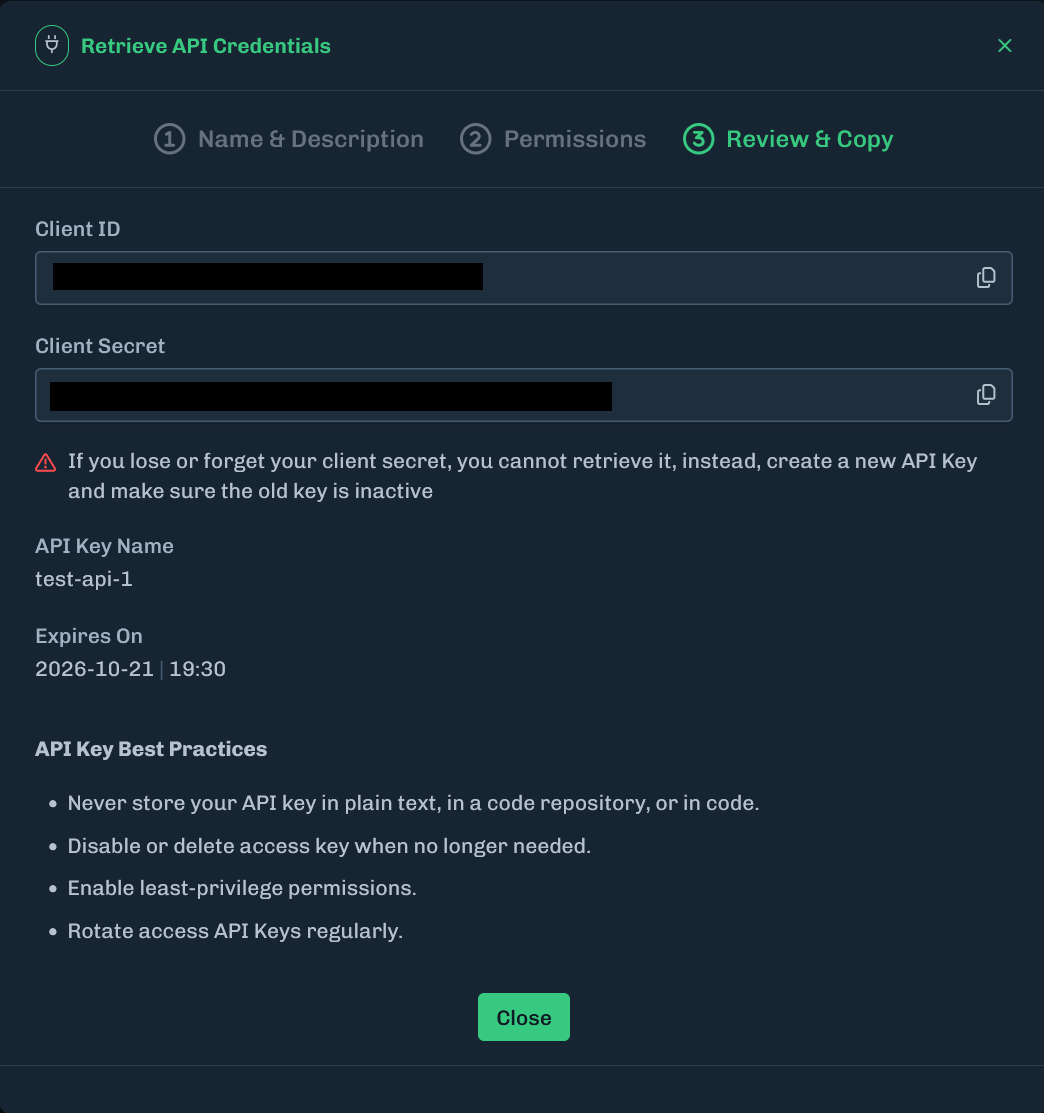
Click Create API Key. Copy the Client ID and Client Secret for future use. The Client Secret is only visible when creating an API key. You cannot retrieve or view the Client Secret after you close this window.
Supply Chain CLI is a container image that can be downloaded and ran via Docker.
For prerequisites, including licenses, see Prerequisites.
Download the Supply Chain CLI file and transfer it to the system where it will be deployed.
When using Docker commands, like docker pull, if you get a permission denied message, try using sudo docker, like sudo docker pull.
Alternatively, add the user to the appropriate Docker group for Docker daemon permissions.
Authenticate using
docker login.- The username is the Registry Username.
- The password is the Model Scanner License ID.
- For information about licenses, see Prerequisites.
docker login images.hiddenlayer.aiPull the HiddenLayer image.
docker pull --platform linux/amd64 images.hiddenlayer.ai/proxy/aisec-platform/ghcr.io/hiddenlayer-engineering/supply-chain-scanner:26.8.0Tag the image for your private registry.
docker tag images.hiddenlayer.ai/proxy/aisec-platform/ghcr.io/hiddenlayer-engineering/supply-chain-scanner:26.8.0 %YOUR-REGISTRY%/hiddenlayer-engineering/supply-chain-scanner:26.8.0Push the airgapped image to your private registry. Note: Make sure you are logged in to your private registry in order to push the image.
docker push %YOUR-REGISTRY%/hiddenlayer-engineering/supply-chain-scanner:26.8.0
- You will run the Supply Chain CLI after you deploy the AISec Platform and create an API key.
- The above may need to be repeated for each updated release of Supply Chain.
Select your deployment type.
- Hybrid: Connecting an airgap Supply Chain to an airgap Console.
- Standalone: Airgap Supply Chain without an airgap Console.
Export your HiddenLayer information (product license, API key, and API secret).
HiddenLayer Information Descriptions (Click to expand)
- Replace
%HIDDENLAYER_LICENSE%with your HiddenLayer License. - Replace
%HL_API_KEY%and%HL_API_SECRET%with your HiddenLayer API client ID and client secret, generated in the Platform Console. - For
HL_MODEL_SCANNER_PLATFORM_RESULTS_URLandHL_MODEL_SCANNER_TOKEN_URL, replace%HIDDENLAYER_PLATFORM_HOSTNAME%with the URL for your Console.- Example:
http://server1.test.hiddenlayer.com.
- Example:
- For Windows, replace
exportwithset. - For information about licenses and keys, see Prerequisites.
export HL_LICENSE=%HIDDENLAYER_LICENSE% export HL_CLIENT_ID=%HL_API_KEY% export HL_CLIENT_SECRET=%HL_API_SECRET% export HL_MODEL_SCANNER_PLATFORM_RESULTS_URL=%HIDDENLAYER_PLATFORM_HOSTNAME% export HL_MODEL_SCANNER_TOKEN_URL=%HIDDENLAYER_PLATFORM_HOSTNAME%- Replace
Run the Supply Chain command.
Supply Chain Command Descriptions (Click to expand)
- Replace
$(directory)with the path on the local machine where models to be scanned are located. Example:/Users/username/Downloads. - To scan a specific file in the folder, update
--input /files-to-scanwith the file name. Example:--input /files-to-scan/test_model.pkl. - Replace
<location of supply chain cli in local registry>with the location of the Supply Chain image. - Example for Docker image:
{% partial file="/_partials/model_scanner/supply_chain_scanner_image_aisec_platform.md" /%} - Replace
$model_namewith either the name of an existing model from the inventory (to add a new scan version to the existing model) or a new, unique name (to create a new model entry in the inventory). Example:Test Scan. - Using
--persistadds the scan results to an existing model in the AISec Platform Console. - In the following example,
jqis used to make the output more readable. Remove| jqif you do not want to use jq.
docker run --rm \ -e HL_LICENSE \ -e HL_CLIENT_ID \ -e HL_CLIENT_SECRET \ -e HL_MODEL_SCANNER_PLATFORM_RESULTS_URL \ -e HL_MODEL_SCANNER_TOKEN_URL \ -v ${directory}:/files-to-scan \ <location of supply chain cli in local registry> --input /files-to-scan --persist --model-name="$model_name" | jq- Replace
- The scan results display in the terminal or command prompt. You can also log in to the Platform Console to view the scan results.
- For more information about Supply Chain CLI command-line arguments, for input and output, see Command-Line Arguments
Supply Chain Sample Output (Click to expand)
The following is an example output for a Supply Chain CLI scan using a terminal or command prompt.
{
  "scan_id": "eadcb851-bf57-4e57-acbe-c3e7fededd44",
  "start_time": "2025-10-24T21:08:51.96Z",
  "end_time": "2025-10-24T21:08:52.222Z",
  "status": "done",
  "version": "25.9.0",
  "$schema_version": "3.3.0",
  "inventory": {
    "requested_scan_location": "/files-to-scan/test_model_safe.pkl",
    "model_id": "00000000-0000-0000-0000-000000000000",
    "model_name": "test scan 01",
    "model_version": "1761340131",
    "model_version_id": "00000000-0000-0000-0000-000000000000"
  },
  "file_results": [
    {
      "file_instance_id": "0854d4a0-3acf-4e15-b3b5-63090bfd218a",
      "file_location": "/files-to-scan/test_model_safe.pkl",
      "status": "done",
      "start_time": "2025-10-24T21:08:51.96Z",
      "end_time": "2025-10-24T21:08:52.222Z",
      "details": {
        "sha256": "bce834158f08706277377c50226e31b74e372770fe26fc5bdb4ff74de9924ffa",
        "file_type": "pickle",
        "file_type_details": {
          "pickle_header": {
            "pickle_version": "3",
            "type": "pickle"
          },
          "pickle_modules": [
            "sklearn.pipeline.pipeline",
            "sklearn.preprocessing._data.standardscaler",
            "callable: numpy.core.multiarray.scalar",
            "callable: numpy.dtype",
            "callable: numpy.core.multiarray._reconstruct",
            "numpy.ndarray",
            "lightgbm.sklearn.lgbmclassifier",
            "lightgbm.basic.booster",
            "callable: collections.defaultdict",
            "collections.ordereddict",
            "sklearn.preprocessing._label.labelencoder"
          ],
          "subtype": [
            "numpy",
            "scikit"
          ]
        },
        "estimated_time": ""
      },
      "seen": "2025-10-24T21:08:51.96Z",
      "detections": []
    }
  ],
  "detection_count": 0,
  "file_count": 1,
  "files_with_detections_count": 0,
  "summary": {
    "detection_count": 0,
    "file_count": 1,
    "severity": "safe",
    "files_with_detections_count": 0,
    "files_failed_to_scan": 0,
    "unknown_files": 0
  }
}When using a self-signed certificate for testing, using the --persist flag results in a failed scan. Scan results never display in the Platform Console.
The container does not trust the internal certificate. To fix this, you must fetch the certificate and mount it into the container.
To fetch the certificate:
echo | openssl s_client -connect <hostname>:443 \
  -servername <hostname> 2>/dev/null \
  | openssl x509 > ~/selfsigned.pem
Add these flags to the Docker run command:
-e SSL_CERT_FILE=/etc/ssl/certs/selfsigned.pem \
-e REQUESTS_CA_BUNDLE=/etc/ssl/certs/selfsigned.pem \
-v ~/selfsigned.pem:/etc/ssl/certs/selfsigned.pemDeployment for AIDR requires downloading and deploying as a container to a Kubernetes cluster.
For prerequisites, including licenses, see Prerequisites.
The following information is required to download and use AIDR:
Run the following command in a terminal to log in to the HiddenLayer registry.
- Replace
<registry username>with the Registry Username. - Replace
<License ID>with the AIDR License ID. This value is used as the registry password. - For information about licenses, see Prerequisites.
helm registry login registry.hiddenlayer.ai --username <registry username> --password <License ID>- Replace
Pull the helm chart. Alternatively, use
helm pull.helm fetch oci://registry.hiddenlayer.ai/aidr-genai/aidr-genai --version 3.3.0Store the downloaded chart on the system where you will deploy AIDR from.
Run the following commands in the terminal to download the AIDR images.
When using Docker commands, like docker pull, if you get a permission denied message, try using sudo docker, like sudo docker pull.
Alternatively, add the user to the appropriate Docker group for Docker daemon permissions.
Run the following command in a terminal to log in to the HiddenLayer image registry.
- The username is the Registry Username.
- The password is the AIDR License ID.
- For information about licenses, see Prerequisites.
docker login images.hiddenlayer.aiRun each of the following commands to pull the images.
docker pull --platform linux/amd64 images.hiddenlayer.ai/proxy/aidr-genai/ghcr.io/hiddenlayer-engineering/distro-enterprise-aidr-genai:26.6.0docker pull --platform linux/amd64 images.hiddenlayer.ai/proxy/aidr-genai/ghcr.io/hiddenlayer-engineering/replicated-sdk-image:v1.14.0 docker pull --platform linux/amd64 images.hiddenlayer.ai/proxy/aidr-genai/ghcr.io/hiddenlayer-engineering/replicated-license-enforcer:0.6.0Tag the images to a private registry. Replace
%YOUR-REGISTRY%with your private registry information.docker tag images.hiddenlayer.ai/proxy/aidr-genai/ghcr.io/hiddenlayer-engineering/distro-enterprise-aidr-genai:26.6.0 %YOUR-REGISTRY%/distro-enterprise-aidr-genai:26.6.0docker tag images.hiddenlayer.ai/proxy/aidr-genai/ghcr.io/hiddenlayer-engineering/replicated-sdk-image:v1.14.0 %YOUR-REGISTRY%/replicated-sdk-image:v1.14.0 docker tag images.hiddenlayer.ai/proxy/aidr-genai/ghcr.io/hiddenlayer-engineering/replicated-license-enforcer:0.6.0 %YOUR-REGISTRY%/replicated-license-enforcer:0.6.0Push the images to a private registry. Replace
%YOUR-REGISTRY%with your private registry information. Note: Make sure you are logged in to your private registry before pushing the images.docker push %YOUR-REGISTRY%/distro-enterprise-aidr-genai:26.6.0docker push %YOUR-REGISTRY%/replicated-sdk-image:v1.14.0 docker push %YOUR-REGISTRY%/replicated-license-enforcer:0.6.0
To deploy AIDR, a config.yaml file must be generated with the appropriate settings.
The following is needed for the config.yaml file:
HiddenLayer Platform Hostname
- This is the hostname you will use for the Airgap AISec Platform.
Client ID and Client Secret
- These can be generated under in the Platform Console, go to Admin > API Keys.
Provider information and credentials
- Providers include OpenAI, OpenAI Azure, Gemini, Anthropic, and AWS.
In the
config.yamlfile, setimageRegistryto point to the registry storing the downloaded files.
A Client ID and Secret are only required when connecting AIDR to the Airgapped Platform.
Set “type” in the config.yaml to “disabled” to install AIDR without connecting to the Airgapped Platform.
- Set “type” to “hybrid” to install AIDR and connect to the Airgapped Platform.
If AIDR has already been installed, change the “type” value in the config.yaml and run a helm upgrade command.
Example config.yaml File (Click to expand)
global:
  ## imageRegistry is the FULL registry path — host + project/namespace — i.e. the same value you
  ## mirrored the images to in the docker tag / docker push steps (%YOUR-REGISTRY%).
  ## e.g. harbor.example.com/aidr-genai
  imageRegistry: <registry host>/<project>
  imagePullSecrets:
    - name: <name of existing image pull secret>

aidr_genai:
  ## If the HiddenLayer Platform is configured to use your own / private CA certificate,
  ## uncomment env.SSL_CERT_FILE and config.ca_bundle.crt below so AIDR trusts that CA and
  ## can communicate with the Platform over TLS.
  # env:
  #   SSL_CERT_FILE: $(CONFIG_PATH)/ca_bundle.crt   # makes the proxy trust the CA in ca_bundle.crt below
  config:
    # ca_bundle.crt: |                              # uncomment and paste your platform CA certificate (PEM)
    #   -----BEGIN CERTIFICATE-----
    #   <your platform CA certificate PEM>
    #   -----END CERTIFICATE-----
    settings.yaml: |
      ## Replace '<HiddenLayer Platform Hostname>' in the base-url fields with desired url.
      ## This url should be the hostname defined for your airgapped Platform Console.
      platform:
        api-connection:
          base-url: "https://<HiddenLayer Platform Hostname>"
          max-retry-count: 3
          ## Set type: disabled to install AIDR without a connection to the Platform.
          ## If AIDR is deployed and you want to change the type, update this yaml file, then run a helm upgrade command.
          type: "hybrid"
        auth-n:
          base-url: "https://<HiddenLayer Platform Hostname>/oauth2/token"
          # client-id and client-secret are obtained from the Hiddenlayer Platform Console > Admin > API Keys
          client-id:
          client-secret:
        license: "<hiddenlayer_license>"

      aidr-genai:
        proxy:
          log-level: "info"

          request:
            default-requester: "unknown"
            max-size-in-bytes: 1000000

          response:
            max-size-in-bytes: 1000000

          device:
            type: "cpu"  # cuda
            datatype: "fp32"

          security-degradation:
            enable-unsecured-stream-requests: true
            enable-unsecured-reverse-proxy-routes: false
            enable-rule-override-request-headers: false
            enable-remote-configuration: false

          secrets-manager:
            - source:  # aws | azure
              url:
              secrets:
                ## a mapping of AIDR-G setting names to secret names in the manager, e.g.:
                # HL_LICENSE: "arn:aws:secretsmanager:us-east-1:545009838560:secret:HL_LICENSE-ogIwCH"

          provider:
            timeout-in-seconds: 600

            openai:
              default-model:
              base-url:  # "https://api.openai.com"
              api-key:

            openai-azure:
              base-url:
                scheme:  # "https"
                host:  # ".openai.azure.com"
              api-key:

            openai-tgi-variants:
              #- provider-name:
              #  endpoint-name:
              #  base-url:
              #  api-key:

            openai-custom-routes:
              #- provider-name:
              #  route-prefix:
              #  base-url:
              #  enrich-response:
              #  api-key:

            azure:
              base-url:  # "https://"
              region:  # "eastus"
              tenant-id:
              client-id:
              client-secret:

            gemini:
              base-url:  # "https://generativelanguage.googleapis.com"
              api-key:

            anthropic:
              base-url:  # "https://api.anthropic.com"
              version:  # "2023-06-01"
              api-key:

            aws:
              region:  # "us-east-1"
              enable-instance-profile-credentials: false
              credential-provider: "instance"  # container

              sagemaker:
                base-url:  # "https://runtime.sagemaker.{region}.amazonaws.com"

              bedrock:
                base-url:  # "https://bedrock-runtime.{region}.amazonaws.com"

              credentials:
                #- name:
                #  access-key-id:
                #  secret-access-key:
                #  session-token:
                #  region:
                #  sagemaker-base-url:
                #  bedrock-base-url:

        detector:
          engine:
            chat-context-window: "last"  # full
            log-chat-context: true

            on-block:
              message: "Message was blocked."
              include-reason: true

            modalities:
              - type: "image"
                severity: "medium"
                on-alert:
                  proxy-action: "allow"  # block
              - type: "tool-use"
                severity: "medium"
                on-alert:
                  proxy-action: "allow"  # block

          prompt-injection:
            enabled: true
            severity: "high"
            scan-type: "full"
            batching:
              max-count: 10
            on-alert:
              proxy-action: "allow"  # block
            overrides:
              #- name:
              #  action: "suppress-alert"  # generate-alert
              #  match:
              #    value:
              #    type: "substring"

          personally-identifiable-information:
            enabled: true
            severity: "medium"
            entity-exclusions:
            on-alert:
              proxy-action: "allow"  # block, redact
              redaction-type: "replace-with-entity"  # replace-with-redacted
            overrides:
              #- name:
              #  action: "suppress-alert"  # generate-alert
              #  match:
              #    value:
              #    type: "regex"
            scope:
              input:
                # enabled:
                # entity-exclusions:
                # on-alert:
                #   proxy-action:
                #   redaction-type:
              output:
                # enabled:
                # entity-exclusions:
                # on-alert:
                #   proxy-action:
                #   redaction-type:

          code:
            enabled: true
            on-alert:
              proxy-action: "allow"  # block
            timeout:
              in-seconds: 0
              is-detection: true
            scope:
              input:
                # enabled:
                # on-alert:
                #   proxy-action:
              output:
                # enabled:
                # on-alert:
                #   proxy-action:

          url:
            enabled: true
            scope:
              input:
                # enabled:
              output:
                # enabled:

          denial-of-service:
            enabled: true
            severity: "high"
            token-threshold:
            on-alert:
              proxy-action: "allow"  # block

          guardrail:
            enabled: true
            severity: "low"
            classifier:
              refusal:
                enabled: true
            on-alert:
              proxy-action: "allow"  # block

          language:
            enabled: false
            severity: "medium"
            allowed-languages:
              # - EN
              # - ES
            on-alert:
              proxy-action: "allow"  # block
Create a config.yaml file to customize installation
- See above for an example config.yaml file.
Run the following command to deploy AIDR.
helm install aidr-genai [locationofdownloadedhelmchart] -f config.yaml -n aidr-genai --create-namespace
There is a known issue for where provider credentials for AWS are not utilized when using the config.yaml file.
Environment variables cannot be used with the installer to set AWS credentials.
Work around: Add an Authorization header in the request to the LLM Proxy.
#Example
Authorization: Credential=AWSAccessKeyId
#Example curl -XPOST http://localhost:8000/api/v1/proxy/bedrock/model/meta.llama2-13b-chat-v1 \ -H "Content-Type: application/json" \ -H "Authorization: Credential=AWSAccessKeyId" \ -d '{ "prompt": "Hello, how are you?", "max_tokens_to_sample": 300 }'