

Prerequisites
The following are required for deploying the Agent Harness Security plug-in. Have this information available before deployment.-
HiddenLayer API key and secret. See Create API Key.
- API key permissions required: Interactions:
read,write; Policies:read; Projects:read. - See AI Runtime Security, under API Permission Related to Products or Features table.
- API key permissions required: Interactions:
-
Create a HiddenLayer Project ID. See Create a Project.
-
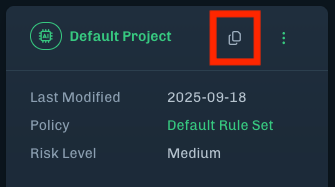
After a project is created, you can copy the ID by clicking the copy button.
-
After a project is created, you can copy the ID by clicking the copy button.
Deploy the Plug-in
- Obtain the plug-in from HiddenLayer. Contact your HiddenLayer sales representative or support.
-
Deploy the plug-in to your endpoints.
-
For example:
- Deploy using an MDM application, like Jamf or Microsoft Intune.
- Manually copy the plug-in file to the endpoint.
-
For example:
Configure and Hook the Plug-in
Configuring the plug-in connects it to your tenant in the HiddenLayer Console. Hooking the plug-in secures your AI coding agents. You can unhook the plug-in when needed.-
Set the Client ID. This is the HiddenLayer API key. Replace
my-client-idwith the API key. -
Set the Client Secret. This is the API secret. Replace
my-client-secretwith the API secret. The secret is routed to the OS secret store. The value is not echoed. -
Set the Platform URL. This is the region for the Console that you log in to. Note: The following example is for the EU region. The US region is the default region.
-
Optionally, set the Project ID if you are using a project other than the default. Replace
my-project-idwith the project ID you want to use. -
Check the status of the plug-in to verify the current configuration.
-
Verify the configuration authentication.
-
Install the hooks for all supported harnesses.
System-Level InstallationFor system-level installation, run with
sudo. This is supported for Copilot and Cursor.Unhook the Coding Agents
-
To remove the hook configurations, run the following command.
Validation
After setup, send a test command. Traffic should appear in the console filterable byrequester / project ID, showing ping, tool use, write interactions, and all agent activity.