

Web Browser Support
The HiddenLayer Console supports using the Google Chrome web browser. While other web browsers may be compatible, HiddenLayer has not tested against any other web browsers at this time.How do I log in?
- Click one of the following tenant links, based on your region. This takes you to the login page.
-
HiddenLayer supports multiple ways to log in to the Console.
- Federated login with Google and Microsoft accounts.
- Single sign-on. See Single sign-on for more information.
- Username and password.
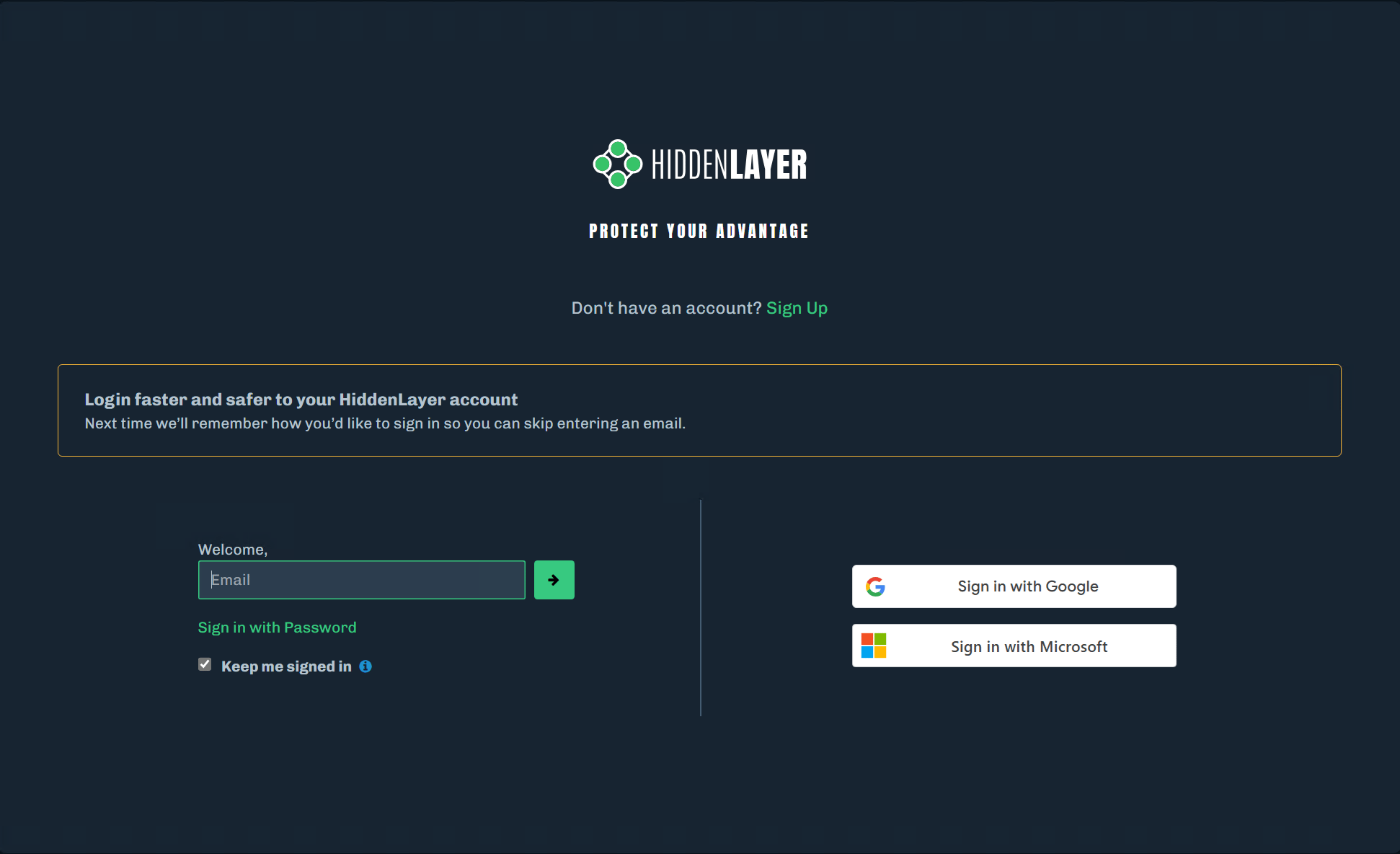
-
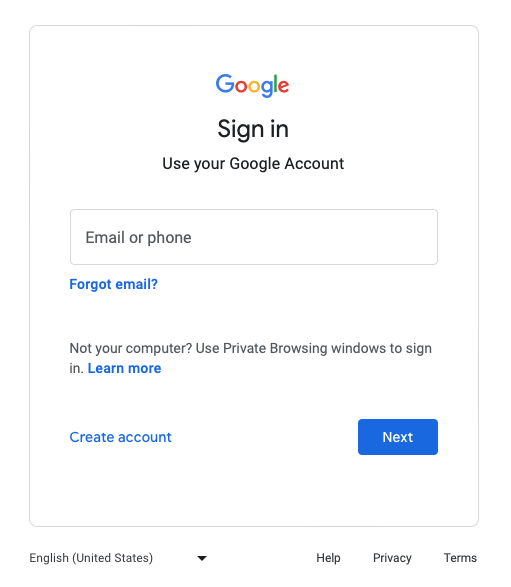
For Google logins, you are redirected to your account and then automatically brought back to the Console.
- If you are already signed into your Google account in Chrome, there is no redirect.
-
For Microsoft, you will follow the prompts provided.
How do I get an Account?
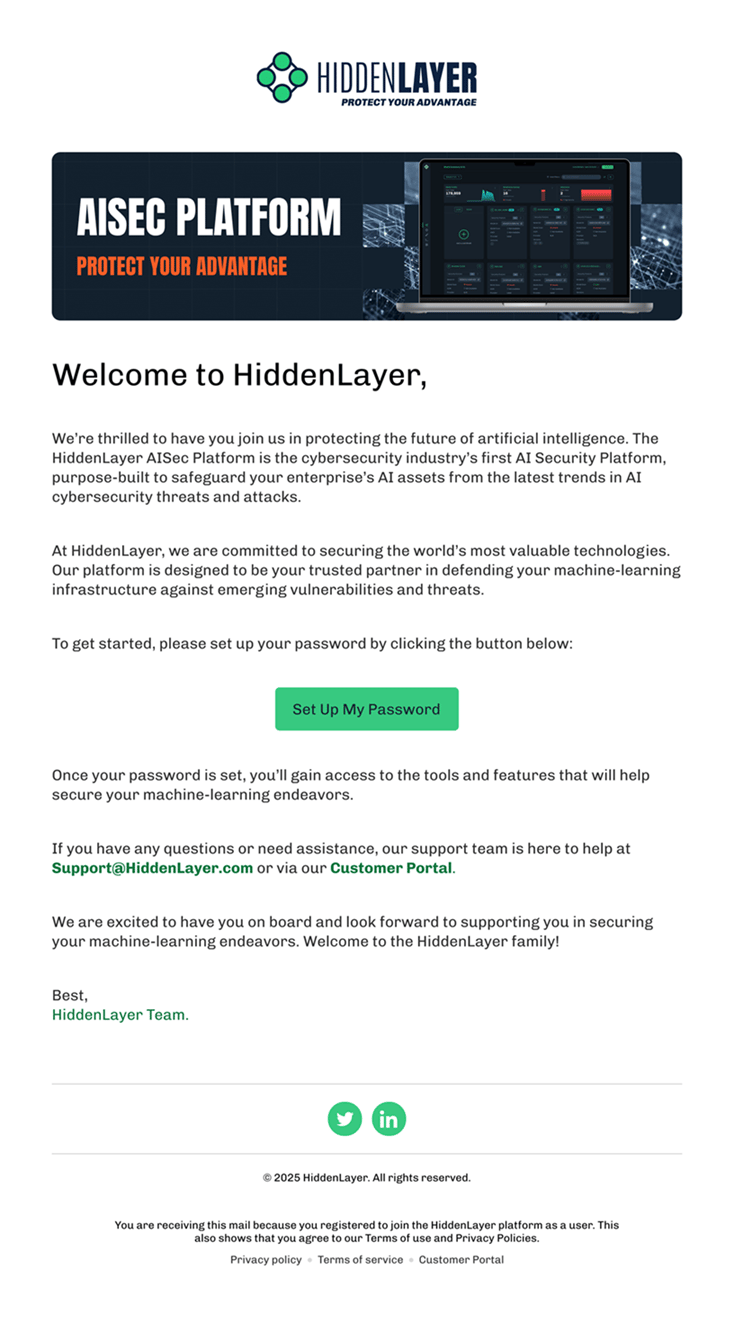
An existing Console administrator, with the correct permissions, must create an account for you using your work email address, unless single sign-on (SSO) is configured. See Single sign-on for more information. Once your account is created, you will receive an email with a link to set up your password.- Open your Welcome to HiddenLayer email.
-
Click the Set Up My Password link.
-
Create and confirm your unique password.
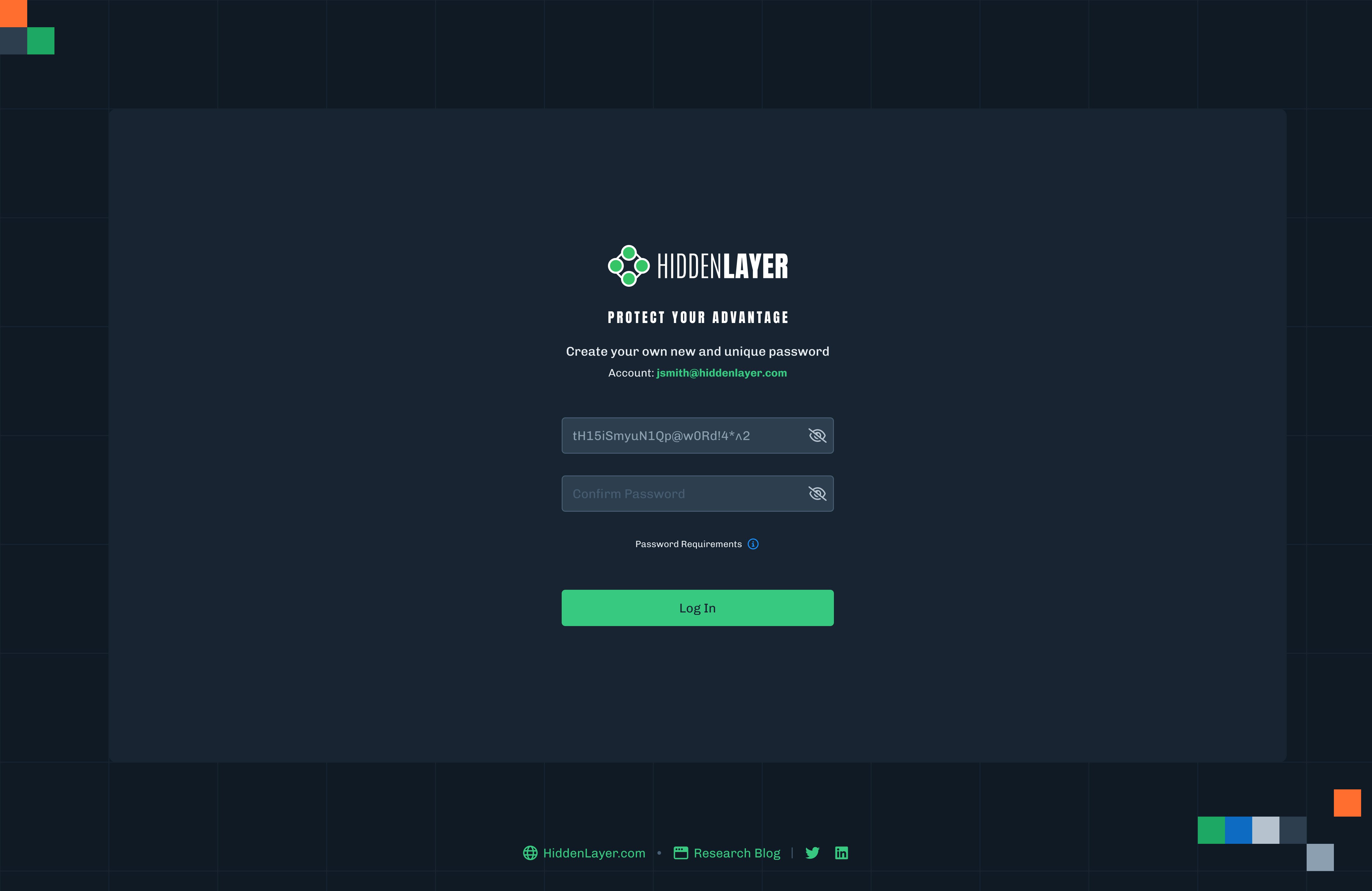
- Log in to the Console.
Forgot Password
If you forgot your password and need to reset it, you can do it using the Console login page.- Go to the Console login page.
-
Click Forgot your password?
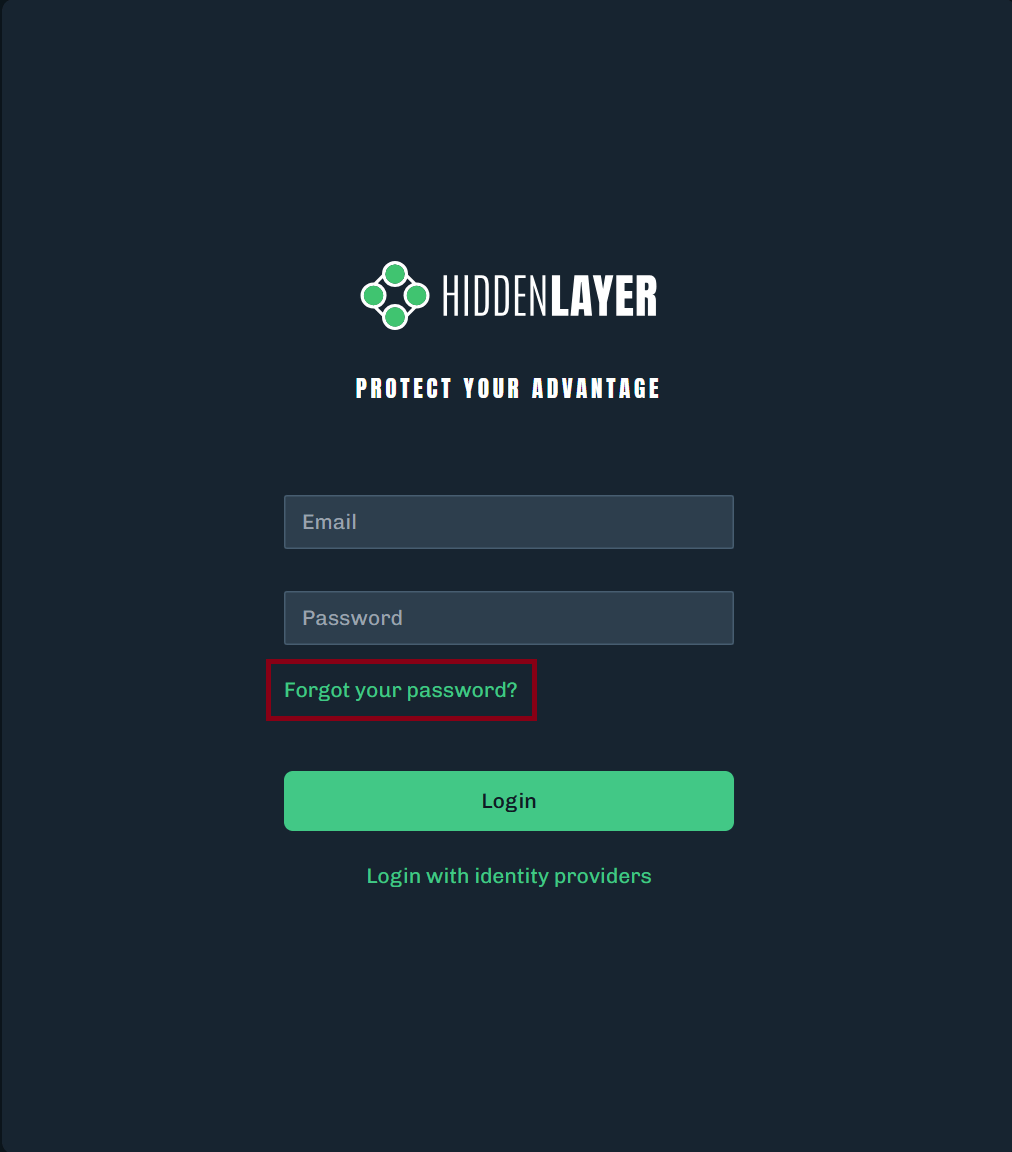
-
Enter your email address, then click the green arrow.
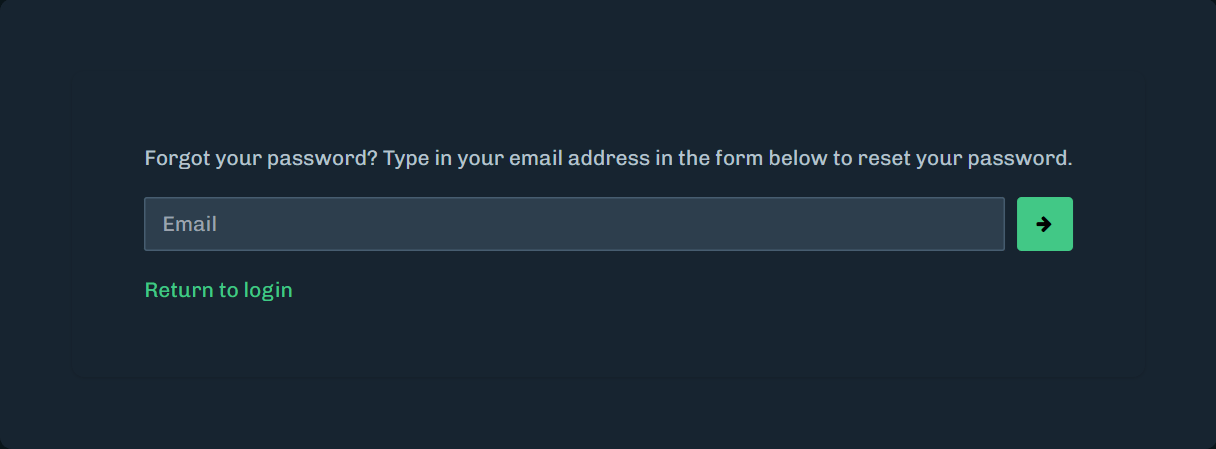
- You will receive an email from HiddenLayer with password reset instructions. Open the email and click the reset password link. Follow the instructions for resetting your password.
Single Sign-On
If single sign-on (SSO) is configured for the Console log in, you can enter your email and go through your organization’s SSO process. For administrators who want to configure single sign-on, contact HiddenLayer Support. This SSO implementation supports just-in-time provisioning (JIT). HiddenLayer does not support SCIM. For what JIT covers, and what happens when a user is removed from your identity provider, see Identity lifecycle and provisioning.- In the Welcome field, enter your email address.
- Optionally, select the Keep me signed in checkbox to stay signed in.
-
Click the login button.
SSO LoginAfter entering your email address and clicking the login button, if you are prompted by HiddenLayer instead of your identity provider (IdP), then ask your administrator to make sure that your account is properly configured. Okta is an example of an IdP.