

MFA is enforced by the configured identity provider (IdP) and is not managed separately by HiddenLayer.
SSO Setup
Administrators can configure the Console login with their single sign-on Identity Provider (IdP).-
In the Console, go to Settings > SSO. The Service Providers Details tab displays the data needed to establish a trusted connection between your IdP and HiddenLayer.
Expand: Service Providers Details tab descriptions
- Assertion Consumer Service (ACS) Callback URL: Endpoint on a service provider (SP) that receives and parses a SAML assertion made by the identity provider (IdP).
- Secondary Assertion Consumer Service (ACS) Callback URL: If you do not enable request signature validation in your IdP configuration, this URL is necessary to add as an allowable alternative ACS URL.
- Issuer: Unique string that identifies the provider issuing a SAML request.
- Metadata URL: Provides SAML metadata information, which can be used to configure the application in the IdP as an SP.
- Single Logout (SLO) URL: Single Logout (SLO) is a feature in federated authentication that allows end users to automatically sign out of their IdP session when they end their HiddenLayer session.
- Request Signing Certificate: The certificate used to sign SAML requests sent by the SP. If you choose to validate the request signature you will need to upload these contents into your SP.
-
After entering the HiddenLayer Service Provider Details into your IdP’s integration configuration, take the details provided by your IdP and enter it into the Configure SAML SSO tab.
Expand: Configure SAML SSO tab descriptions
- IdP SSO URL: The address that an IdP supplies to redirect users for authentication.
- Issuer: Entity that manages, creates, and maintains identity information for principals. It also provides authentication services to relying parties.
- Managed Domains: Domains that are managed by the IdP. Note: This value is not required when you have a multi-tenant setup and your logins are IdP-initiated SSO.
- Provider Public Certificate: Used to verify the authenticity of requests and messages.
- Enable the Is IdP Initiation Enabled checkbox to allow your IdP to initiate the SAML v2 flow.
- Click Save.
Example IdP Setups
This guide provides the following as examples:Microsoft Entra
Prerequisites
Before creating an app integration in Microsoft Entra, you need the following information from the HiddenLayer Console. In the Console, go to Settings > SSO.- Identifier (Entity ID) - This could be called the Issuer.
- Reply URL - This could be called the ACS or Callback URL.
- SP-initiated Callback URL
Create Enterprise Application
Create an Enterprise Application in Azure.- In the Azure console, search for and select Enterprise Applications.
- Click New application.
- Click Create your own application.
-
Enter a name for the application. Example: HiddenLayer.
- Make sure Integrate any other application you don’t find in the gallery (Non-gallery) is selected.
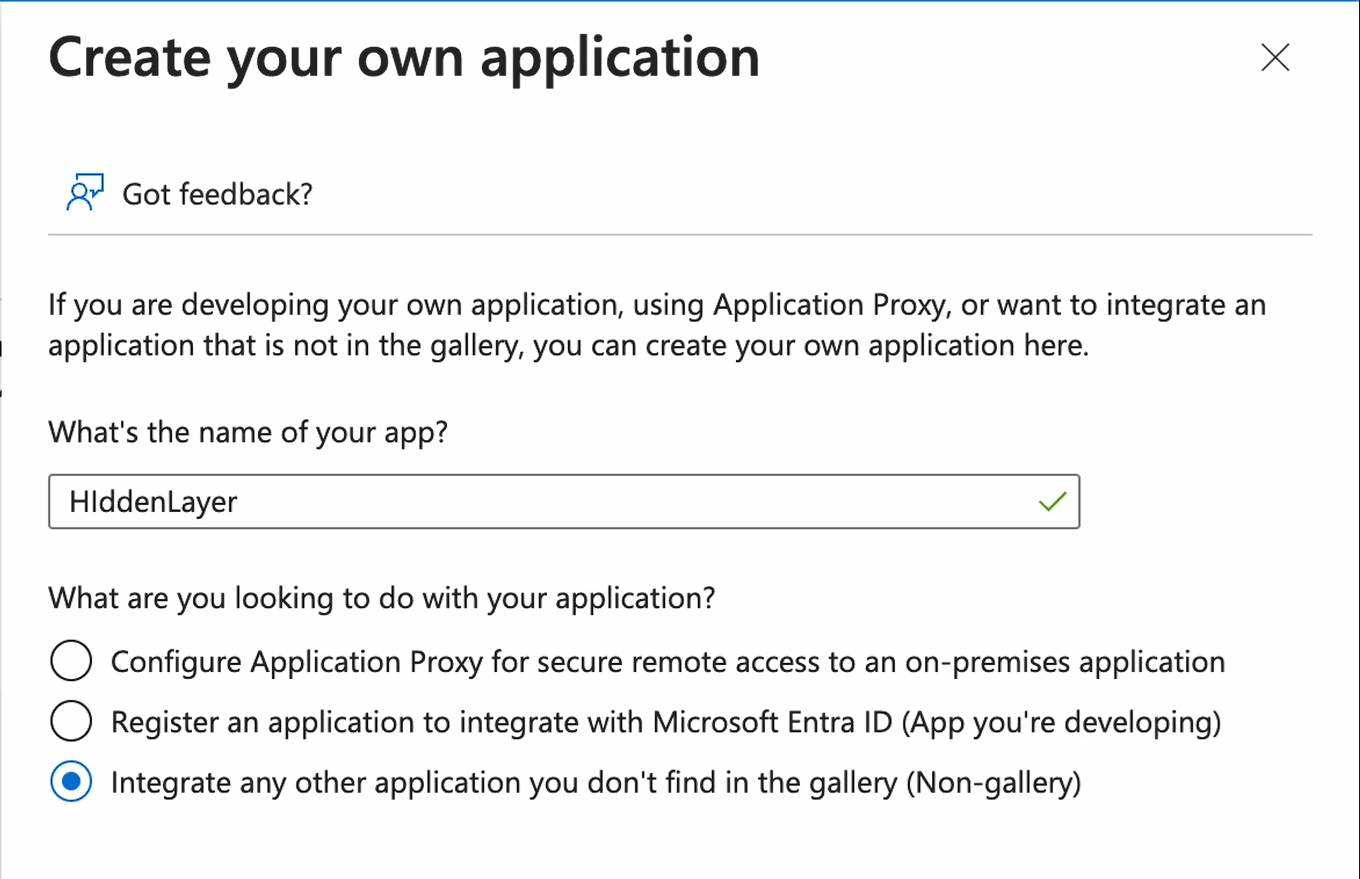
- Click Create. It may take a few moments to create the application. When the application is created, the Overview page displays.
- Expand Manage, then select Single sign-on.
- Click SAML.
- For Basic SAML Configuration, click the Edit button.
-
Under Identifier (Entity ID), click Add identifier.
- Copy and paste the Issuer from HiddenLayer Console (see SSO Setup above).
-
Under Reply URL (Assertion Consumer Service URL), click Add reply URL.
- Copy and paste the Assertion Consumer Service (ACS) Callback URL from HiddenLayer into the field.
- Make sure Default is selected. When Entra initiates a sign-on, this is the URL to use.
- Under Reply URL, click Add reply URL to add a second URL.
- Copy and paste the Secondary Assertion Consumer Service (ACS) Callback URL you received from HiddenLayer into the field.
- Click Save.
-
Optional: Configure Sign-on URL (only required for SP-initiated SSO).
Note: Skip this step if you only plan to use IDP-initiated SSO. SP-initiated flows will fail without a populated Sign-on URL.
-
For the Sign on URL, enter the SP-initiated Callback URL for your region.
- US region: https://console.us.hiddenlayer.ai/
- EU region: https://console.eu.hiddenlayer.ai/
- Click Save.
-
For the Sign on URL, enter the SP-initiated Callback URL for your region.
-
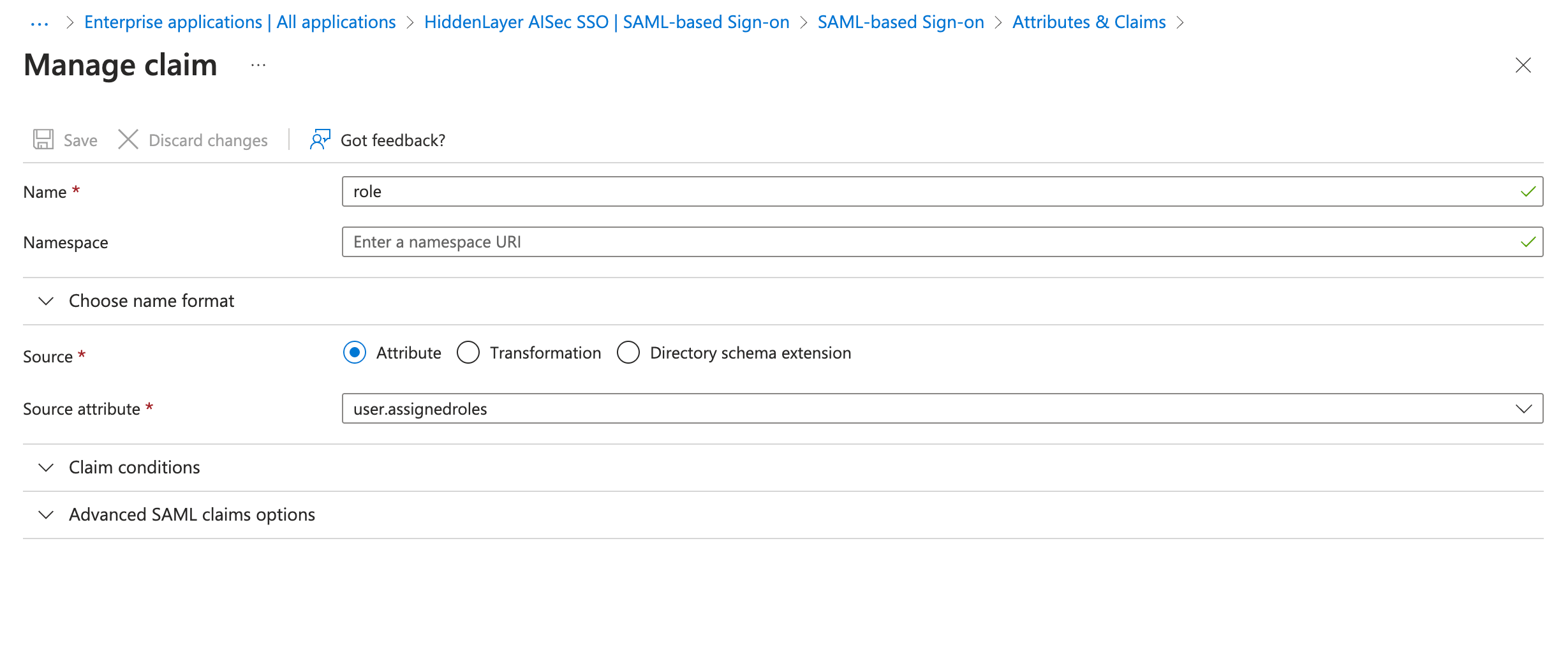
For user-based role assignments, edit the Attributes & Claims. Make sure you are on the Manage > Single sign-on page for the application.
- For Attributes & Claims, click the Edit button.
- Click Add new claim.
- For Name, enter
role. - For Source attribute, select
user.assignedroles. - Leave the namespace blank.
- Click Save.
-
After the Enterprise Application is created, be sure to assign users or groups to the application.
- Go to Microsoft Entra ID.
- Under Manage, select App registrations.
- Select your HiddenLayer application. You might need to click the All applications tab.
- In your HiddenLayer application, select Manage > App roles.
- Click Create app role.
-
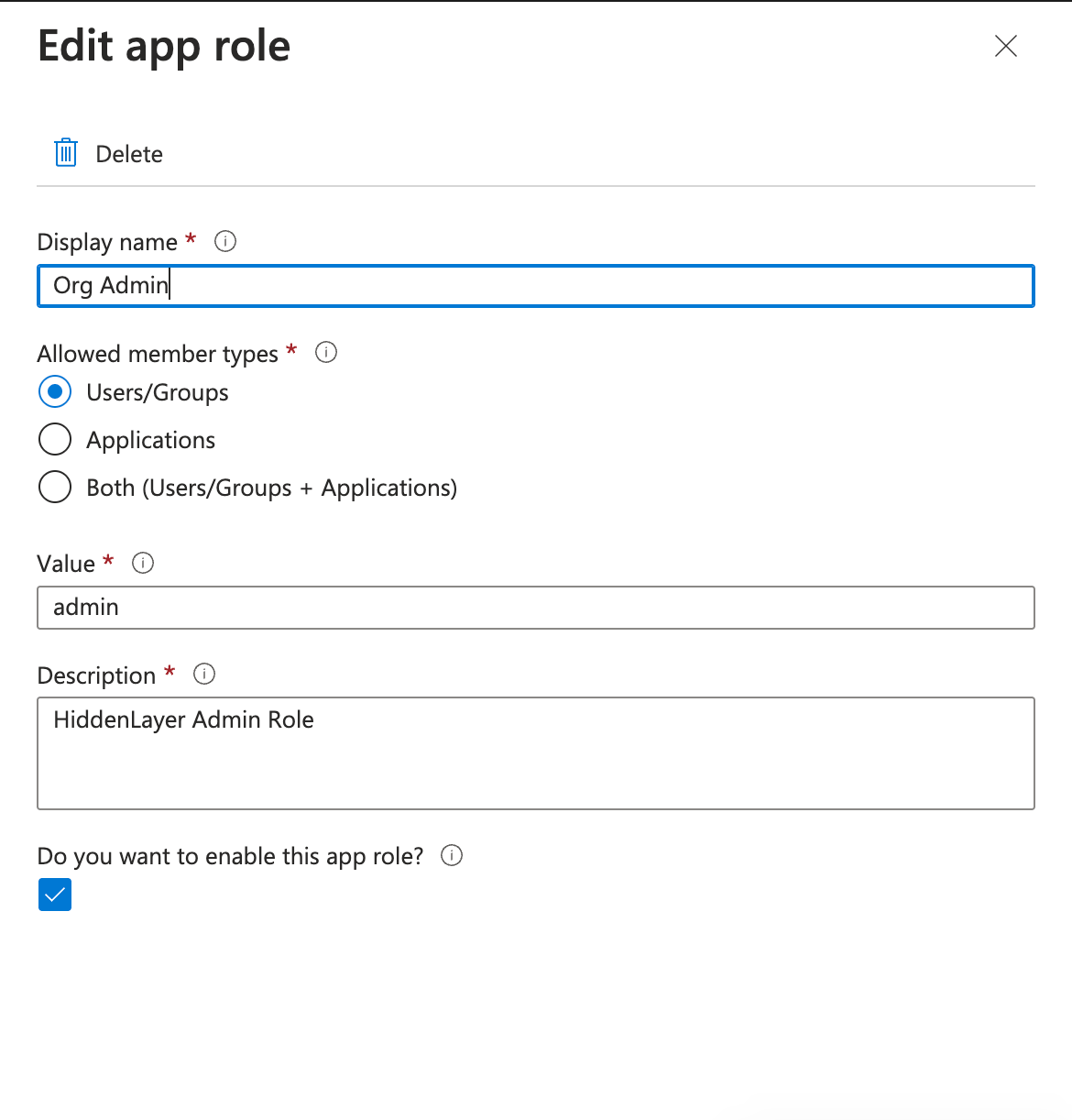
Create separate app roles for Org Admin, Analyst, and Viewer.
-
Viewer
- Display name: Viewer
- Allowed member types: Users/Groups
- Value: viewer
- Description: HiddenLayer Viewer Role
-
Analyst
- Display name: Analyst
- Allowed member types: Users/Groups
- Value: analyst
- Description: HiddenLayer Analyst Role
-
Org Admin
- Display name: Org Admin
- Allowed member types: Users/Groups
- Value: admin
- Description: HiddenLayer Admin Role
-
Viewer
- Click Apply to save each app role.
- Assign your users to these roles, as needed.
-
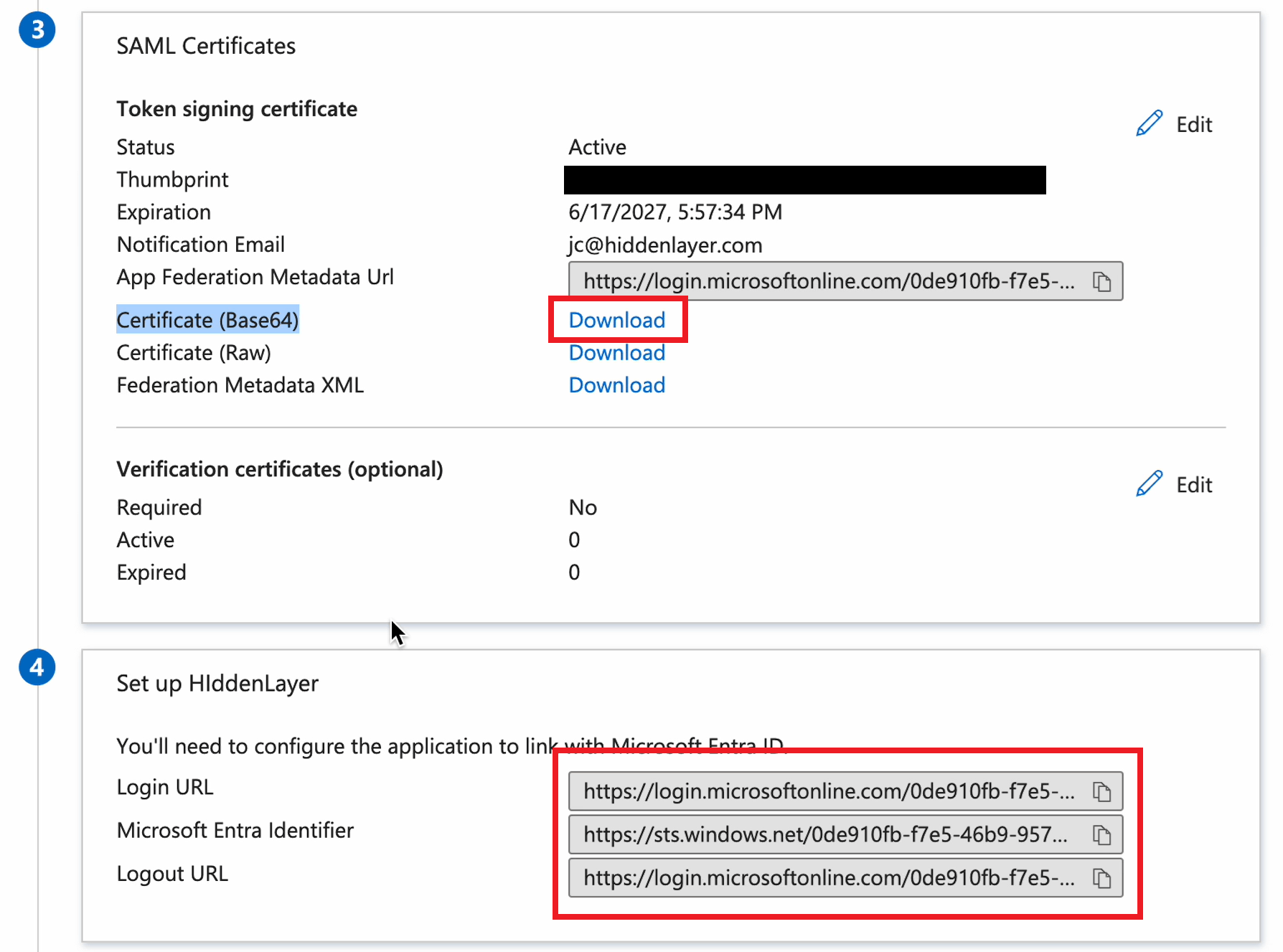
In the HiddenLayer Console, copy and paste the following information on the Configure SAML SSO tab on the Settings > SSO page.
-
From Set up HiddenLayer (or the name you gave the application):
- Login URL
- Microsoft Entra Identifier
- Logout URL
-
From SAML Certificates:
- Certificate (Base64)
-
The following example images show where to find the above information in the Azure console.
-
From Set up HiddenLayer (or the name you gave the application):
Okta
Prerequisites
Before creating an app integration in Okta, you need the following information from the HiddenLayer Console. In the Console, go to Settings > SSO.- Single sign-on URL - This could be called the Secondary Assertion Consumer Service (ACS) Callback URL.
- Audience URI (SP Entity ID) - This could be called the Issuer.
- Signature Certificate - This could be called the Request Signing Certificate.
Create App Integration
Create an application integration in Okta.- In the Okta console, select Applications > Applications.
- Click Create App Integration.
- For Sign-in method, select SAML 2.0.
- Click Next.
-
Enter a name for the integration, then click Next.
- Optionally, upload an icon for the app.
-
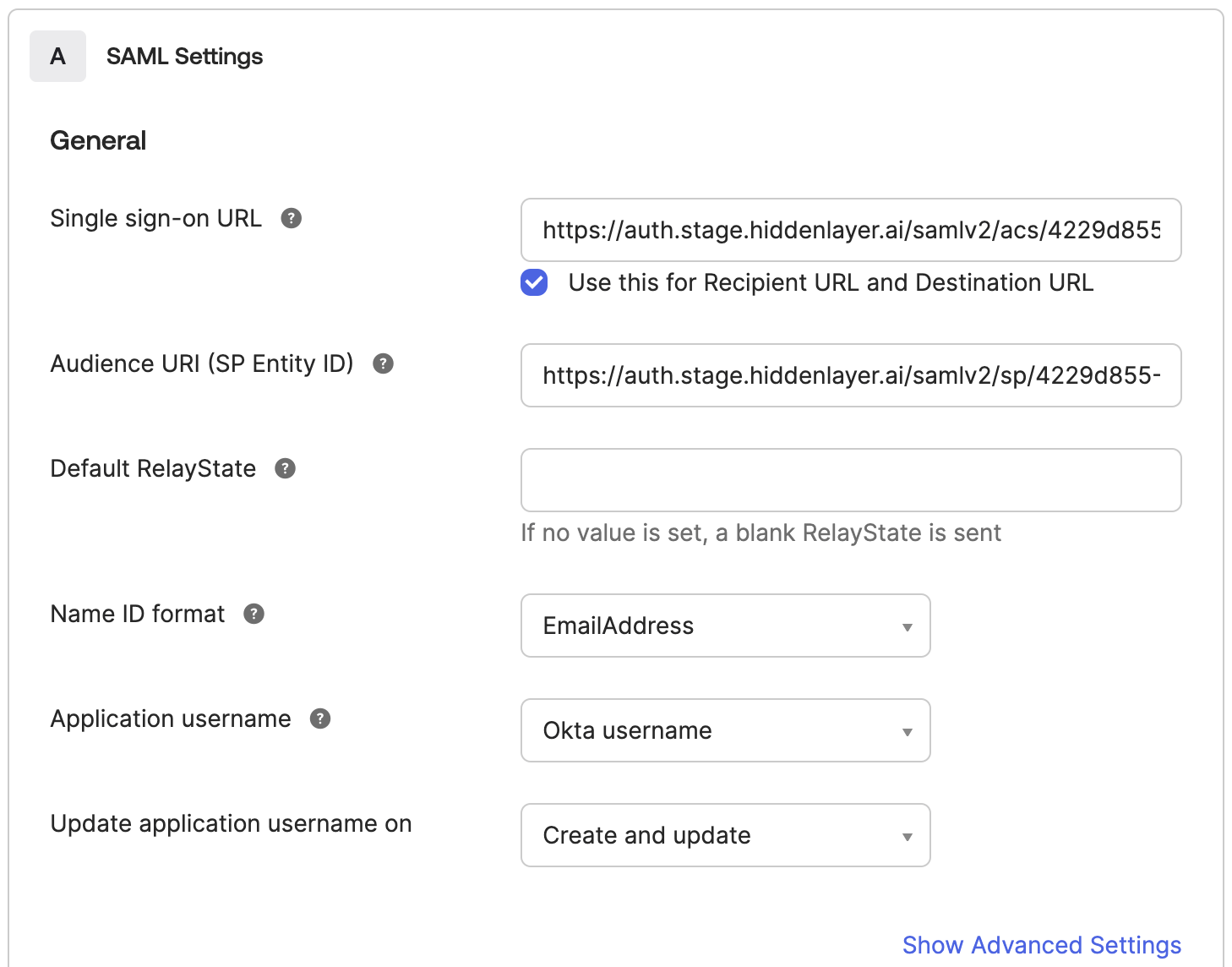
Enter the SAML settings for the integration.
-
Enter the Single sign-on URL provided by HiddenLayer.
- This is the Secondary Assertion Consumer Service (ACS) Callback URL.
- Leave the box checked to “Use this for Recipient URL and Destination URL.”
-
Enter the Audience URI (SP Entity ID) provided by HiddenLayer.
- This is Issuer.
- Set Name ID format to “EmailAddress.”
-
Click Show Advanced Settings.
-
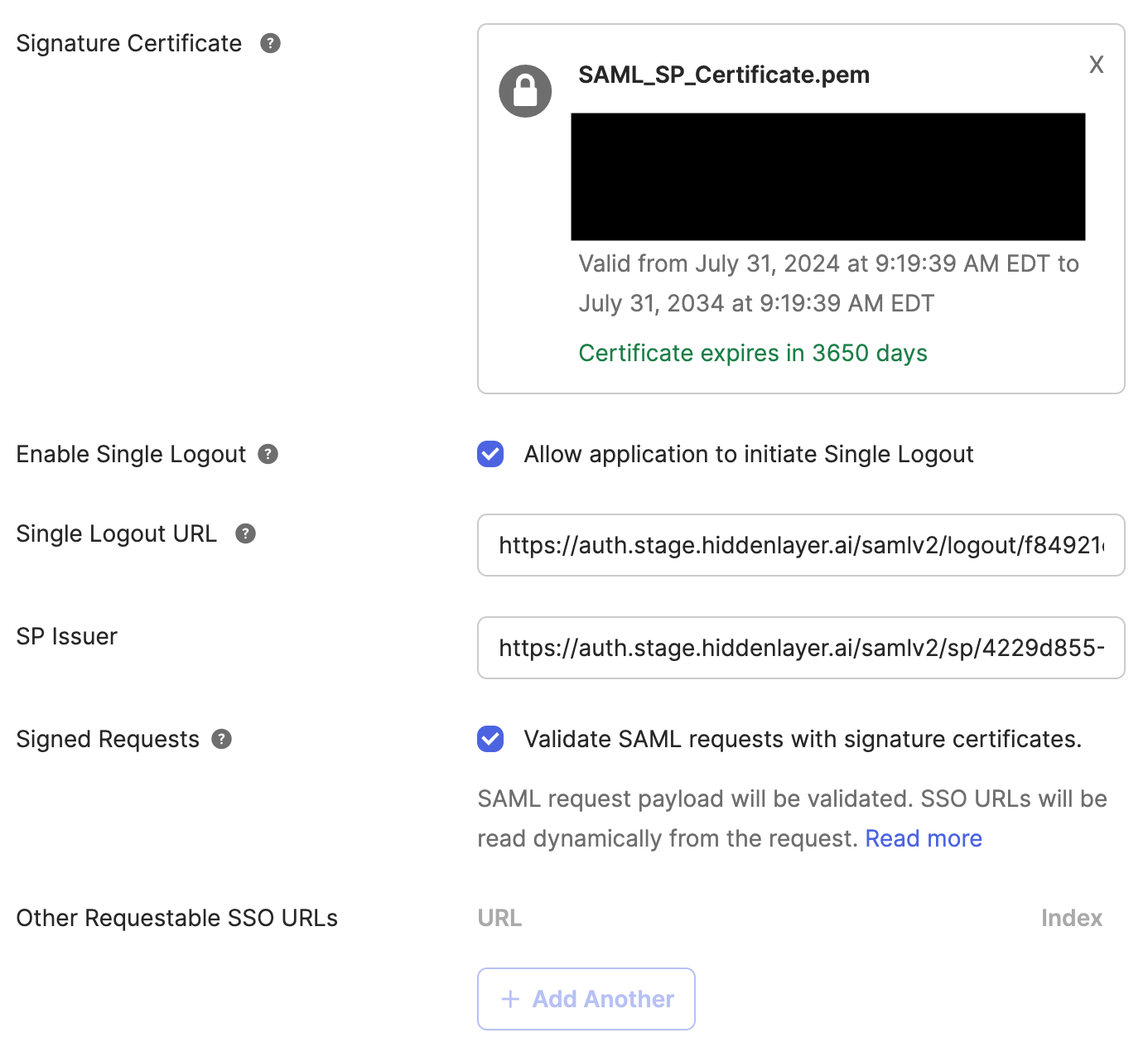
Set up SP Request validation by certificate:
-
For the Signature Certificate, do the following:
- Create a text file with a PEM extension (.pem).
- Copy and paste the Request Signing Certificate from the HiddenLayer Console.
- Save the PEM file.
- Upload the file to Okta.
- Under Signed Requests, check “Validate SAML requests with signature certificates.”
-
For the Signature Certificate, do the following:
-
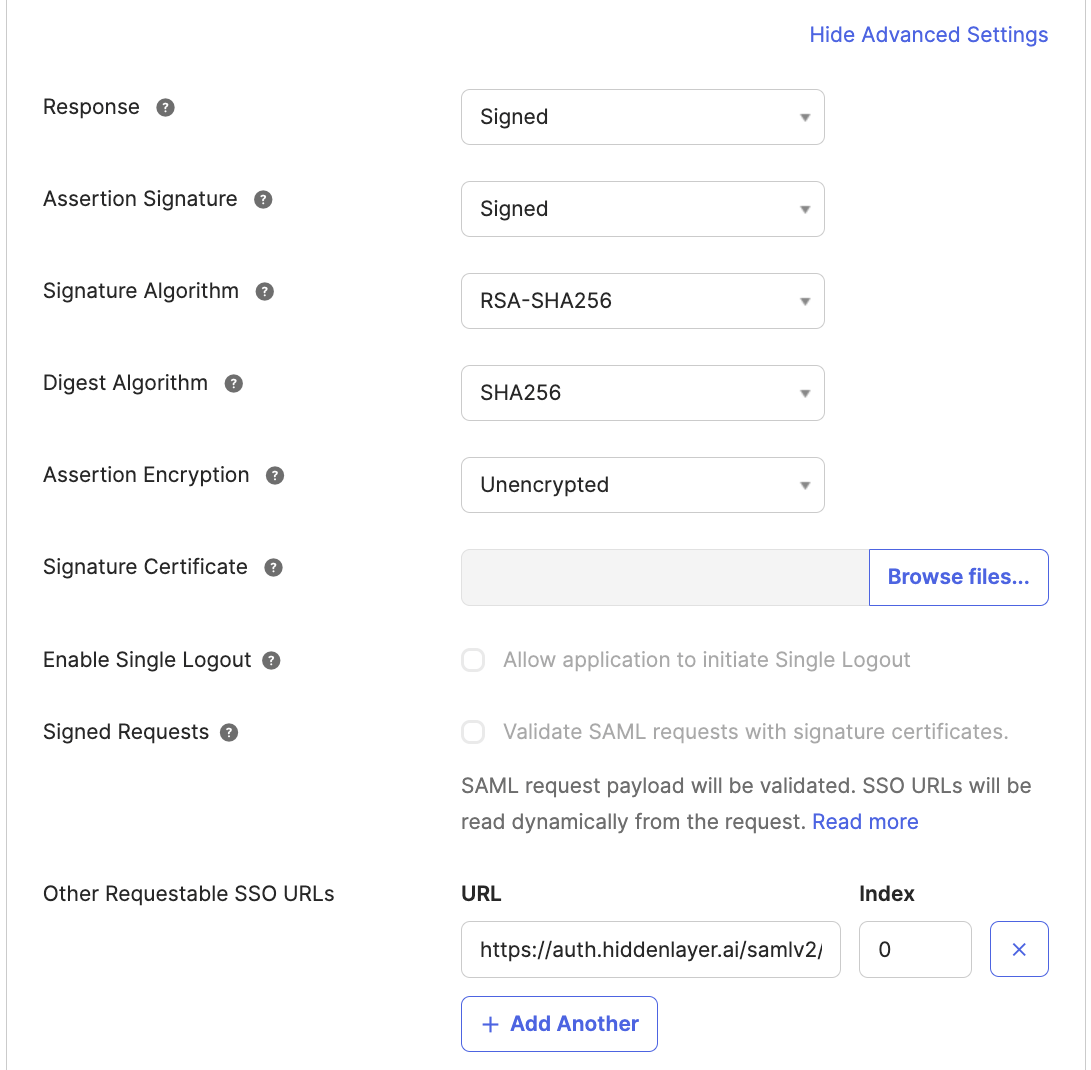
Alternative approach: If use of the request signing certificate is not desired for some reason, the service provider can be authenticated by callback URL. To do this, use a “Requestable SSO URL” as follows. (Note this will be disabled if certificate validation is set.)
- For Other Requestable SSO URLs, click Add Another.
-
Enter the Other Requestable SSO URL provided by HiddenLayer.
- This could be called the Secondary Assertion Consumer Service (ACS) Callback URL.
- Enter zero for Index.
-
Set up SP Request validation by certificate:
-
Enter the Single sign-on URL provided by HiddenLayer.
- Click Next.
- Optionally, under Help Okta support understand how you configured this application, select It’s required to contact the vendor to enable SAML. This is not required.
- Click Finish. The app integration is created and the SAML 2.0 settings display.
-
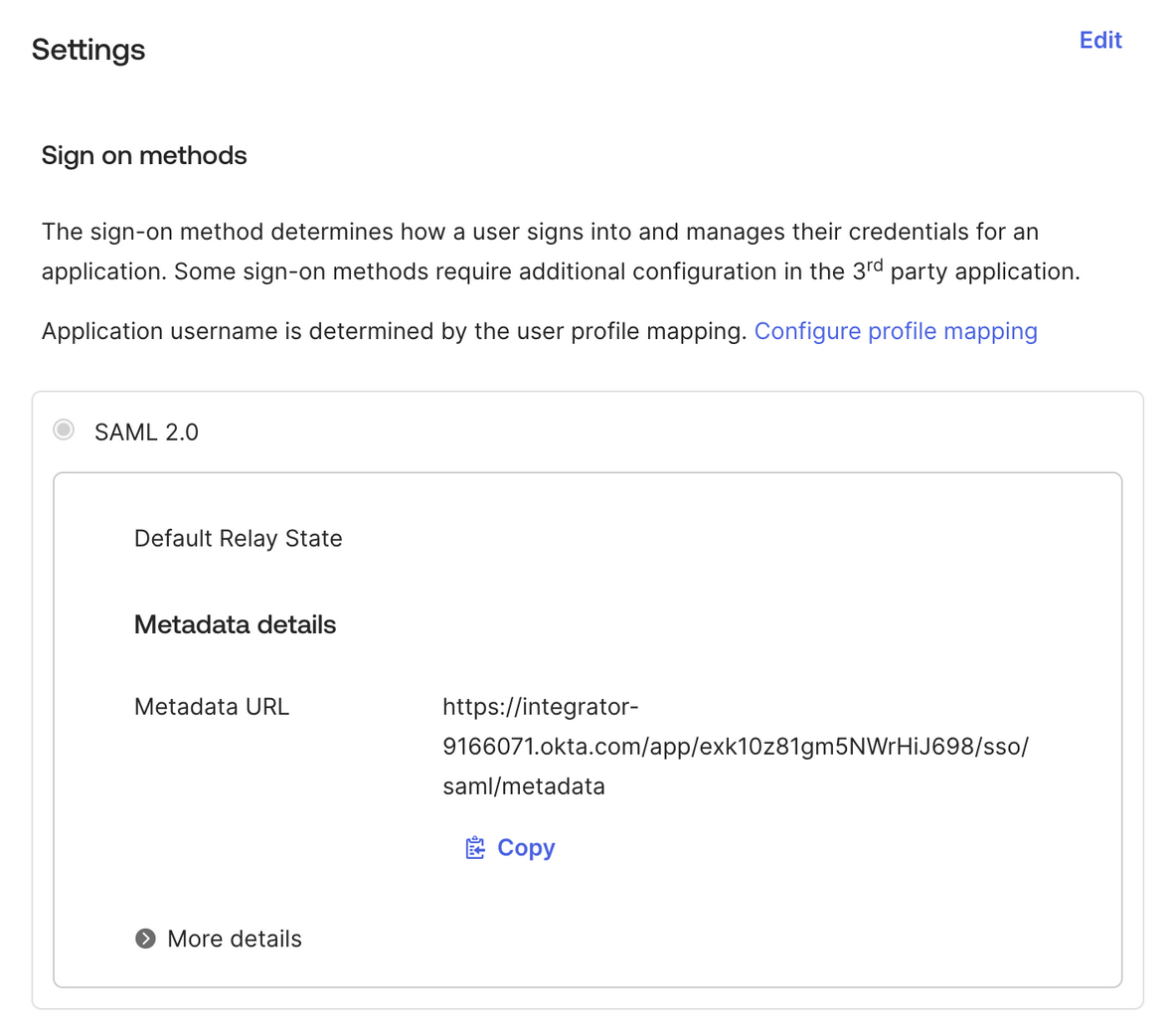
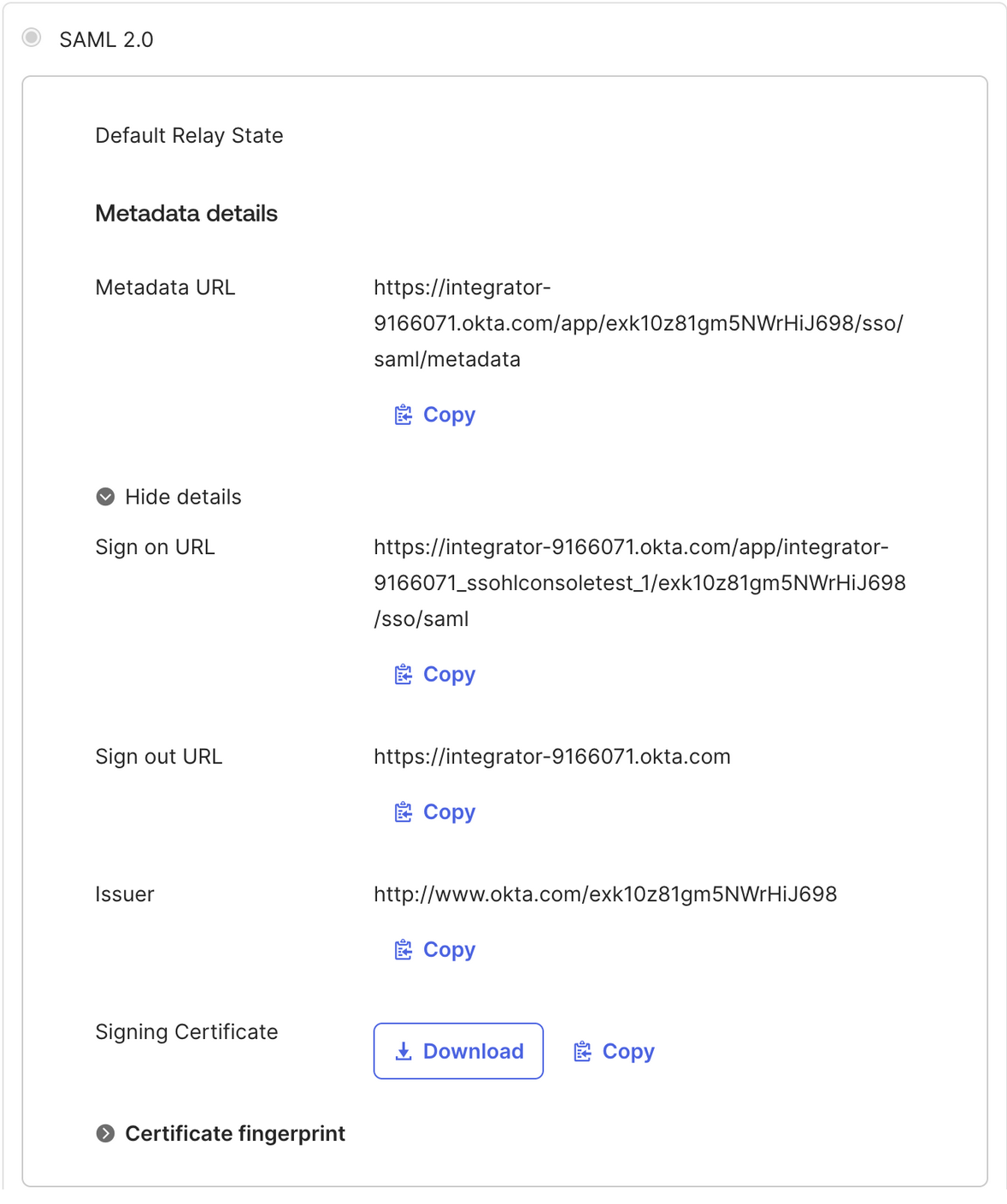
Click on the Sign On tab and under SAML 2.0 click More details. Copy the following:
- Sign on URL
- Issuer
- Signing Certificate
-
Paste the above information to the Configure SAML SSO tab on the SSO page in the HiddenLayer Console.
- Sign On URL maps to IdP SSO URL
- Issuer maps to Issuer
-
Signing Certificate maps to Provider Public Certificate
- Ensure that -----BEGIN CERTIFICATE----- and -----END CERTIFICATE----- are present when pasting the certificate
- After the Okta app integration is created, be sure to assign users or groups to the app integration.
-
In the HiddenLayer Console, copy and paste the following information on the Configure SAML SSO tab on the Settings > SSO page.
-
From Set up HiddenLayer (or the name you gave the application):
- Login URL
- Okta Identifier
- Logout URL
-
From SAML Certificates:
- Certificate (Base64)
-
From Set up HiddenLayer (or the name you gave the application):
Attribute Statements (Optional)
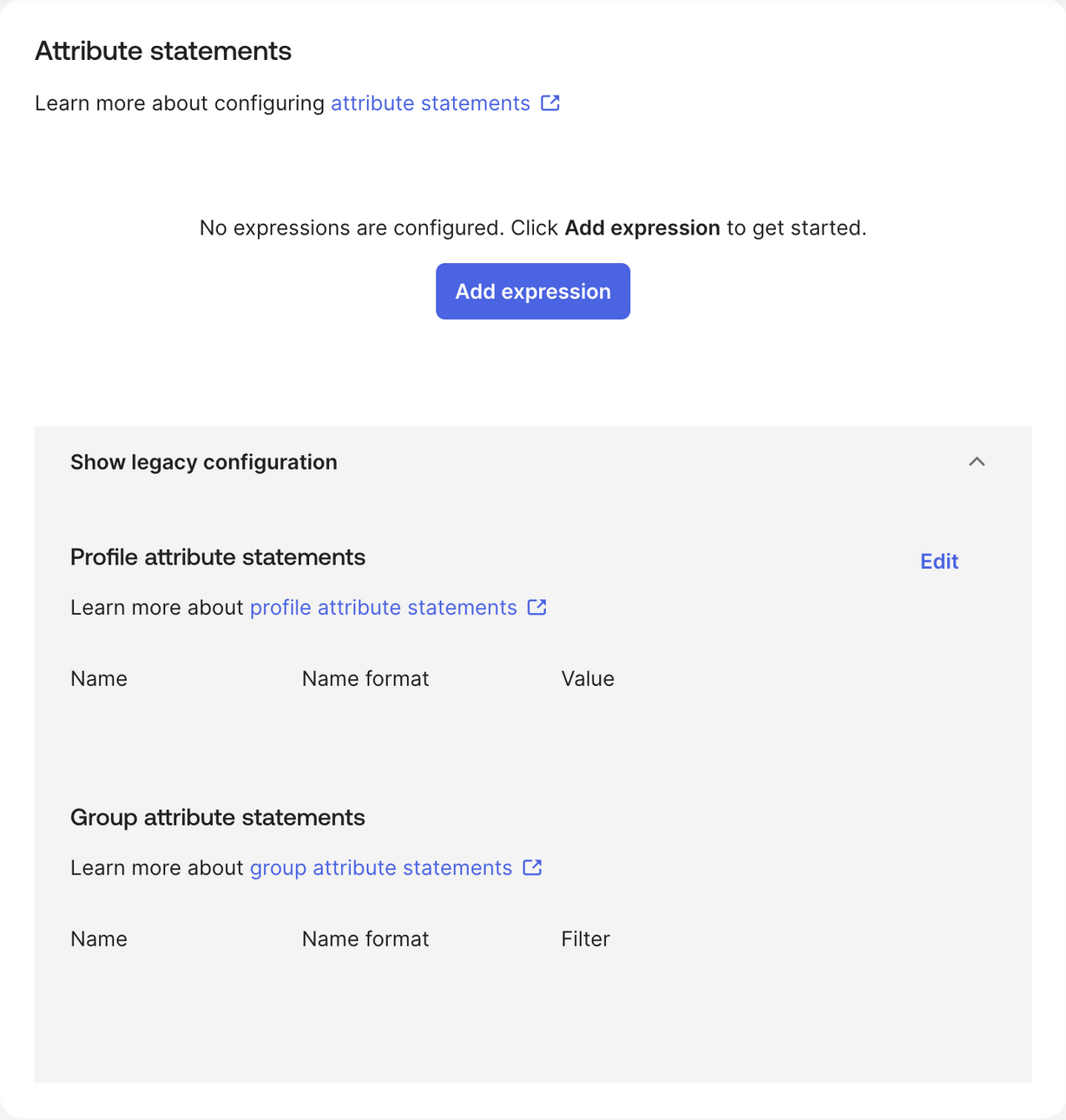
The following settings are for Okta attribute statements, which are SAML assertion components used to pass user-specific data (like email or roles) from Okta to a SAML application during authentication.-
Under Attribute Statements (optional), add a firstName.
- For Name, enter firstname.
- For Name format, select Basic.
- For Value, select
user.firstName.
-
Under Attribute Statements (optional), add a
lastName.- For Name, enter lastname.
- For Name format, select Basic.
- For Value, add the values that match your environment. Example:
user.lastName.
-
Under Attribute Statements (optional), add an
email.- For Name, enter email.
- For Name format, select Basic.
- For Value, add the values that match your environment. Example:
user.email.
-
Under Attribute Statements (optional), add
Roles.- For Name, enter Roles.
- For Name format, select Basic.
- For Value, add
appuser.roles.
User Profile Configuration for RBAC
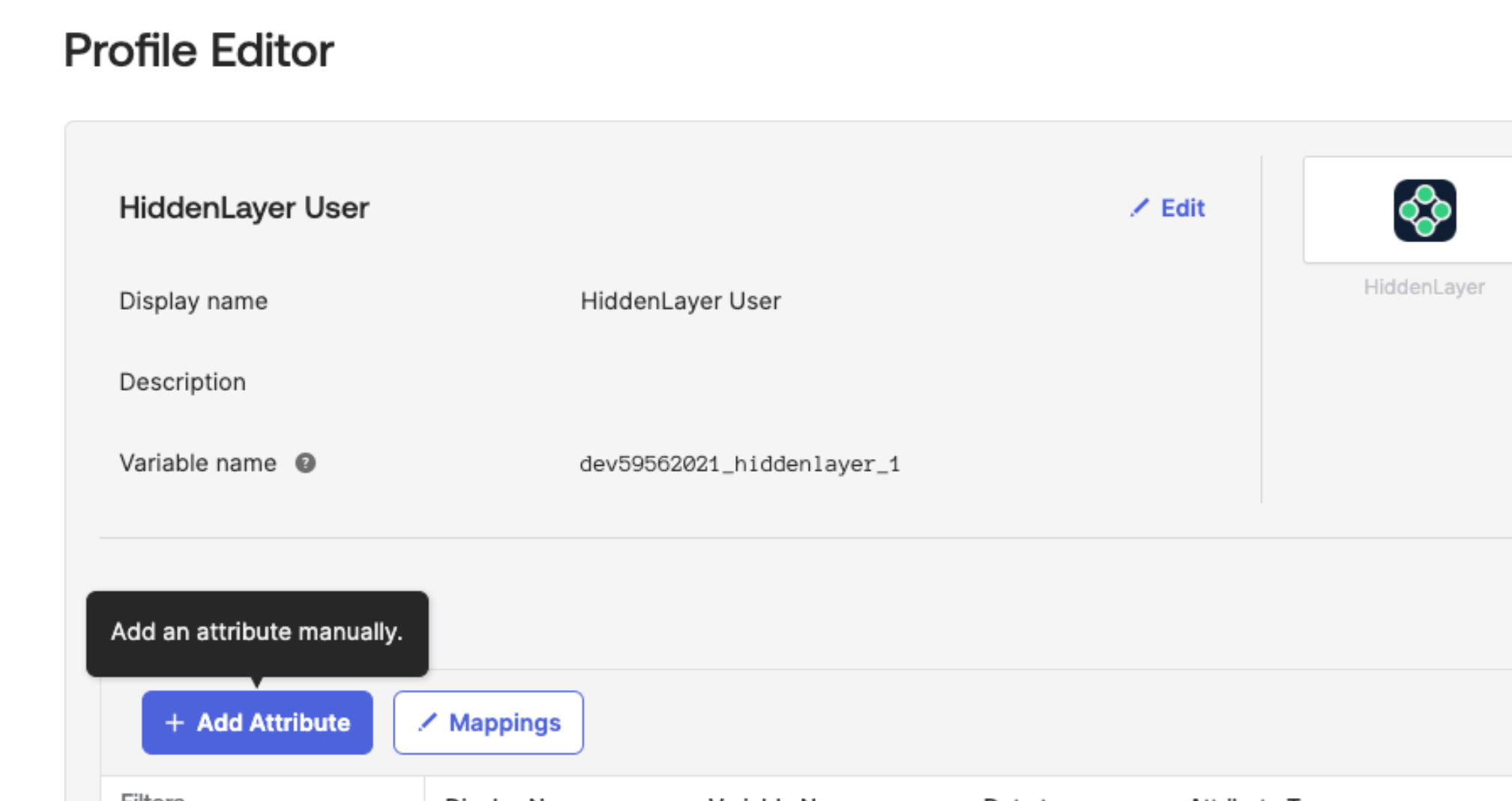
You can configure the HiddenLayer OKTA application to pass all groups for role-based access control (RBAC).- Edit the HiddenLayer User Profile in OKTA.
-
Go to Directory > Profile Editor, then click Add Attribute.
-
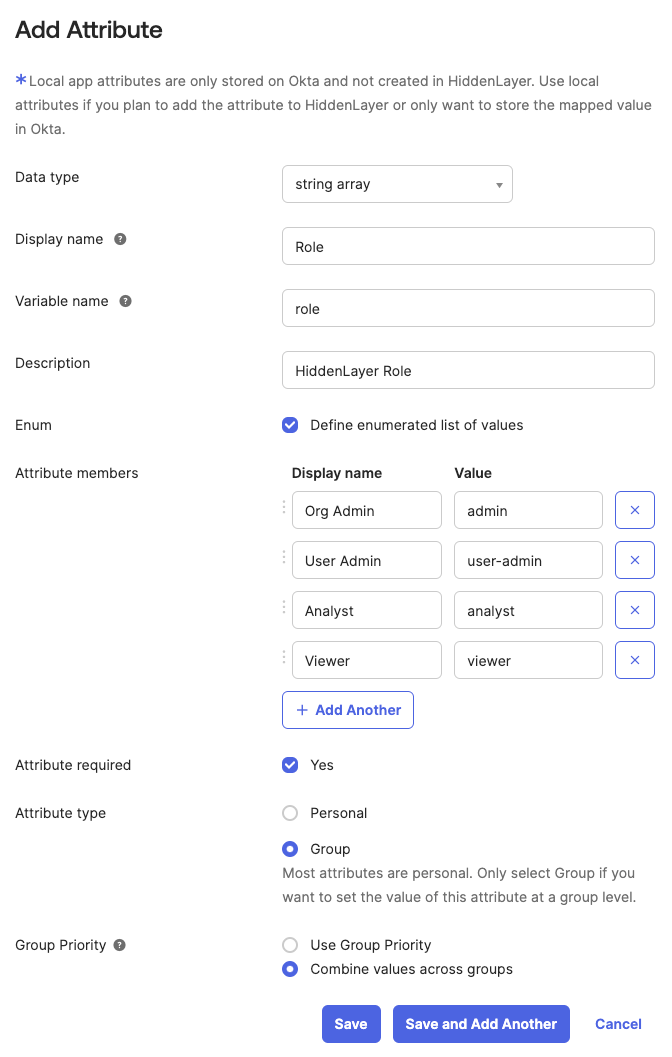
Configure the Attribute as follows. Also see the image below. For more information about custom attributes in an Okta user profile, see Okta’s documentation.
- Data type: string array
- Display name: Role
- Variable name: role
- Description: HiddenLayer Role
- Enum: Enable Define enumerated list of values
-
Attribute Members: Add the following Display name : Value
- Org Admin : admin
- User Admin : user-admin
- Analyst : analyst
- Viewer : viewer
- Attribute required: Yes
- Attribute type: Group
- Group Priority: Combine values across groups
- Click Save.
-
Assign groups to the Application.
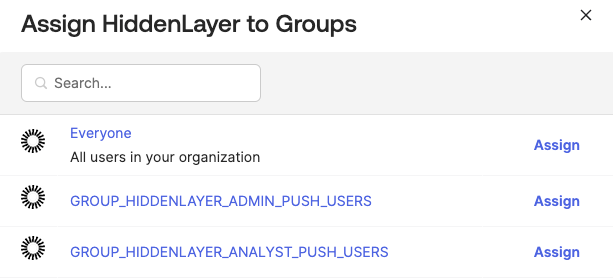
-
Specify the HiddenLayer Role to assign to the group.
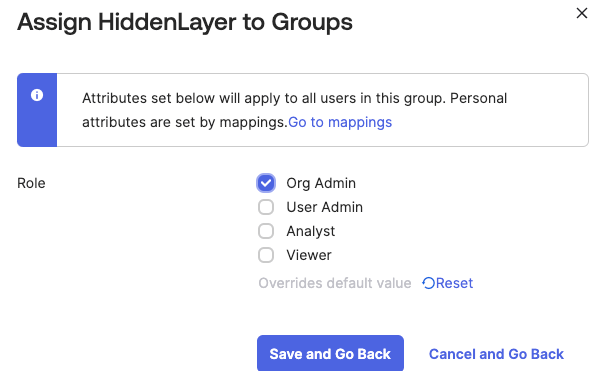
Identity lifecycle and provisioning
HiddenLayer uses SAML 2.0 single sign-on with just-in-time (JIT) provisioning. HiddenLayer does not support SCIM (System for Cross-domain Identity Management). Automated provisioning and group or role synchronization from Microsoft Entra ID, Okta, or another identity provider are not available.Just-in-time provisioning
When SSO is configured, HiddenLayer creates the user on their first successful authentication through your identity provider. That covers the joiner path for people who sign in. Role claims included in the SAML assertion can be applied at that login. See Microsoft Entra and Okta for examples of passing roles. HiddenLayer does not pull assignments from your identity provider until someone authenticates. A person who is assigned the HiddenLayer application in Entra ID or Okta, but has never signed in, does not appear in the Console until that first login.Access removal
HiddenLayer does not support SCIM-based deprovisioning or joiner/mover/leaver automation driven by identity-provider lifecycle events. Removing a user in the Console, or deleting them through the Users API, is a HiddenLayer-side action and is separate from what your identity provider does. If you remove the user from the HiddenLayer application in your identity provider, or disable their IdP account, they cannot complete SAML authentication and cannot sign in to the Console. That access revocation is enforced by the identity provider. HiddenLayer does not receive a deprovisioning event and does not display a disabled or deprovisioned status for the user. The Console user record can remain until an administrator deletes it.API keys after a user is removedDeleting a user does not revoke API keys associated with that account. Those keys remain valid until you delete them. After you delete the user, also delete their API keys. See Delete API Key.
Managing users without SCIM
For user and role management outside JIT, use Settings > Users in the Console or the identity APIs on the Developer Portal (Console login required): Management actions are recorded in the Audit Log.Frequently Asked Questions
The following answers common questions about how authentication data is exchanged, protected, and stored when SSO is enabled for the HiddenLayer AI Security Platform Console, and how user lifecycle works with SSO.What user attributes or claims are exchanged during authentication (any PII included)?
What user attributes or claims are exchanged during authentication (any PII included)?
HiddenLayer Console SSO uses SAML 2.0 and is compatible with identity providers that support that standard (including, but not limited to, Microsoft Entra ID and Okta).During authentication, the following attributes are typically exchanged from your identity provider to HiddenLayer:
- Email address (used as the primary user identifier / NameID)
- First name and last name (and optionally display/full name)
- Role or group attributes used for role-based access control within the platform (for example, Org Admin, User Admin, Analyst, or Viewer)
What encryption and transport mechanisms are used for the authentication data?
What encryption and transport mechanisms are used for the authentication data?
- Authentication and Console traffic are protected in transit using HTTPS/TLS over public networks.
- SAML authentication requests and responses are cryptographically signed. HiddenLayer uses RS256 for SAML request signing, and validates responses using your identity provider’s signing certificate.
- Data at rest is encrypted using AES-256 or stronger.
- Related service connections (for example, database connectivity) require TLS.
MFA, if required, is enforced by your identity provider and is not managed separately by HiddenLayer.
Does the application store or cache authentication tokens or user data locally?
Does the application store or cache authentication tokens or user data locally?
Yes, as needed to maintain an authenticated session and manage access:
- The Console maintains an encrypted browser session cookie for the duration of the user’s session. This session includes the access token required to call platform APIs while the user is signed in.
- User identity information required for account management and access control (such as email, name, and role assignments) is stored in HiddenLayer’s identity and access management services.
- Authentication tokens are session-scoped and subject to your organization’s configured session timeout. They are not retained as long-lived credentials in browser local storage.
- On logout, the Console session is cleared, and Single Logout (SLO) can be configured with your identity provider where supported (see SSO Setup).
What happens when I deprovision a user in Entra ID or Okta?
What happens when I deprovision a user in Entra ID or Okta?
If you remove the user from the HiddenLayer application in your identity provider, or disable their IdP account, they cannot complete SAML authentication and cannot sign in. Their Console access is revoked by the identity provider even though HiddenLayer does not show a deprovisioned or disabled status.That is not the same as SCIM deprovisioning. HiddenLayer does not receive IdP lifecycle events and does not update or hide the Console user record when the IdP changes. To remove the HiddenLayer account, an administrator deletes the user in Settings > Users or through the Users API. Deleting the user does not revoke their API keys; delete those separately. See Access removal.
Can I automatically sync groups and roles from my identity provider?
Can I automatically sync groups and roles from my identity provider?
Not as a background sync. HiddenLayer does not support SCIM group or role synchronization, and it does not apply IdP group changes until the user authenticates again.You can pass role or group attributes in the SAML assertion so HiddenLayer can apply the mapped Console role at login. See the role-claim steps for Microsoft Entra and Okta. Between logins, change roles in the Console or through the Roles and Permissions API.
Can I disable password sign-in and require SSO for all users?
Can I disable password sign-in and require SSO for all users?
There is no setting that turns off password sign-in for your organization, and the Sign in with Password option remains on the login page. However, users who are provisioned through SSO cannot sign in with a password, so you can make SSO the only way into your organization by following these steps:
- Let SSO create your users. Do not add users in Settings > Users. Users created through just-in-time provisioning on their first SSO sign-in cannot authenticate with a password. See Just-in-time provisioning.
- Configure Managed Domains. In Settings > SSO, add your email domains so users who enter their work email are sent to your identity provider.
- Remove existing password-based users. After you confirm that SSO sign-in works, delete any users that were created in the Console before SSO was configured. Delete their API keys as well. See Access removal.
- Manage access in your identity provider. Users who are unassigned from the HiddenLayer application or disabled in your identity provider cannot sign in.
Can a user provisioned through SSO set a password and sign in without my identity provider?
Can a user provisioned through SSO set a password and sign in without my identity provider?
No. A user provisioned through SSO can complete the Forgot your password? flow, but HiddenLayer does not accept that password at sign-in. The user can only sign in through your identity provider.Password sign-in is available only to users created directly in the Console.