

Prerequisites
To configure the Splunk integration, you need:- Administrator access to the HiddenLayer Console (or have an administrator configure it for you).
- The Splunk HEC endpoint URL and a valid Splunk HEC authentication token.
Configure Splunk
- In the HiddenLayer Console, go to Settings > Integrations.
-
Under Webhooks & Security Tools for Splunk, click the menu (three vertical dots).
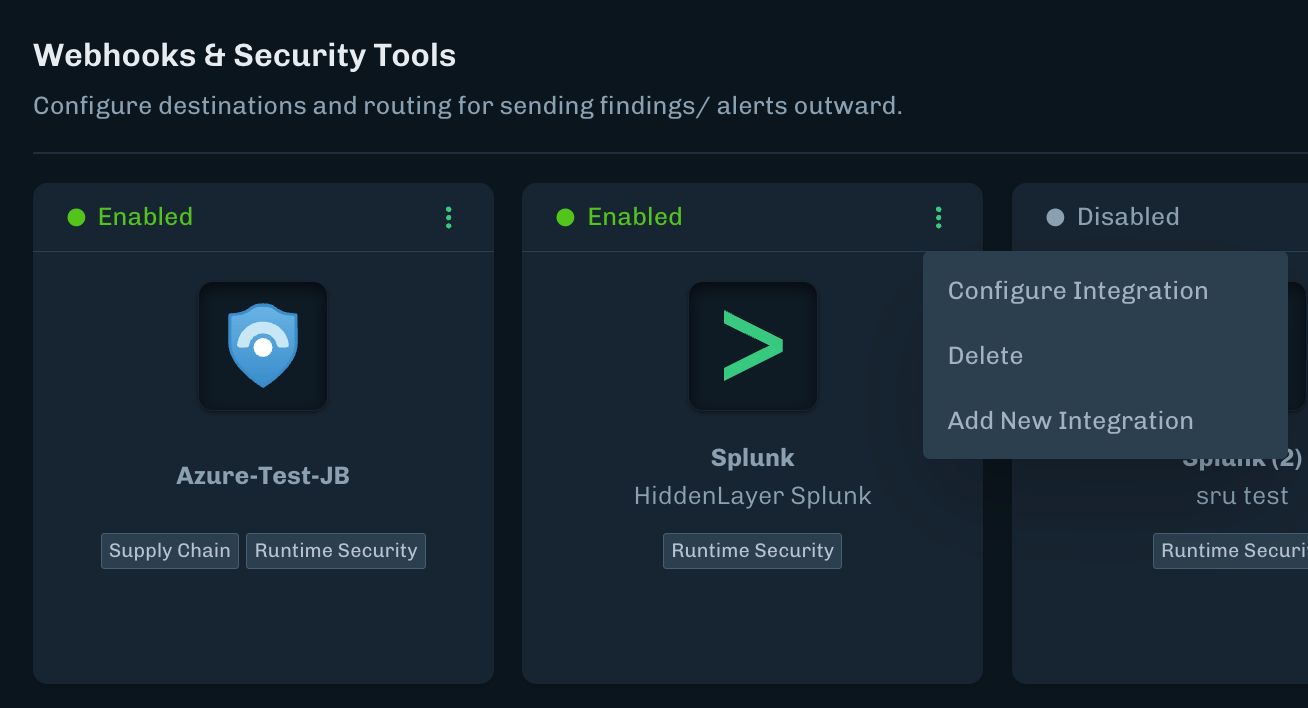
- Select Configure Integration.
- Enter a unique name for the integration.
-
Enter the Splunk HEC URL and the HEC authentication token.
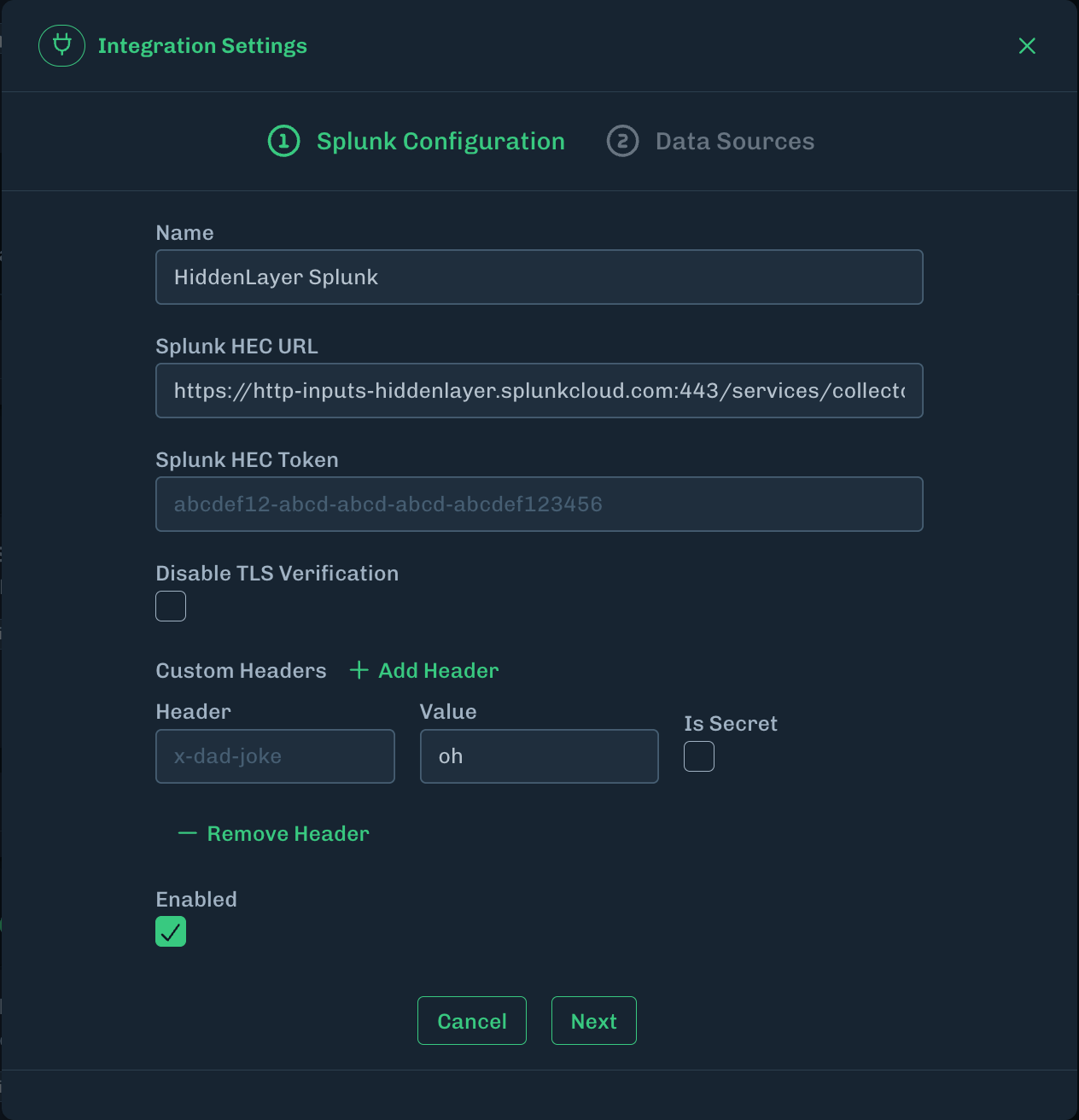
- To disable TLS verification, select the Disable TLS Verification checkbox.
Disabling TLSDisabling TLS verification removes HTTPS security, exposing data to potential interception and tampering. Disabling TLS verification is intended for testing and troubleshooting only
- Click next
- Select the desired data sources.
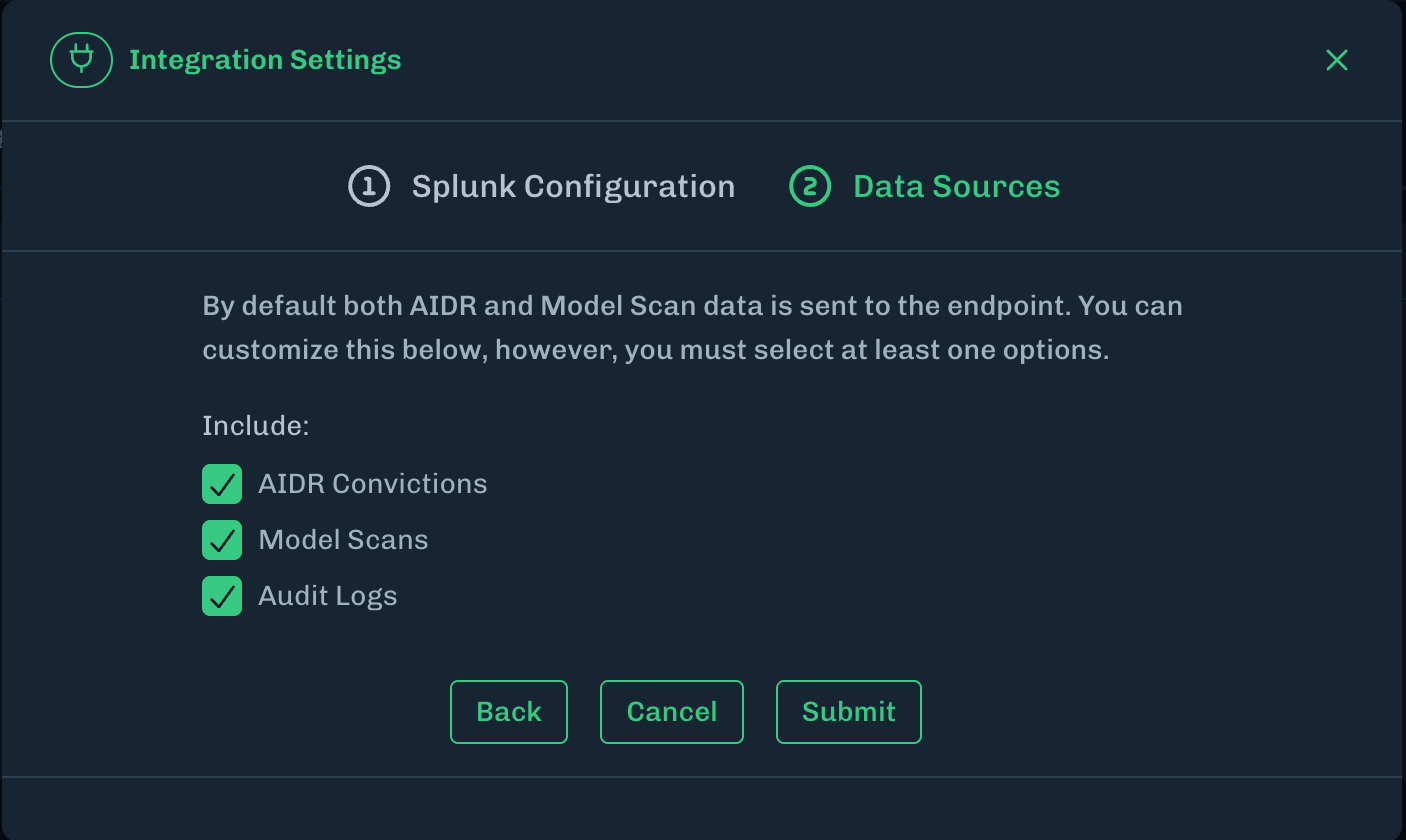
- Click Submit.
Disable Splunk
You can disable the Splunk integration without deleting its configuration.- In the HiddenLayer Console, go to Settings > Integrations.
- Under Webhooks & Security Tools for Splunk, click the menu (three vertical dots).
- Click Configure Integration.
-
Clear the Enabled checkbox.
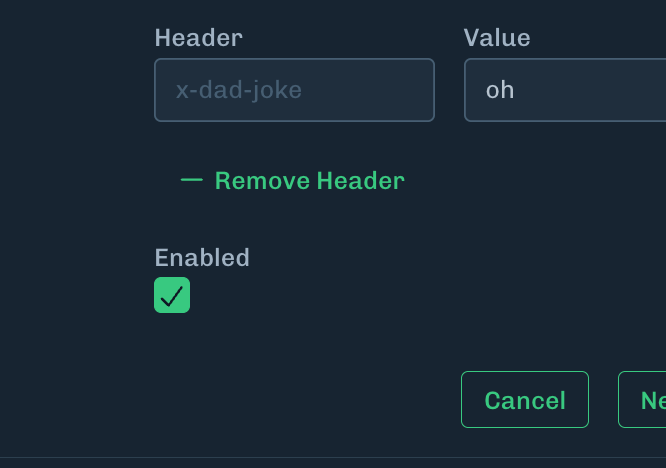
- Click Submit.
Delete Splunk
You can delete the Splunk integration when it is no longer needed.- In the HiddenLayer Console, go to Settings > Integrations.
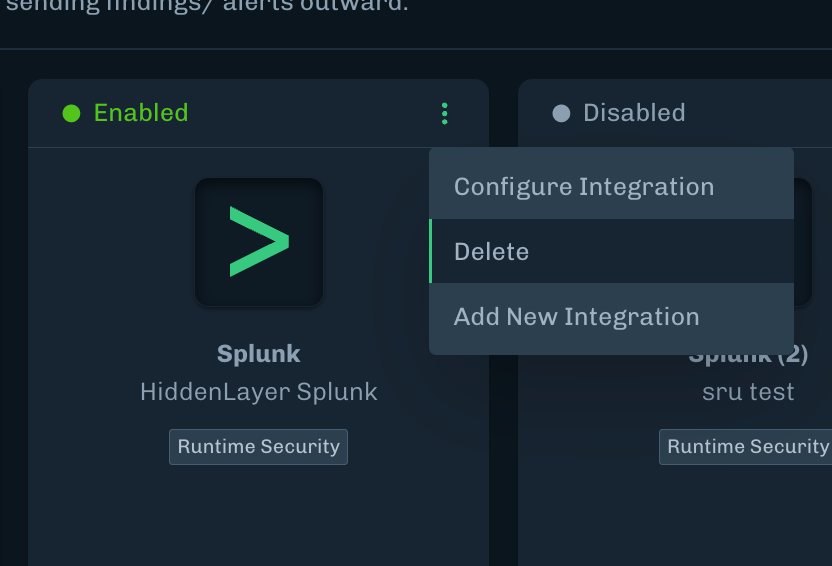
- Click the Splunk menu (three vertical dots).
-
Select Delete.
- Confirm the deletion.