-
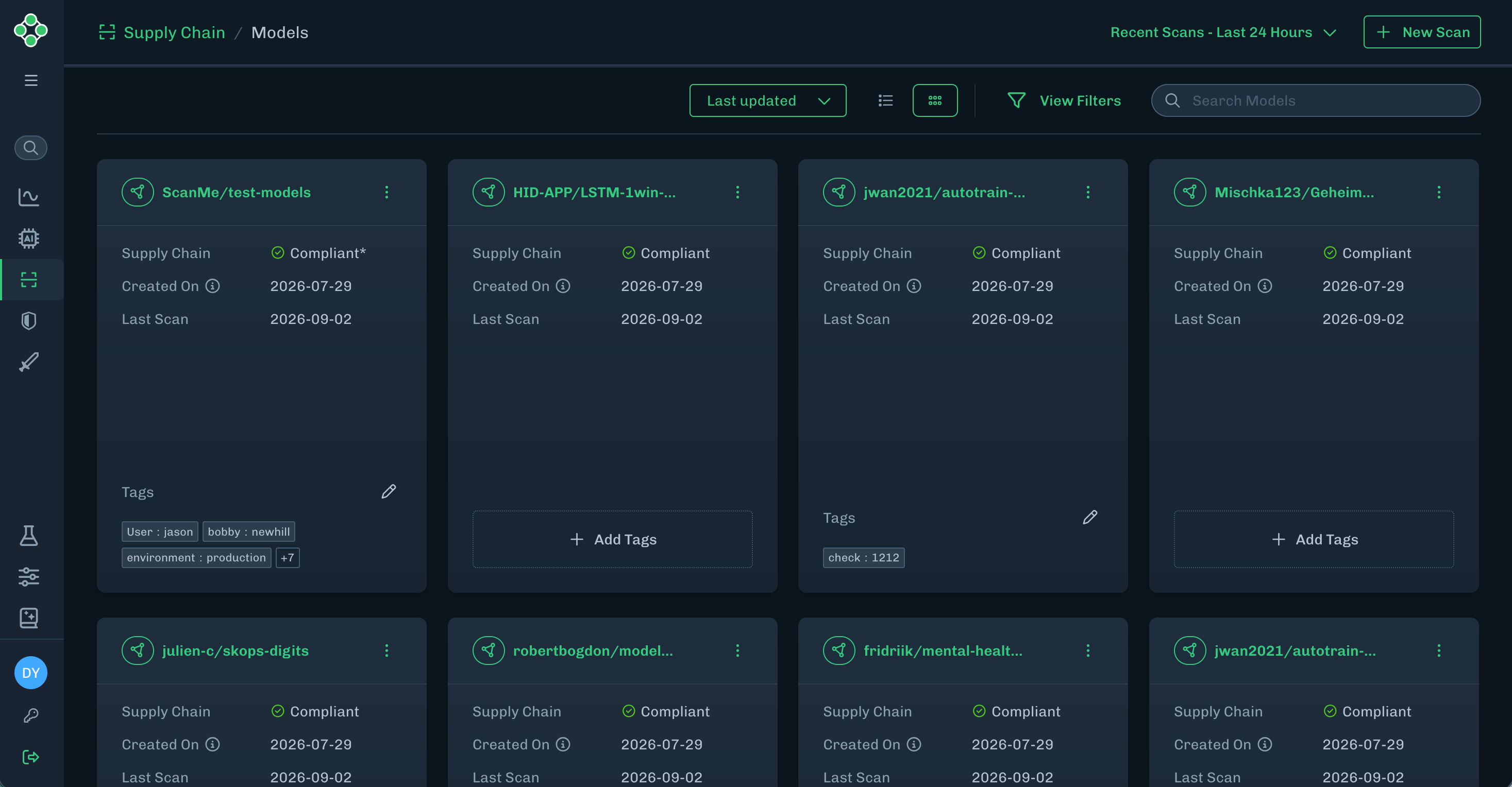
Your AI models are displayed within the Models page.
-
The Models page lets you quickly view your AI Models, Model ID’s, AI model versions, and associated tags.
- Model ID - A unique identifier for the model.
-
Supply Chain - Supply Chain analyzes Machine Learning Models to identify hidden cybersecurity risks and threats such as malware, vulnerabilities, and integrity issues.
- Compliant - Depending on Policy settings, files are marked as Compliant or Noncompliant. See Supply Chain Policy for more information.
- If there is an asterisk (*), this means the model scan was manually set to Compliant or Noncompliant.
- Created on - Date model was added.
- Last Scan - Date model was last scanned.
- Tags - The version number associated with an individual ML model.
-
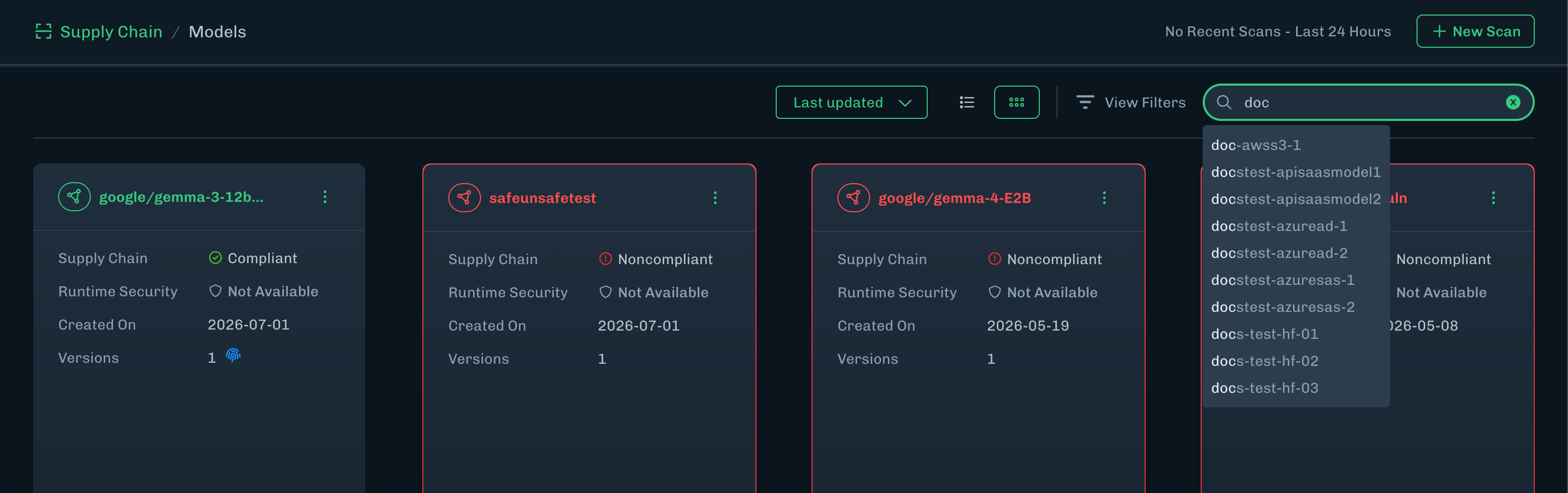
Use the Search field to search for models by name.
- Enter at least three characters to enable the type-ahead search feature.
- The search results are all models with the characters or keyword appearing anywhere within the model’s name.
- Select a model from the search results list or press Enter to view all models based on the search results.
-
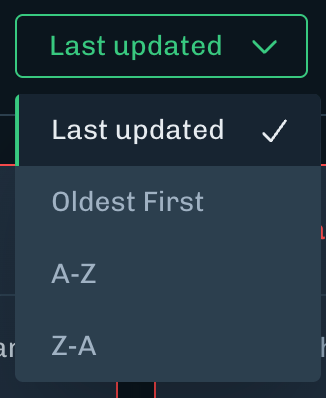
Use the Sort feature to sort the models by: Newest to Oldest, Oldest to Newest, A-Z, or Z-A.
- In many cases there are multiple pages of models. Click on the green arrow of a card to view the model details. Based on your preferences, models are switchable to the card or list view, and by model count by page.
Model Tags
Create a key-value pair tag and apply it to your Model Cards. You can filter the models using the tag. Create tags that suits your organization’s needs. Example- Create a tag
release : blocked. - Apply the tag to the appropriate model cards.
- Filter using this tag to find all models that are blocked.
Add a Tag
- In the Console, go to Supply Chain > Models.
- Find a model card to add a tag to.
-
Click Add Tags.
- If the model card has an existing tag, then click the edit icon (pencil icon).
- In the Search tags field, type the first value, then press Enter. Example: release.
- Type the second value, then press Enter. This adds the key-value pair to the Edit Tags window. Example: blocked. Note: This does not apply the tag to the model card.
- Add as many tags as needed.
- Click Save Changes to add these tags to the model card.
Remove a Tag
- In the Console, go to Supply Chain > Models.
- Find a model card to remove a tag to.
- Click the edit icon (pencil icon). The Edit Tags window displays. The tags applied to the model card display below the Search tags field.
- For the tag you want to remove, click the
xfor that tag. - Click Save Changes.
Search Models
You can search for models on the Model Inventory page. This helps you find a model using a keyword search.- Enter at least three characters and the search will filter the models.
- The search results are all models with the characters or keyword appearing anywhere within the model’s name.
- Select a model from the search results list or press Enter to view all models based on the search results.
Search Filters
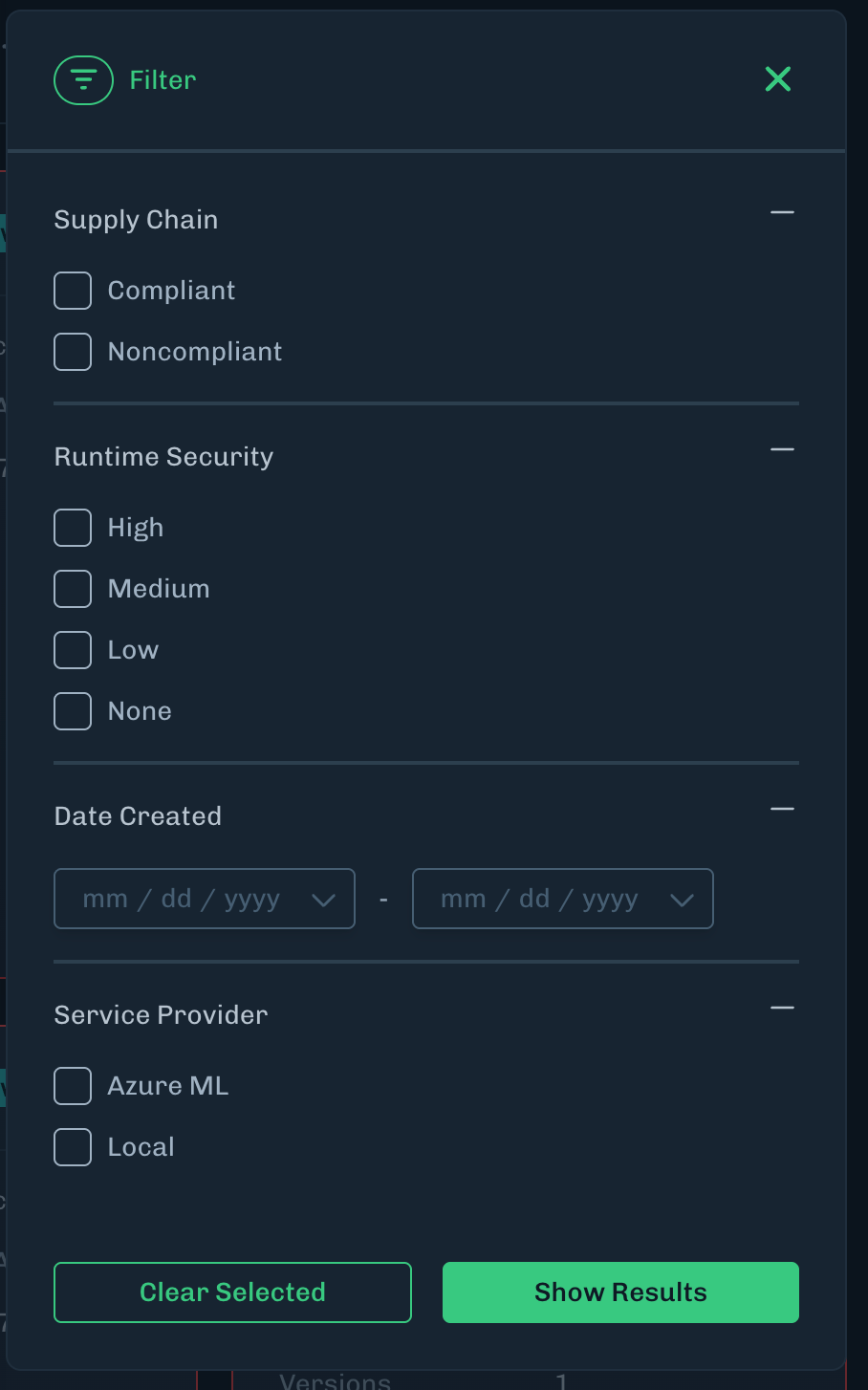
You can apply filters to the Models page to find models by a filter type.-
On the Models page, click View Filters.

-
Select the filters you want to apply.
- For Supply Chain or Runtime Security, select the severity level.
- For Date Created, select a start and end date.
- For Service Provider, you can select Local.
-
Click Show Results.
- To clear the selected filters, click Clear Selected.
Delete Model Card
Deleting model cards that are no longer needed reduces the number of cards to search through and helps you focus on what is important.Model Card ViewThe Models page must be in Model Card view to delete a card.
- In the Console, go to the Models page.
-
Click the menu (three vertical dots) for the model card you want to delete.
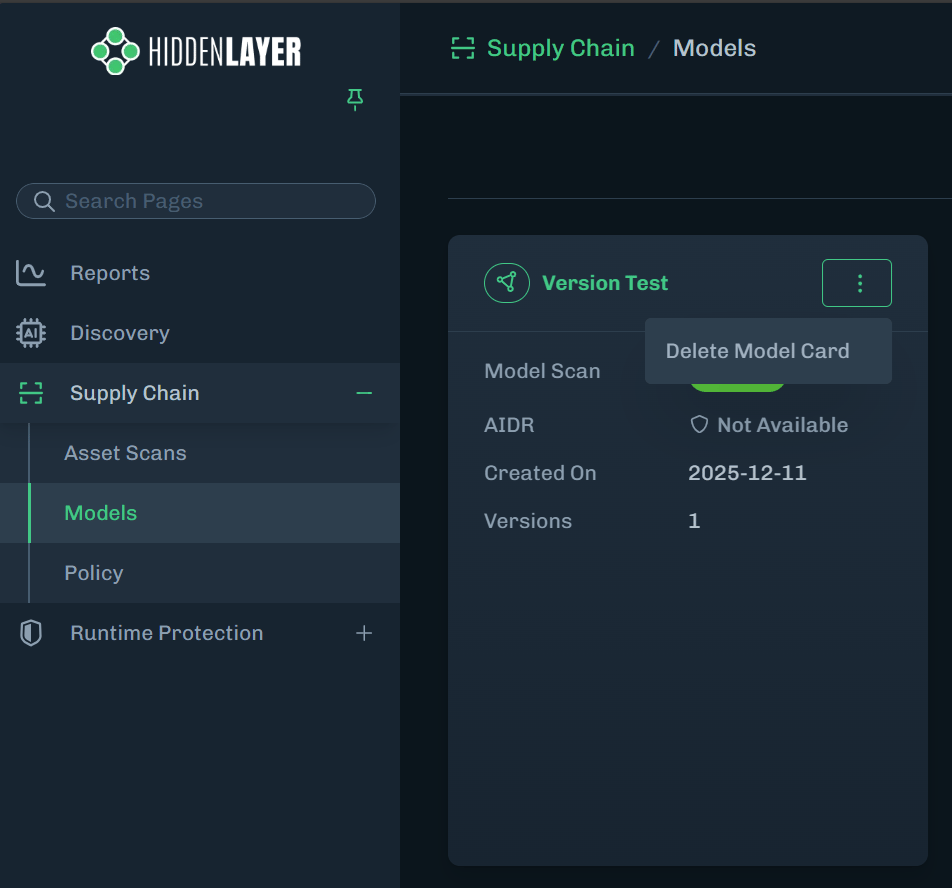
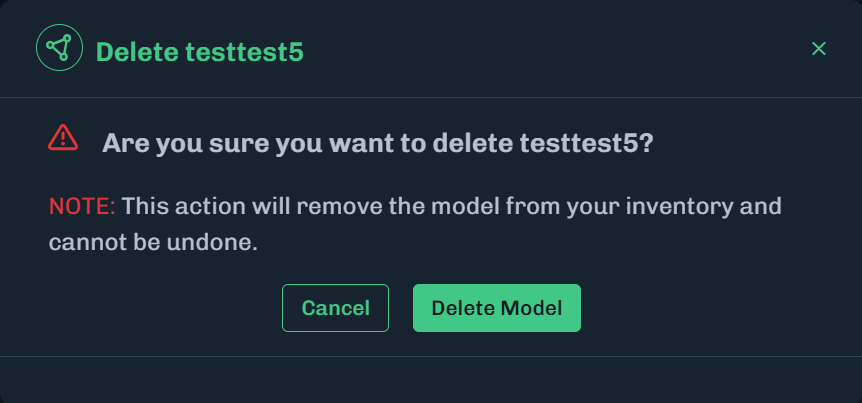
- Click Delete Model Card. A message displays, asking you to confirm the deletion.
-
Click Delete Model.