

Important Notes about Supply Chain Policy
- One Supply Chain policy applies to every scan in a HiddenLayer tenant. Runtime policy, by contrast, can differ by project.
- By default, models with any detection are Noncompliant.
-
In the Console, add policy rules to choose which severity levels, detection categories, and file types count as Noncompliant.
- Supply Chain policy rules are prioritized by their order. A rule closer to the top of the list overrides the rules below it when two rules collide.
- Through the API you can set compliance for combinations of severity, category, and file type.
- A new policy applies to scans that run after you save; existing scan rows are not rescanned or rewritten automatically.
Update the policy in the Console
In the Console, you can create policy rules to meet your policy criteria.- In the Console, select Supply Chain > Policy in the side navigation. The Supply Chain Policy page displays.
- Click Edit.

-
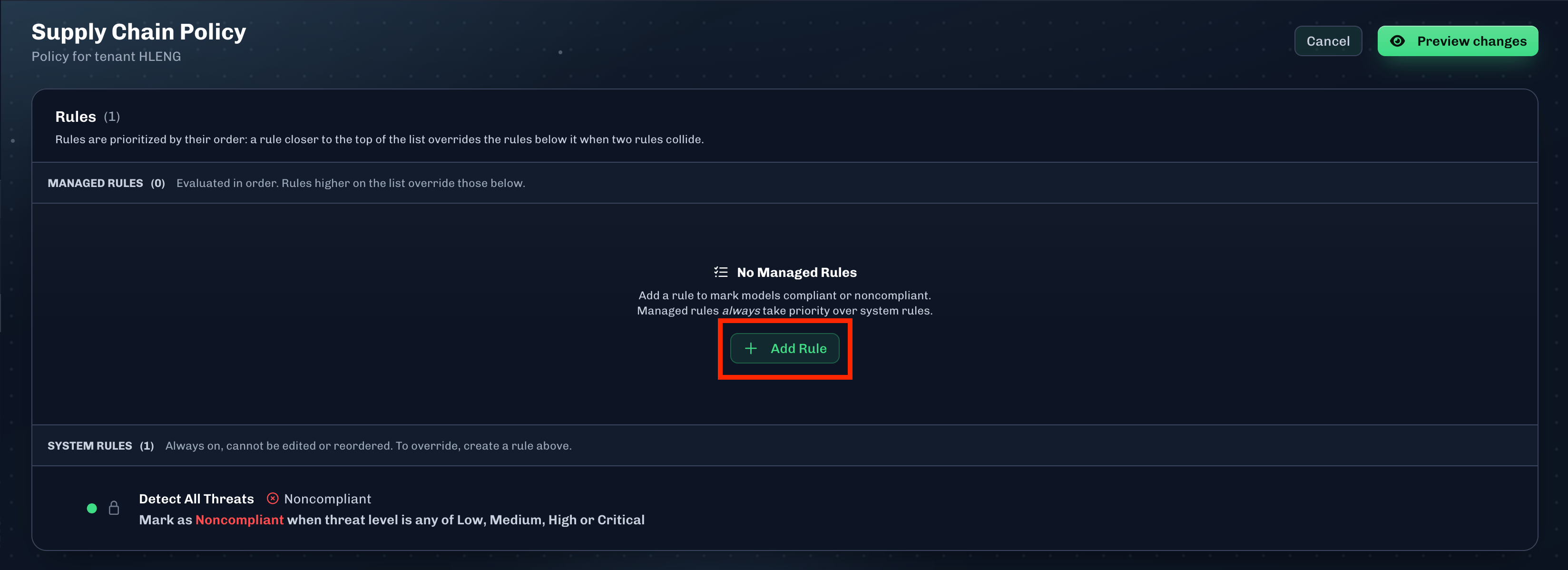
Click + Add Rule to open the Add Rule window and view the Rule Builder.
- The image below shows the default policy; this means no rules have been added yet.
- If rules have already been added to the policy and you want to add a rule, the + Add Rule button is on the right side of the MANAGED RULES row.
-
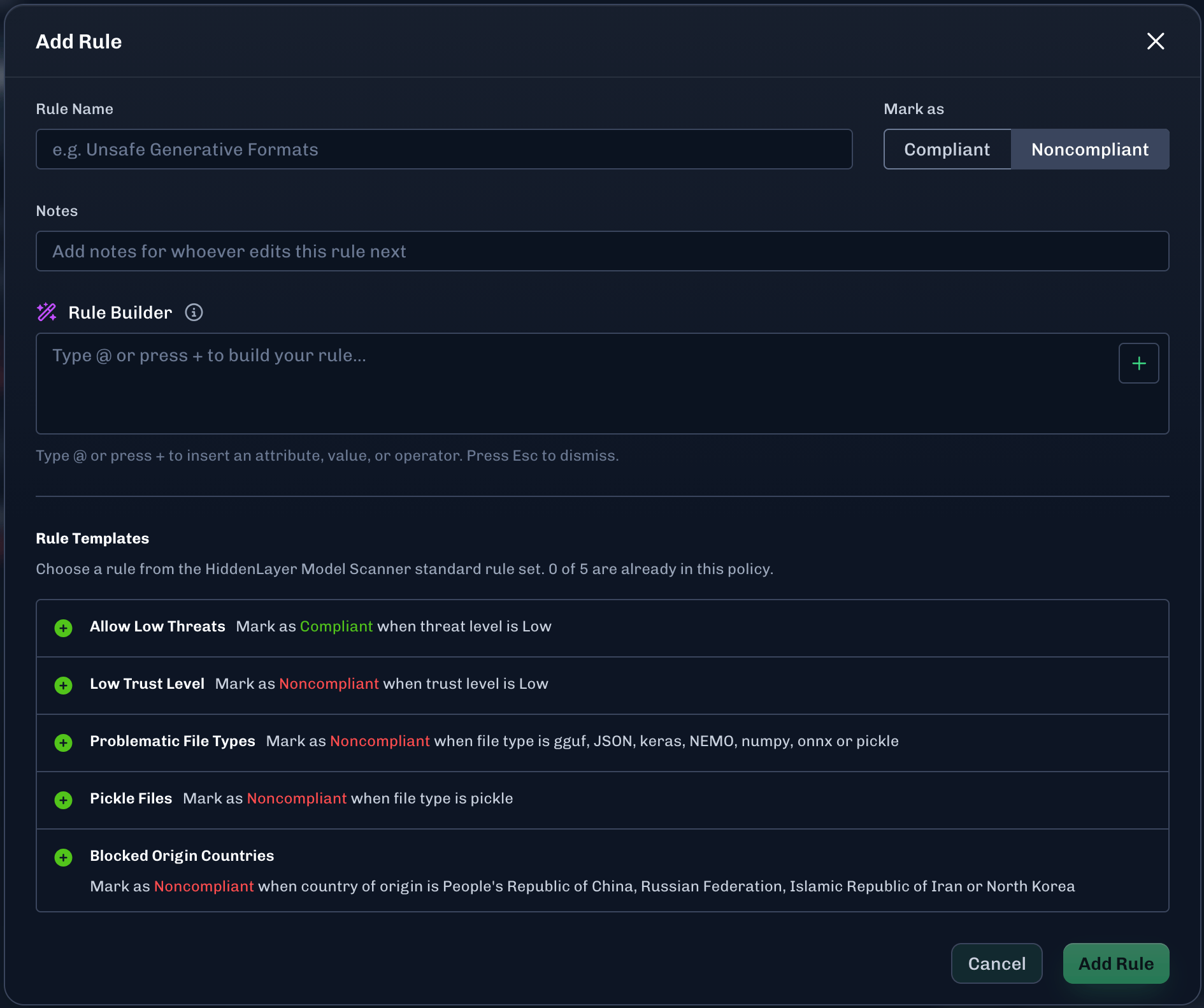
Use the Rule Builder or select a Rule Template.
- The rule builder allows you to select an attribute, select values for that attribute, and add an operator to add more attributes and values to the Rule Builder.
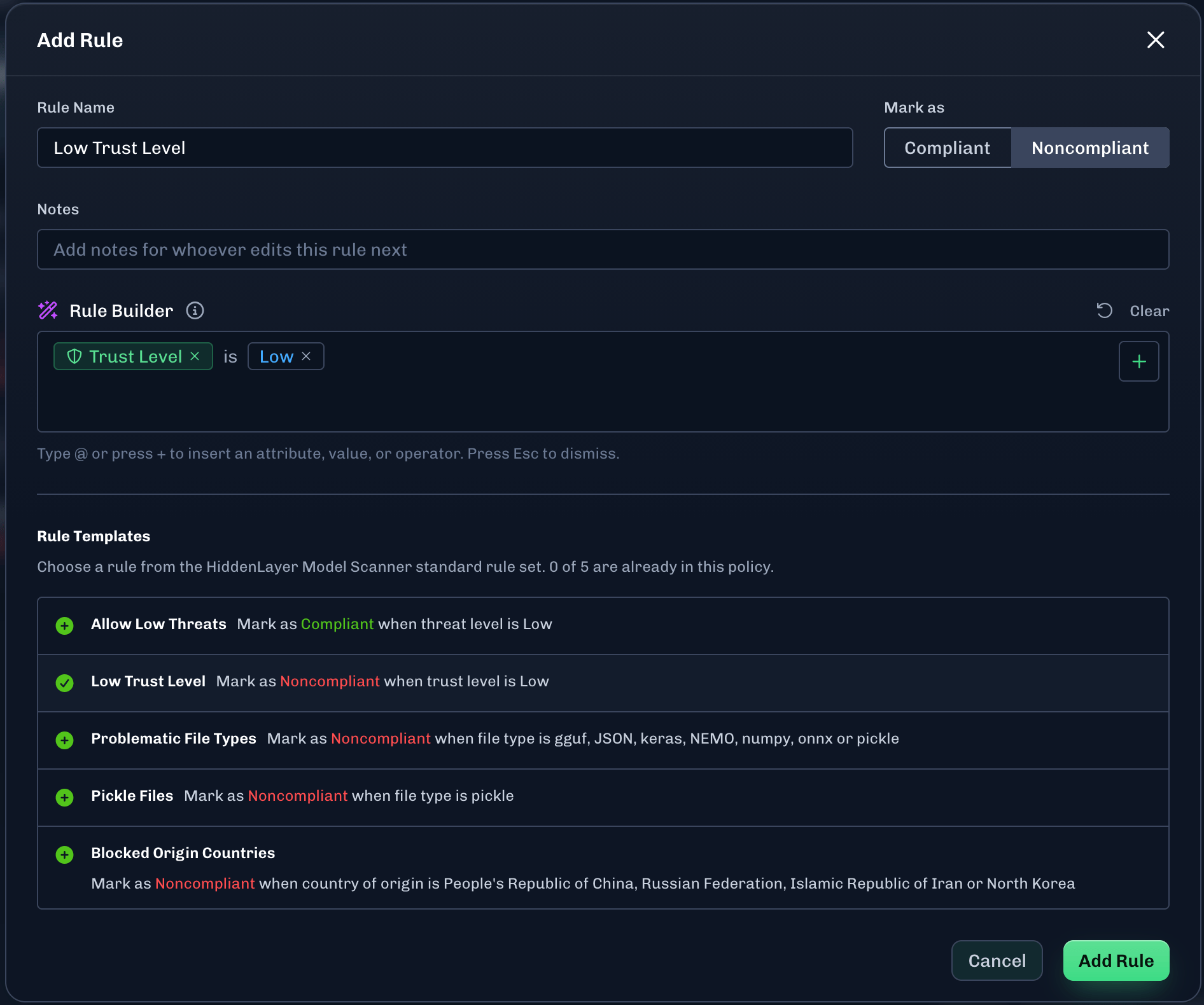
- The rule templates allows you to choose a rule from the HiddenLayer Supply Chain standard rule set.
-
To use the Rule Builder:
- Enter a name for the rule and add any notes to provide context for whoever edits this rule in the future.
-
Select Compliant or Noncompliant for the rule. Noncompliant is selected by default.
- When a model file is scanned, if a scan result matches the rule criteria, then the model file will be marked as compliant or noncompliant, based on the rule.
-
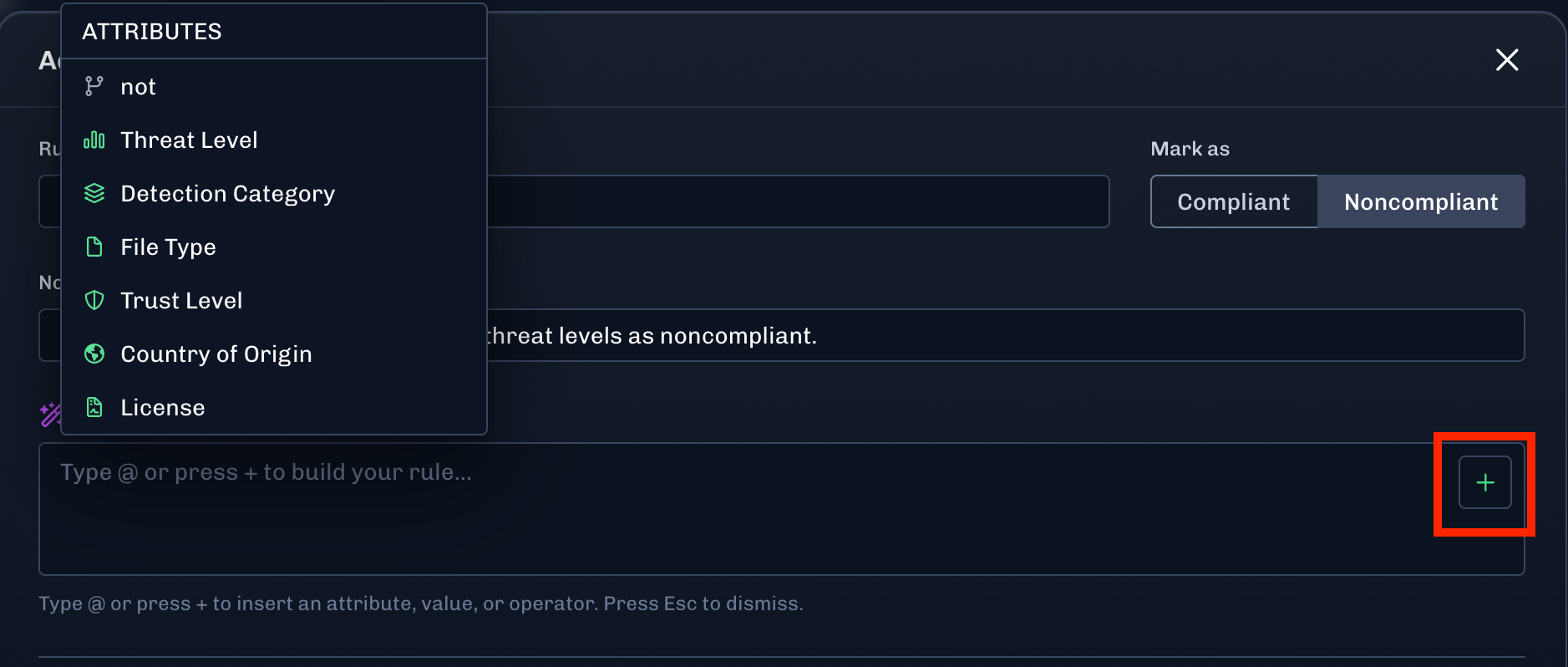
For the Rule Builder, click the green plus sign, then select an Attribute.
-
After selecting an attribute, a list of values displays.
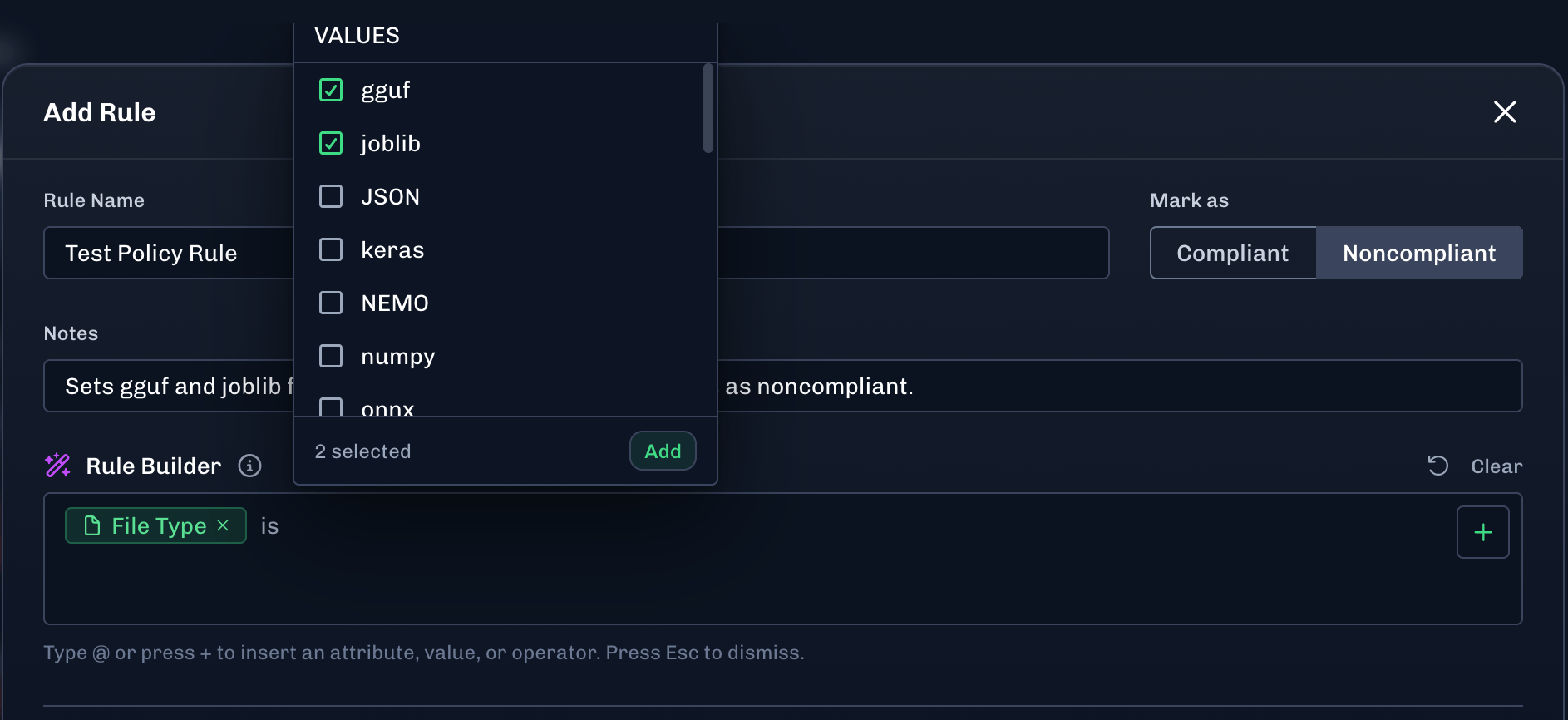
- Select the values for the attribute, then click Add.
-
You can select multiple values for one attribute.
-
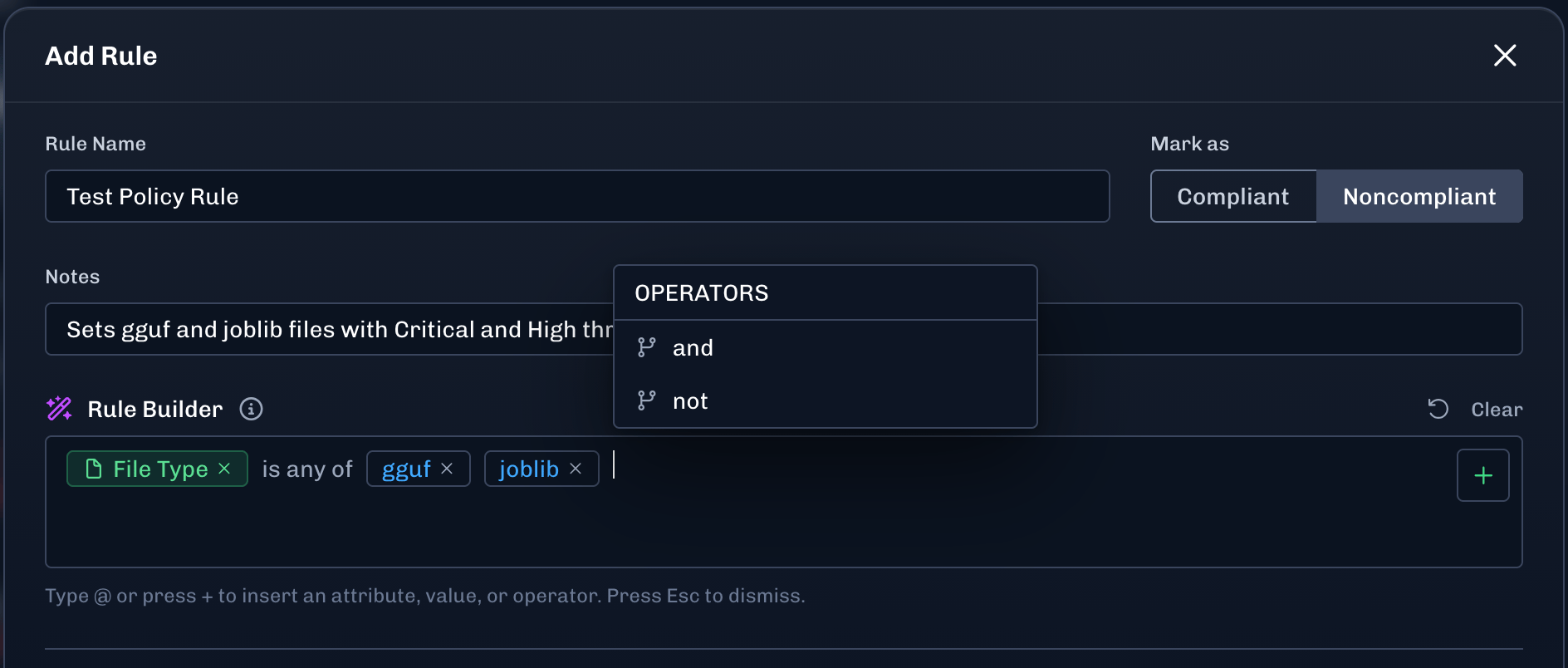
To add another attribute, click the green plus sign, then select an operator (and or not).
-
After selecting an operator, select the attribute, then select the values.
-
After selecting an operator, select the attribute, then select the values.
- When you are done with the rule builder, click Add Rule.
-
To use a Rule Template:
- Select a rule template, then click Add Rule.
-
To change the priority for a rule, drag the rule to the position you want.
- You can drag the rule to be the first, the last, or somewhere in between.
- You can only drag rules within the managed rules section. The system rules are always at the bottom and are overridden by any managed rules.
-
When you are done adding rules to the policy, click Preview changes.
- This takes you to the Policy Preview page. You can see what the current policy is and what the edited policy will change.
-
If you need to make changes, click Cancel and you will go back to the rules page.
- Make you changes, then click Preview changes when you are ready.
- Click Save Changes to save the policy.
Enable and Disable Rules
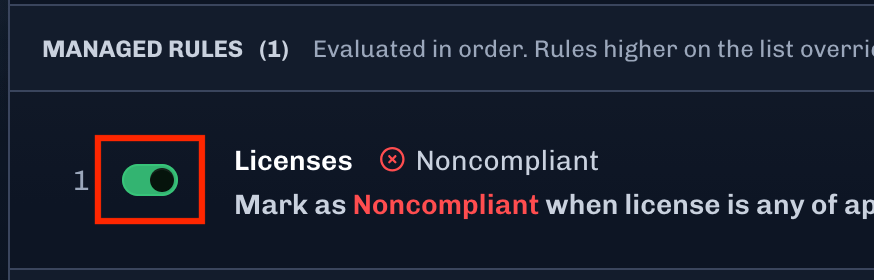
You can enable and disable rules within a policy to adjust the policy as needed, without deleting any rules. An example of when to enable and disable rules is when you are testing policy adjustments and may need to enable a policy rule.- In the Console, select Supply Chain > Policy.
- Click Edit.
-
For the rule you want to enable or disable, click the toggle.
-
When you are done making adjustments, click Preview changes.
- This takes you to the Policy Preview page. You can see what the current policy is and what the edited policy will change.
-
If you need to make changes, click Cancel and you will go back to the rules page.
- Make you changes, then click Preview changes when you are ready.
- Click Save Changes to save the policy.
Reset Policy to Default
You can reset the Supply Chain policy back to its default settings. This removes all managed rules but leaves the system rules. System rules are always on and cannot be edited.Before you set the policy back to default, consider enabling and disabling managed rules within the policy.
- In the Console, select Supply Chain > Policy.
- Click Reset Policy to Default. A confirmation message displays.
- Click Reset Policy to Default to confirm the action.
Rule Builder Attributes
Advanced Supply Chain Policy via API
Using the HiddenLayer API, you can create a complex policy with multiple rules that factor file attributes detected from a scan. Policies can be based on Severity, File Type, Categories, License, and Country of Origin.How it works
- Baseline: Any file with a detection is Noncompliant; files with no detections are Compliant.
- Rules: Each rule tests the file against its conditions. If every condition in the rule matches (AND only), the rule sets the compliance flag you configured. If any condition fails, that rule leaves the status unchanged.
- Conditions can use severity, detection category, and file type.
The final status is Noncompliant because the last matching rule (step 3) prevails.
Adding rules through the API
POST a policy with one or more rules. Each rule lists conditions (combined with AND) andis_compliant_when_conditions_met, which sets compliance when every condition matches.
API vs ConsoleCreating or updating Supply Chain policy through the API turns off policy editing in the Console. You can still revert to the default policy from the Console.
curl example
This POST /governance/v1/rule-sets request creates a policy with one rule: when the file type is pickle and the detection category is not Repository Sideloading, is_compliant_when_conditions_met: false marks the scan Noncompliant.
- Replace
<new_policy_rule>with a display name for your policy. - Replace
<YOUR_TOKEN_HERE>with the bearer token you generate using your HiddenLayer API key and secret. - Use the API host for your environment (for example
https://api.hiddenlayer.aiorhttps://api.eu.hiddenlayer.ai). - For
file_typeconditions,field_valuemust match the file type string shown in the scan report for that file.
Policy Configurations
| Category | Description | Available options |
|---|---|---|
| Severity | Threat level from the scan.
| Critical, High, Medium, Low |
| File types | The file types included in the policy.
| NEMO, numpy, onnx, pickle, pytorch, RDS, safetensors, skops, tensorflow, unknown, ZIP, CONFIGURATION, GIT_CONFIGURATION, INITIALIZATION, JAVASCRIPT, MARKDOWN, PLAINTEXT, PNG, PYTHON, SHELL_SCRIPT, YAML, and TAR |
| Categories | Detection categories included in the policy.
| XSS, CSRF, SSRF, Denial / Disruption of Service, Remote Code Execution, Improper Authentication, Unsecured Credential Storage, Arbitrary Code Execution, Arbitrary Read Access, Arbitrary Write Access, Arbitrary Read-Write Access, Out of Bounds Memory Read Access, Out of Bounds Memory Write Access, Network Requests, Suspicious Functions, Directory Traversal, Denial of Service, Decompression Vulnerabilities, Data Leakage Through Serialized Objects, Embedded Payloads, Fault Injection, Prompt Jailbreaking, Prompt Hijacking, Prompt Leaking, Indirect Prompt Injection, Code Injection, Excessive Agency/Permission Manipulation, Sensitive Data Leakage, Data Poisoning in Static ML, Data Poisoning in Online Learning, Data Poisoning in Federated Learning, Label Manipulation, Model Poisoning, Neural Payload, Graph Payload, Model Evasion, Training Data Extraction / PII Leakage, Model Extraction / IP Leakage, Membership Inference Attacks, Denial/Disruption of Service via Input Manipulation, Suspicious File Format, Repository Sideloading, Control Vector, and TokenBreak |