The HiddenLayer AISec Platform Console has SAML application integrations to allow users to use single-sign-on to streamline the authentication process for their users. The console integrates with any SAML2.0-compliant IdP (Identity Provider).
This guide provides the following as examples:
The current integration requires working with HiddenLayer Support to configure single-sign-on for your organization.
Before creating an app integration in Okta, you need the following information from HiddenLayer Support.
- Identifier (Entity ID): This could be called the Issuer.
- Reply URL: This could be called the ACS or Callback URL.
- SP-initiated Callback URL
After receiving the SSO information from HiddenLayer, create an Enterprise Application in Azure.
The following procedure contains steps from a third-party product. That content is beyond the control of HiddenLayer and may change at any time.
In the Azure console, search for and select Enterprise Applications.
Click New application.
Click Create your own application.
Enter a name for the application. Example: HiddenLayer.
- Make sure Integrate any other application you don’t find in the gallery (Non-gallery) is selected.
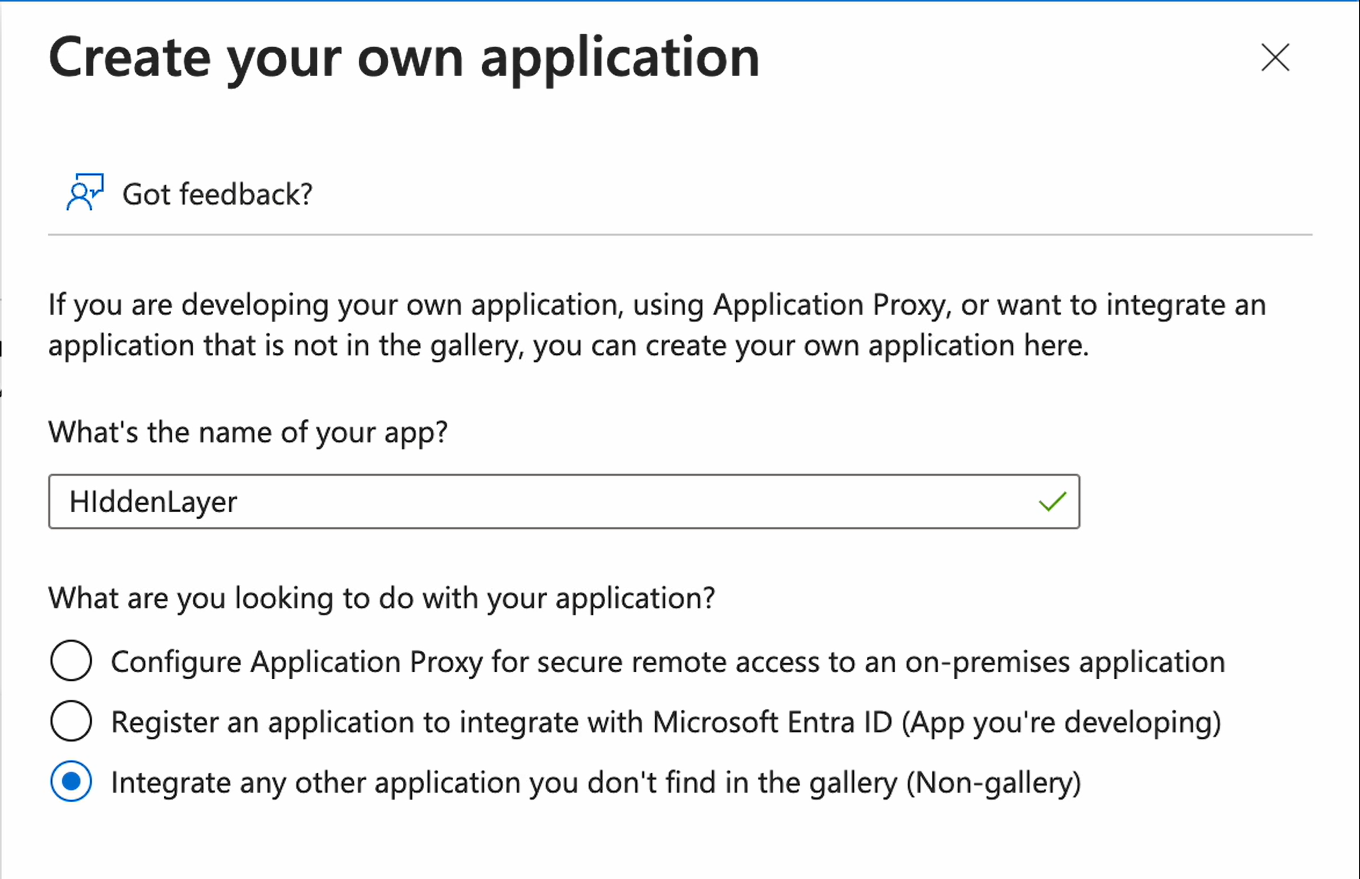
Click Create. It may take a few moments to create the application. When the application is created, the Overview page displays.
Expand Manage, then select Single sign-on.
Click SAML.
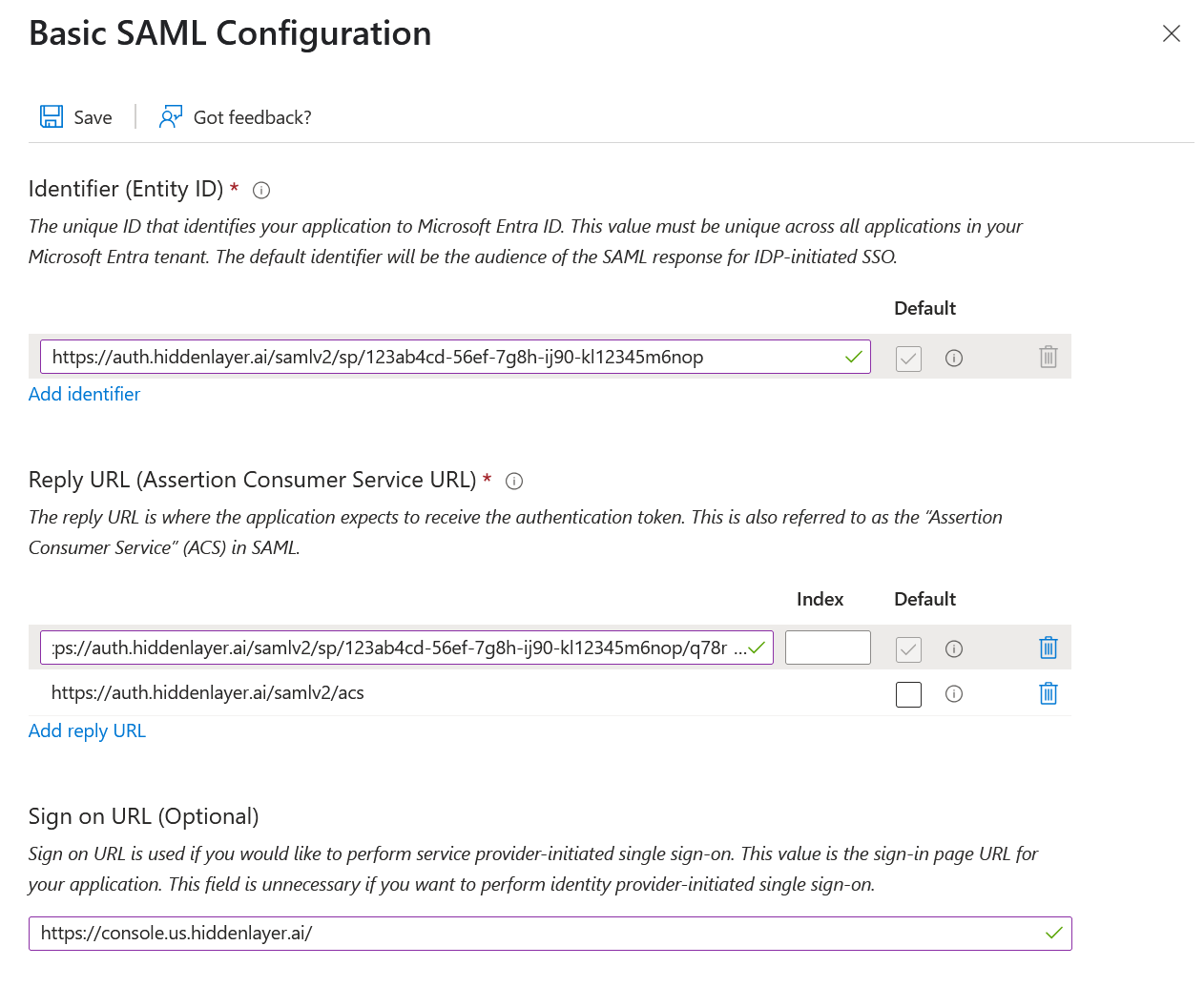
For Basic SAML Configuration, click the Edit button.
Under Identifier (Entity ID), click Add identifier.
- Copy and paste the Identifier (or Issuer) you received from HiddenLayer into the field.
Under Reply URL (Assertion Consumer Service URL), click Add reply URL.
- Copy and paste the Reply URL (or Callback URL) you received from HiddenLayer into the field.
- Make sure Default is selected. When Entra initiates a sign-on, this is the URL to use.
- Under Reply URL, click Add reply URL to add a second URL.
- Copy and paste the SP-initiated Callback URL you received from HiddenLayer into the field.
- Click Save.
Optional: Configure Sign-on URL (only required for SP-initiated SSO).
IDP-initiated SSOSkip this step if you only plan to use IDP-initiated SSO. SP-initiated flows will fail without a populated Sign-on URL.
For the Sign on URL, enter the SP-initiated Callback URL for your region.
- US region:
https://console.us.hiddenlayer.ai/ - EU region:
https://console.eu.hiddenlayer.ai/
- US region:
Click Save.
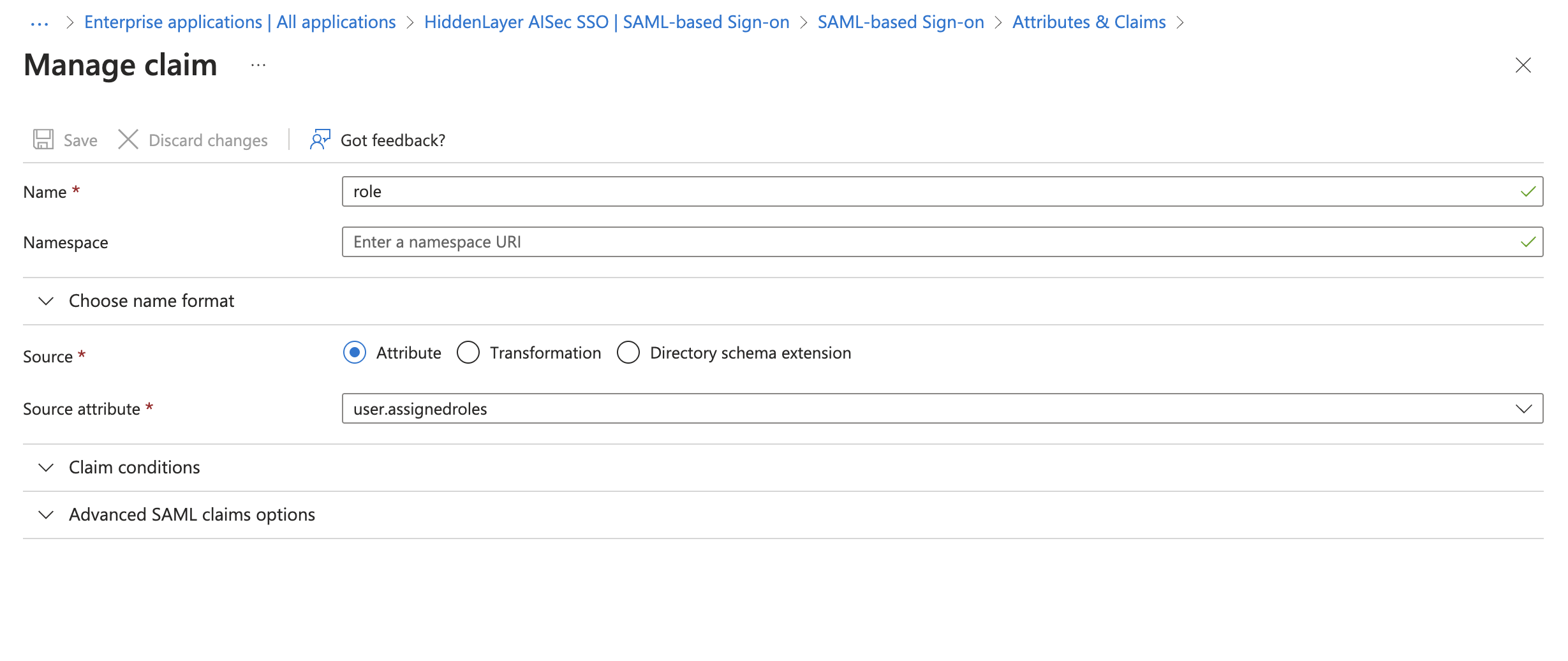
For user-based role assignments, edit the Attributes & Claims. Make sure you are on the Manage > Single sign-on page for the application.
- For Attributes & Claims, click the Edit button.
- Click Add new claim.
- For Name, enter
role. - For Source attribute, select
user.assignedroles. - Leave the namespace blank.
- Click Save.
After the Enterprise Application is created, be sure to assign users or groups to the application.
Go to Microsoft Entra ID.
Under Manage, select App registrations.
Select your HiddenLayer application. You might need to click the All applications tab.
In your HiddenLayer application, select Manage > App roles.
Click Create app role.
Create separate app roles for Org Admin, User Admin, Analyst, and Viewer.
Org Admin
- Display name: Org Admin
- Allowed member types: Users/Groups
- Value: admin
- Description: HiddenLayer Admin Role
User Admin
- Display name: User Admin
- Allowed member types: Users/Groups
- Value: user-admin
- Description: HiddenLayer User Admin Role
Analyst
- Display name: Analyst
- Allowed member types: Users/Groups
- Value: analyst
- Description: HiddenLayer Analyst Role
Viewer
- Display name: Viewer
- Allowed member types: Users/Groups
- Value: viewer
- Description: HiddenLayer Viewer Role
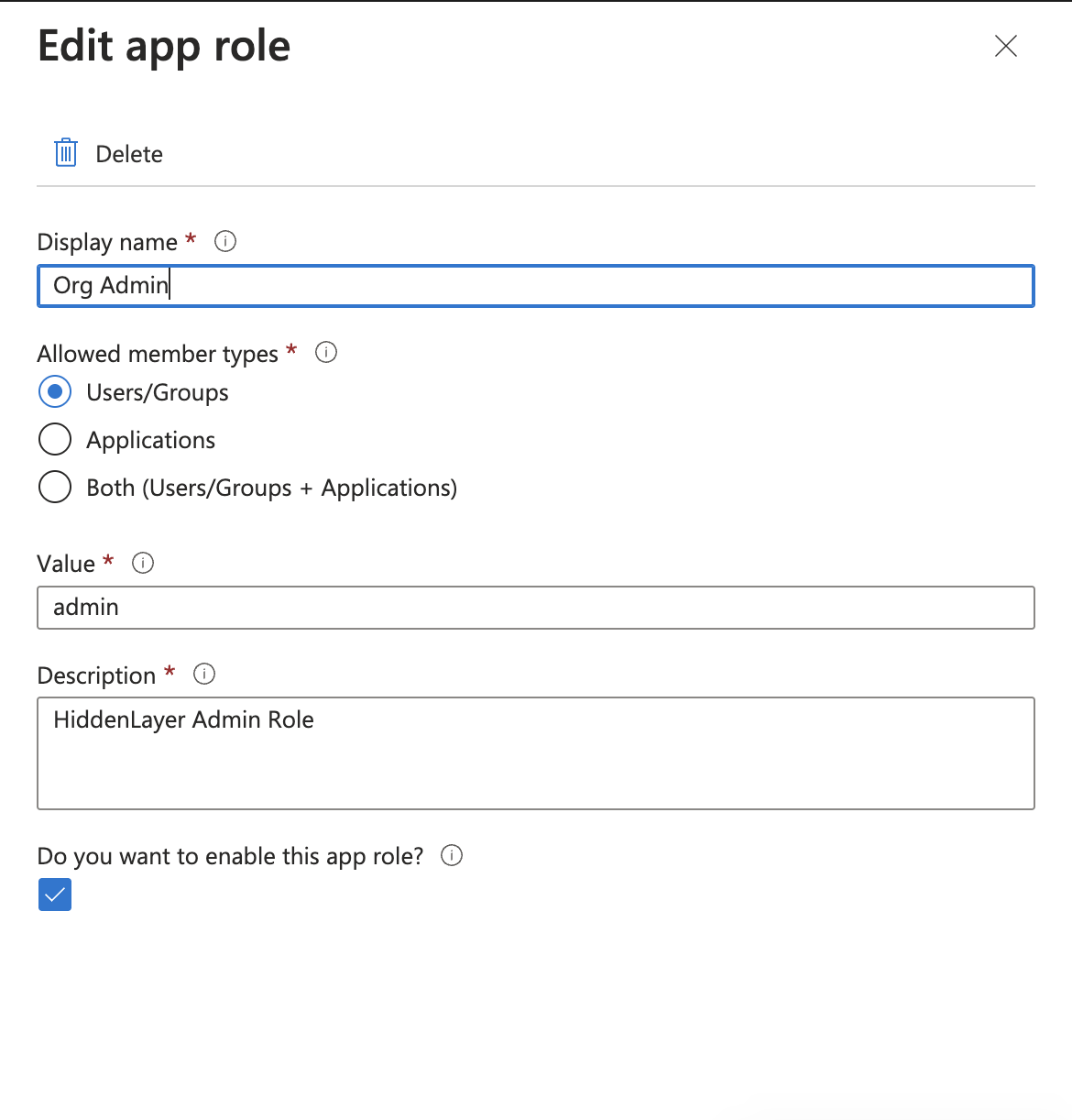
- Click Apply to save each app role.
- Assign your users to these roles, as needed.
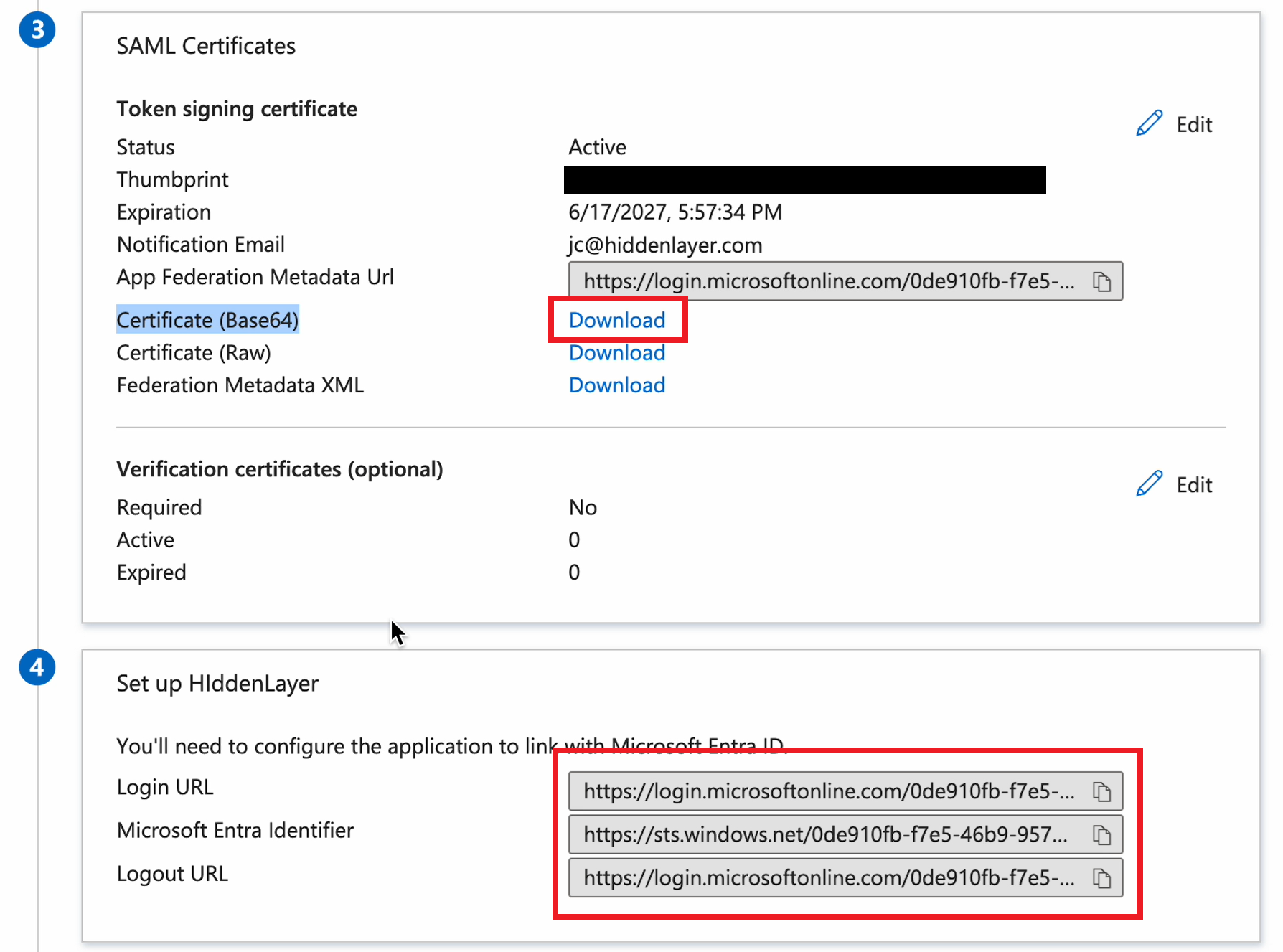
Send the following information to HiddenLayer. You can view this by clicking Single sign-on under Manage.
From Set up HiddenLayer (or the name you gave the application):
- Login URL
- Microsoft Entra Identifier
- Logout URL
From SAML Certificates:
- Certificate (Base64)
Before creating an app integration in Okta, you need the following information from HiddenLayer Support.
- Single sign-on URL: this could be called the ACS or Callback URL.
- Audience URL (SP Entity ID): this could be called the Issuer.
- Other Requestable SSO URLs
After receiving the SSO information from HiddenLayer, create an application integration in Okta.
The following procedure contains steps from a third-party product. That content is beyond the control of HiddenLayer and may change at any time.
In the Okta console, select Applications > Applications.
Click Create App Integration.
For Sign-in method, select SAML 2.0.
Click Next.
Enter a name for the integration, then click Next.
- Optionally, upload an icon for the app.
Enter the SAML settings for the integration.
- Enter the Single sign-on URL provided by HiddenLayer.
- Leave the box checked to “Use this for Recipient URL and Destination URL.”
- Enter the Audience URL (SP Entity ID) provided by HiddenLayer. This could be called the Issuer.
- Set Name ID format to “EmailAddress.”
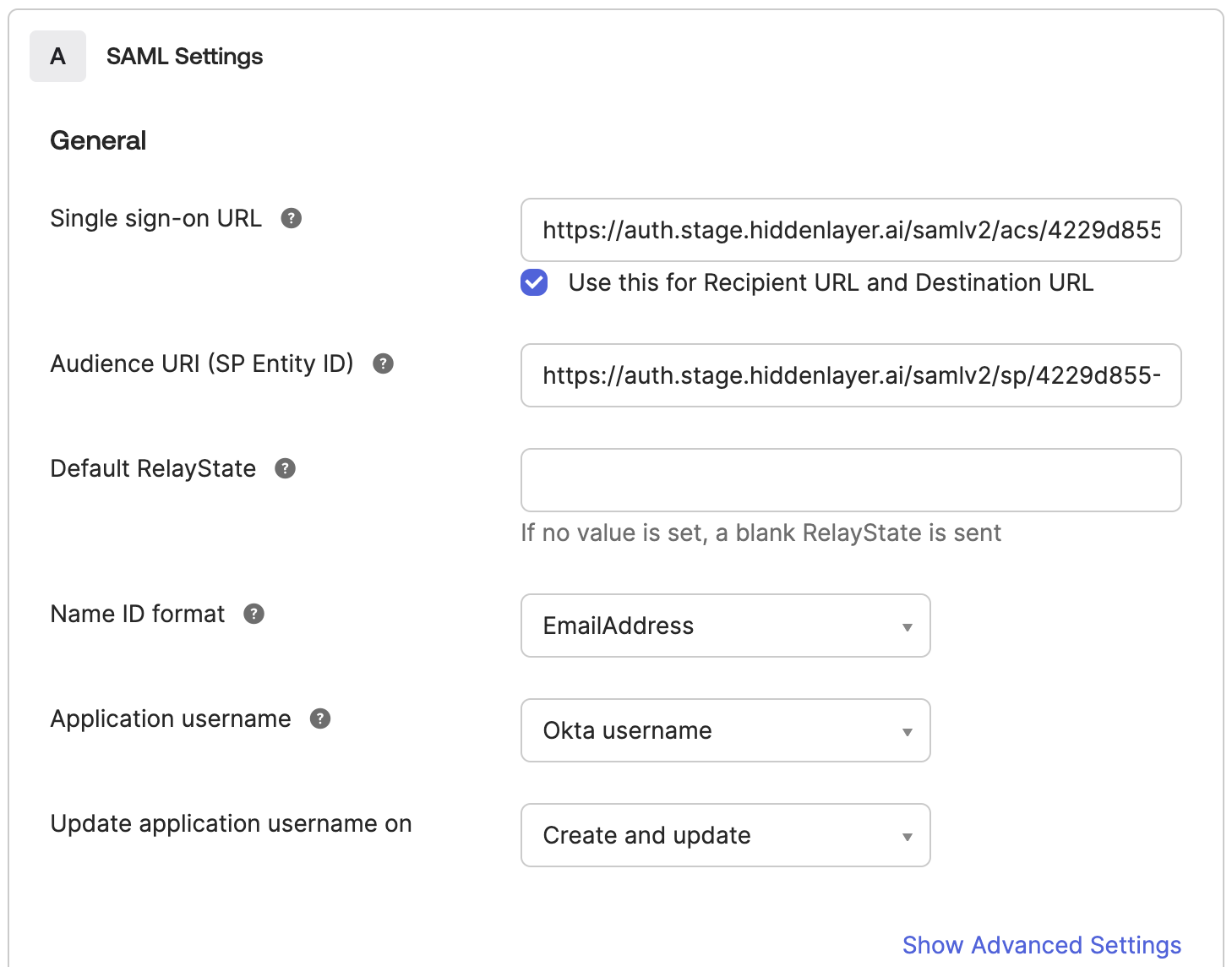
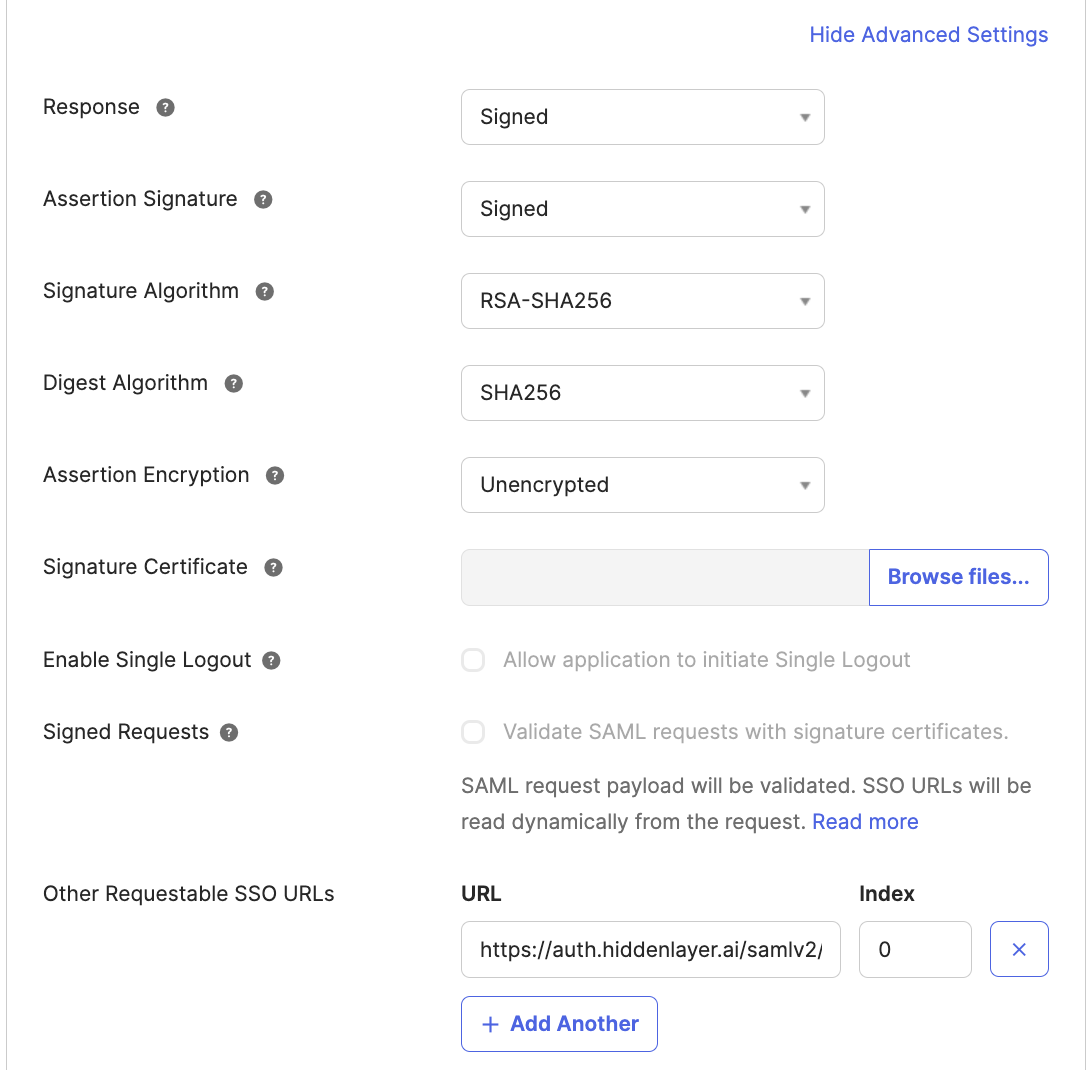
Click Show Advanced Settings.
Set up SP Request validation by certificate:
- Under Signature Certificate, Click the “Browse files” button. Upload the SP certificate provided by HiddenLayer.
- Under Signed Requests, check “Validate SAML requests with signature certificates.”
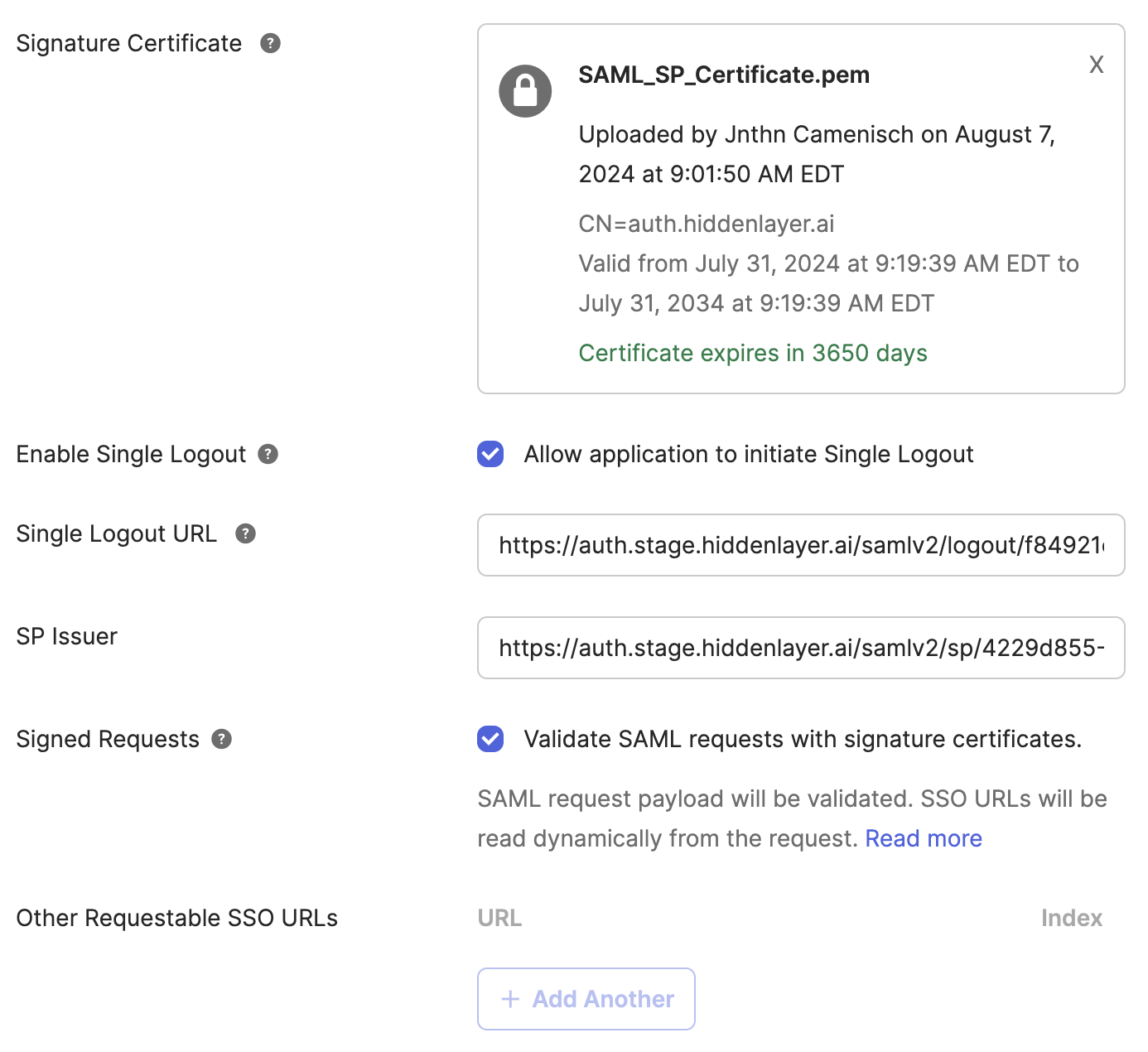
Alternative approach: If use of the request signing certificate is not desired for some reason, the service provider can be authenticated by callback URL. To do this, use a “Requestable SSO URL” as follows. (Note this will be disabled if certificate validation is set.)
- For Other Requestable SSO URLs, click Add Another.
- Enter the Other Requestable SSO URL provided by HiddenLayer.
- Enter zero for Index.
Under Attribute Statements (optional), add a
firstName.- For Name, enter firstname.
- For Name format, select Basic.
- For Value, select
user.firstName.
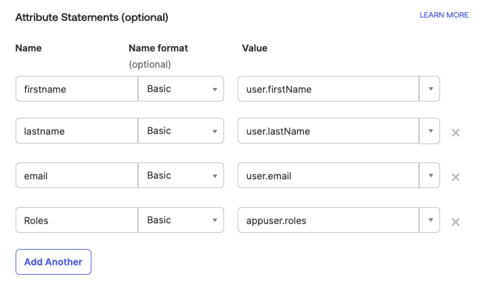
Under Attribute Statements (optional), add a
lastName.- For Name, enter lastname.
- For Name format, select Basic.
- For Value, add the values that match your environment. Example:
user.lastName.
Under Attribute Statements (optional), add an email.
- For Name, enter email.
- For Name format, select Basic.
- For Value, add the values that match your environment. Example:
user.email.
Under Attribute Statements (optional), add Roles.
- For Name, enter Roles.
- For Name format, select Basic.
- For Value, add
appuser.roles.
Click Next.
Optionally, under Help Okta support understand how you configured this application, select It’s required to contact the vendor to enable SAML. This is not required.
Click Finish. The app integration is created and the SAML 2.0 settings display.
Send the following information to HiddenLayer. You can view this by clicking More details under Metadata details or click the View SAML setup instructions.
- Sign on URL
- Issuer
- Signing Certificate
After the Okta app integration is created, be sure to assign users or groups to the app integration.
You can configure the HiddenLayer OKTA application to pass all groups for role-based access control (RBAC).
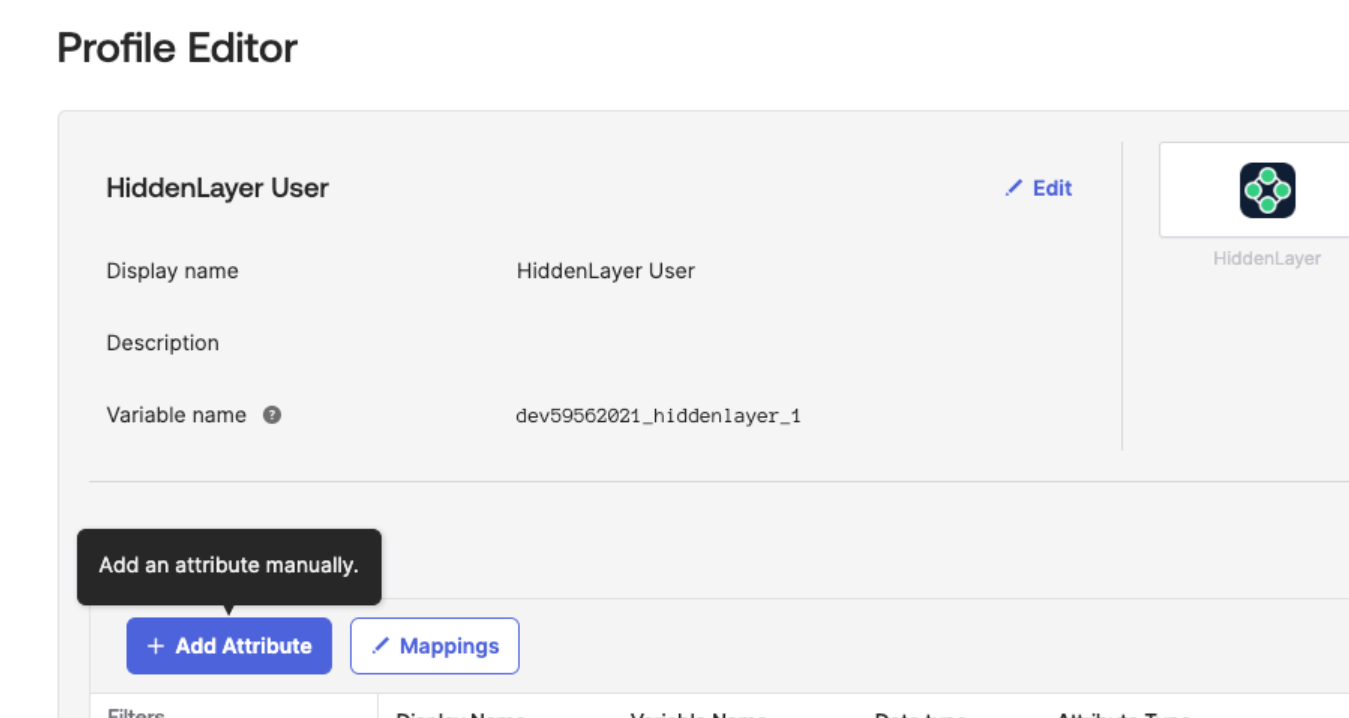
Edit the HiddenLayer User Profile in OKTA.
Click Add Attribute.
Configure the Attribute as follows. Also see the image below.
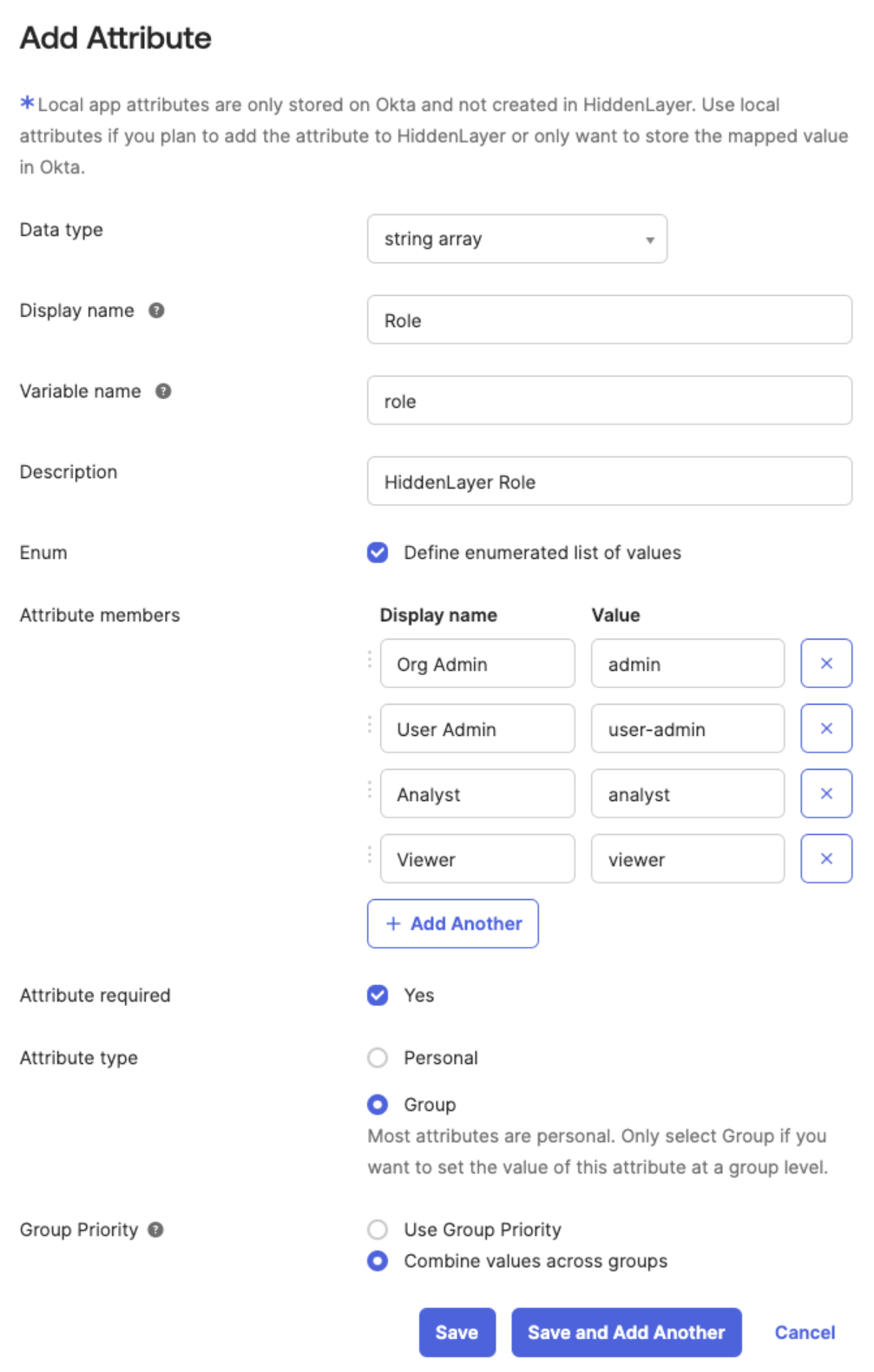
Click Save.
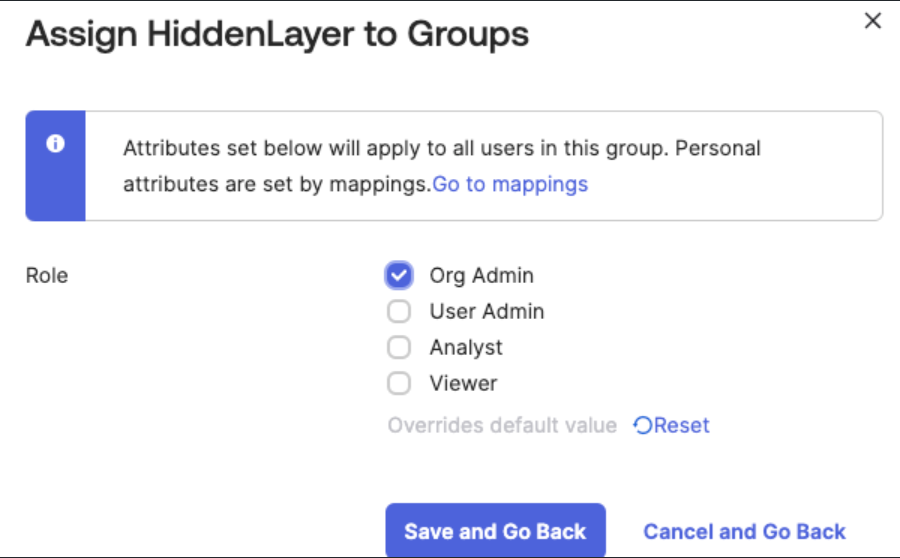
Assign groups to the Application.
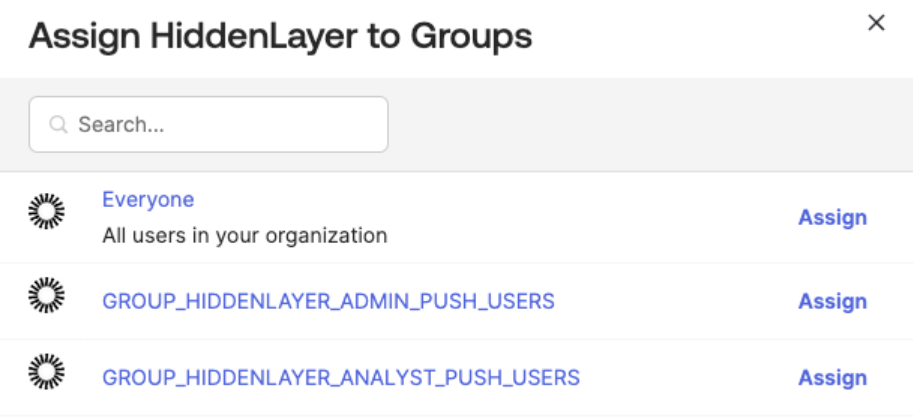
Specify the HiddenLayer Role to assign to the group.