Scan a model directly from a public repository on Hugging Face by specifying the repository URL or ID. The model is automatically downloaded and scanned by HiddenLayer's AI Supply Chain Security.
Ten concurrent file scans is the maximum allowed for a tenant. Concurrent file scans is the combined total of all files being scanned by SaaS, local, and Community scanners. Adding more files will put the unscanned files in a queue and will be processed when resources are available. Ten concurrent files scans is the default setting and is the maximum allowed.
Note: One model can contain multiple files. Therefore, scanning a model may consume multiple file scans.
Private or gated Hugging Face repositories are not supported.
In the HiddenLayer Console, go to the Model Inventory page.
Click + New Scan. The New Scan slideout displays.

Click the Community Upload tab.
Enter a name for the model. This name should be unique for your organization.
Enter the URL or Repository ID for the model you want to scan.
URL format:
https://huggingface.com/…/mainHugging Face Repo ID format:
HuggingFace/main-branch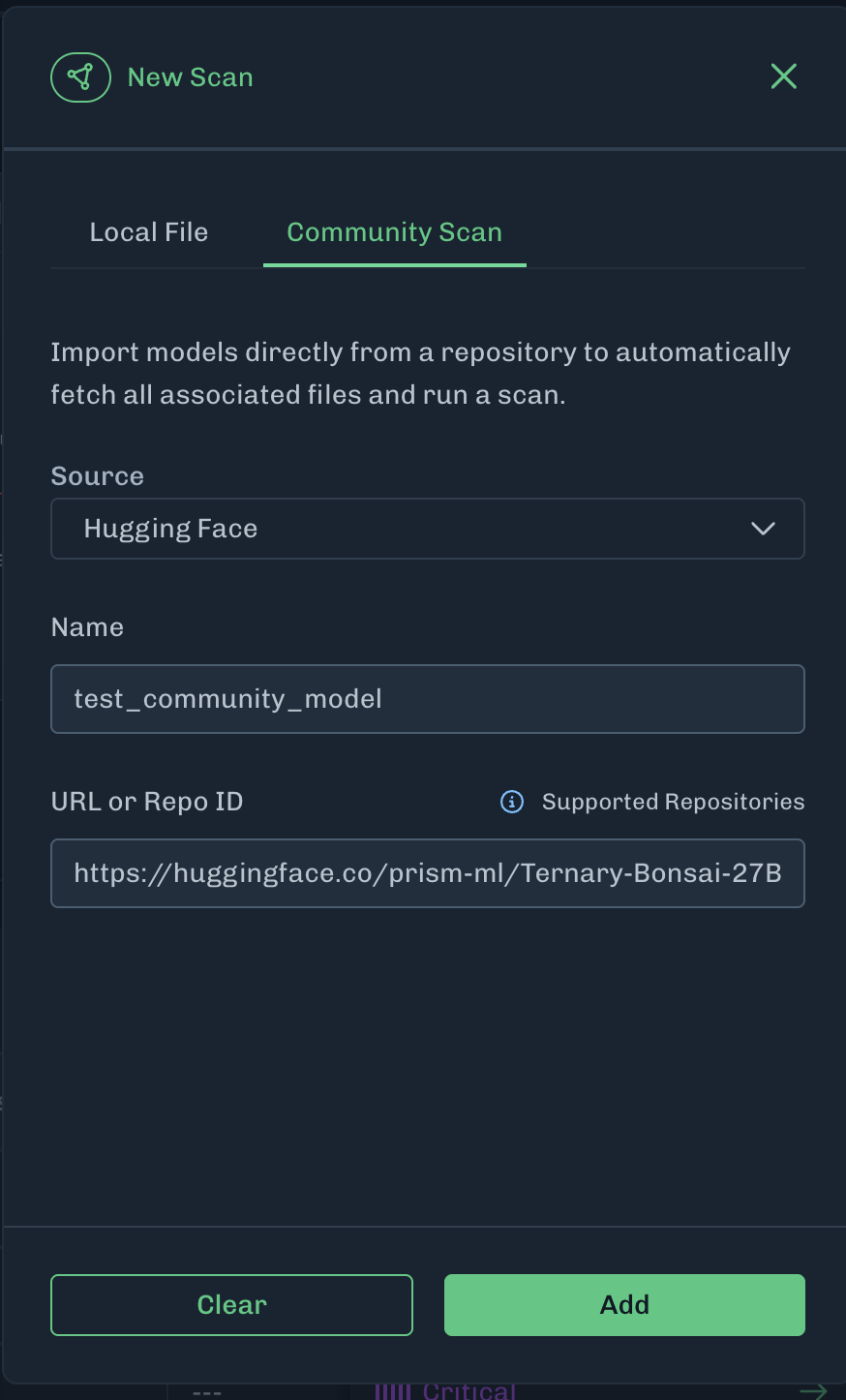 About Community Model Scans
Community model scans support repositories up to 40 GB in size. If you need to scan a repository larger than 40 GB, contact HiddenLayer Support for assistance.
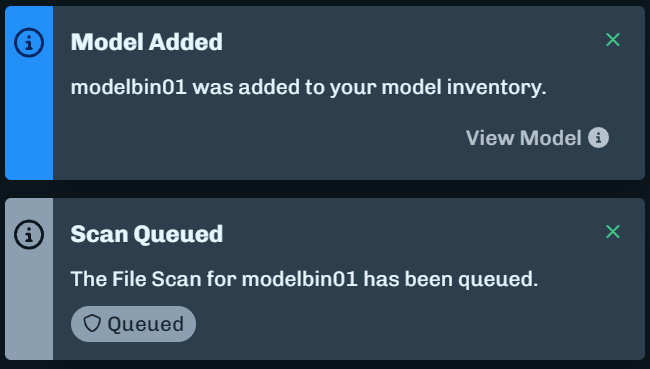
Click Add. The scan is added to your Model Inventory.
Notifications will display updates about the scan, like when a scan completes.
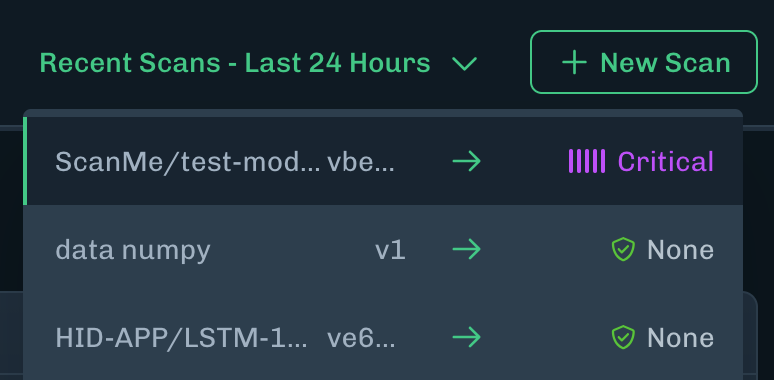
Click on the Recent Scans - Last 24 Hours drop-down menu from any page within the platform. If there are no scans within the last 24 hours, then No Local Scan History Last 24 Hours displays instead of the drop-down menu.
In the Console, go to the Model Inventory page.
Click + New Scan. The New Scan slideout displays.
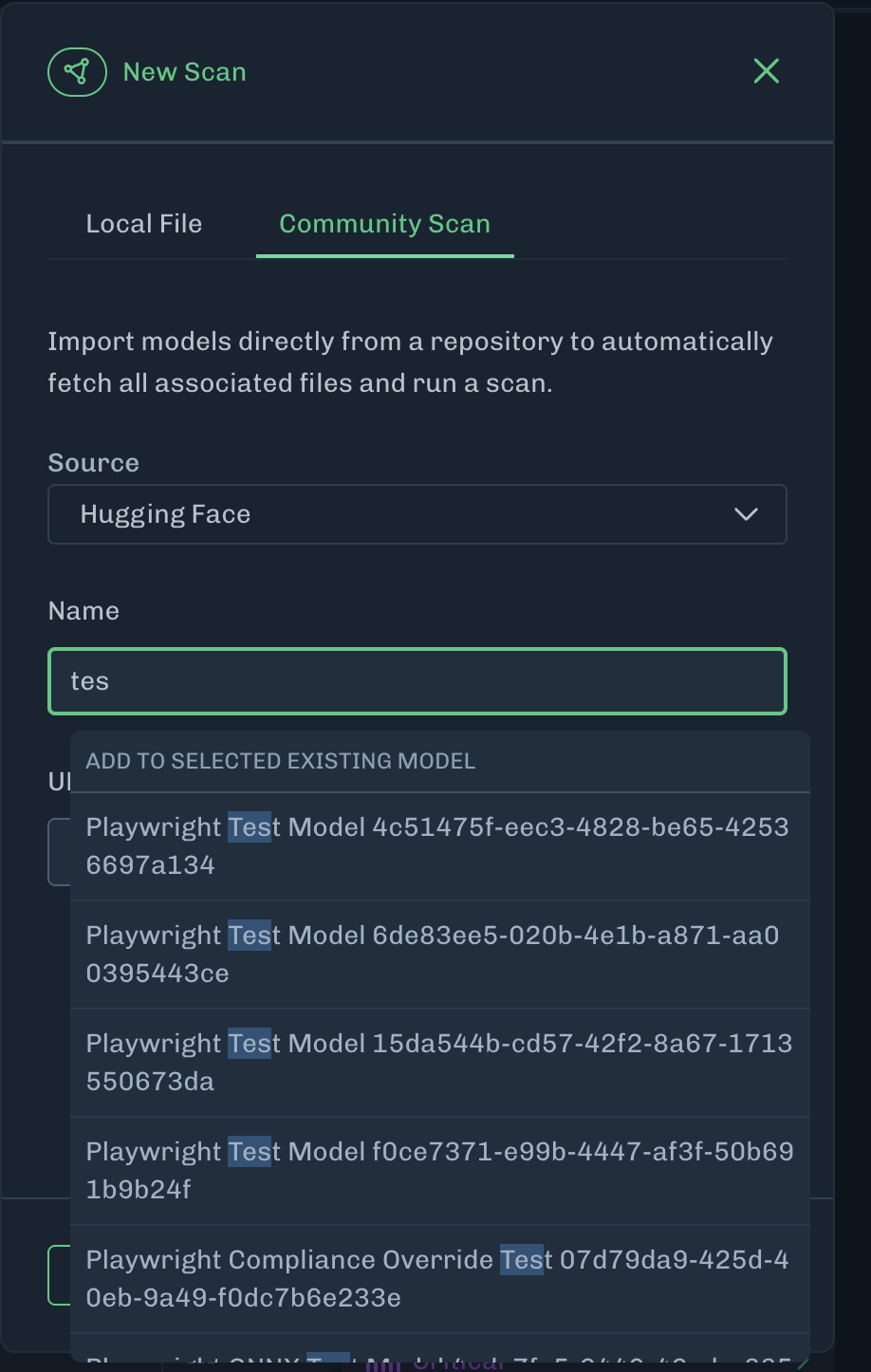
Click the Community Upload tab.
From the Source list, select the repository source (for example, Hugging Face or NVCR).
Enter a name for an existing model. As you type the name, suggestions will display that you can select.
Enter the URL or Repository ID for the model you want to scan.
URL format:
https://huggingface.com/…/mainHugging Face Repo ID format:
HuggingFace/main-branch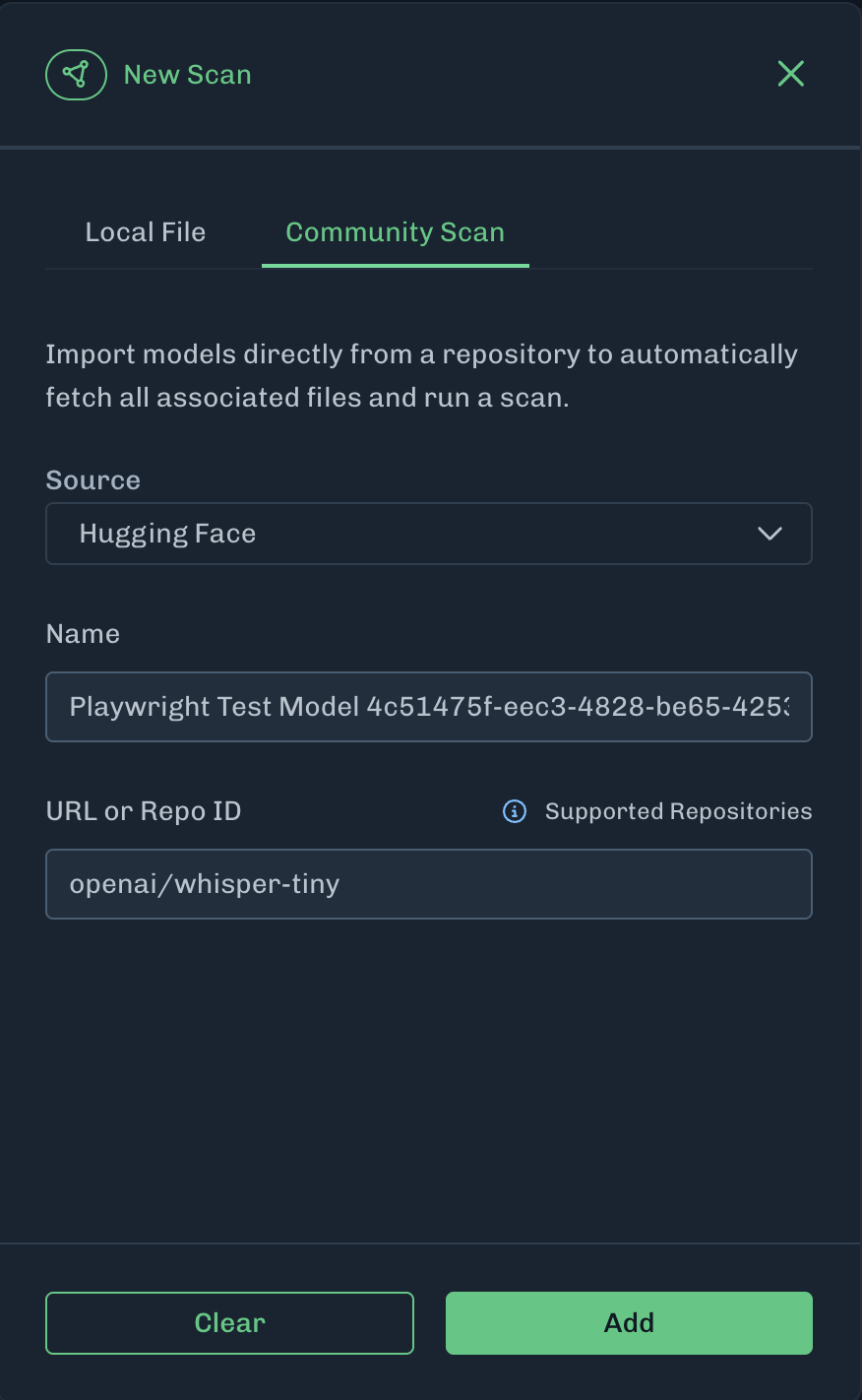 About Community Model Scans
Community model scans support repositories up to 40 GB in size. If you need to scan a repository larger than 40 GB, contact HiddenLayer Support for assistance.
Click Add. The scan is added to your existing model.