If a model file is stored on your local system, you can upload it to the AI Security Platform to be scanned by AI Supply Chain Security.
Ten concurrent file scans is the maximum allowed for a tenant. Concurrent file scans is the combined total of all files being scanned by SaaS, local, and Community scanners. Adding more files will put the unscanned files in a queue and will be processed when resources are available. Ten concurrent files scans is the default setting and is the maximum allowed.
Note: One model can contain multiple files. Therefore, scanning a model may consume multiple file scans.
In the HiddenLayer Console, go to the Model Inventory page.
Click + New Scan. The New Scan slideout displays.

Enter a name for the model. This name should be unique for your organization.
Click Select Files.
About Uploading Files- When uploading a file using the Console, the maximum file size is 40 GB. If you need to upload a file larger than 40 GB, contact HiddenLayer Support for assistance.
- For macOS, you may need to select All Files for Show Options before selecting a model file to upload.
Select a file from the file browser, then click Open. The file is added.
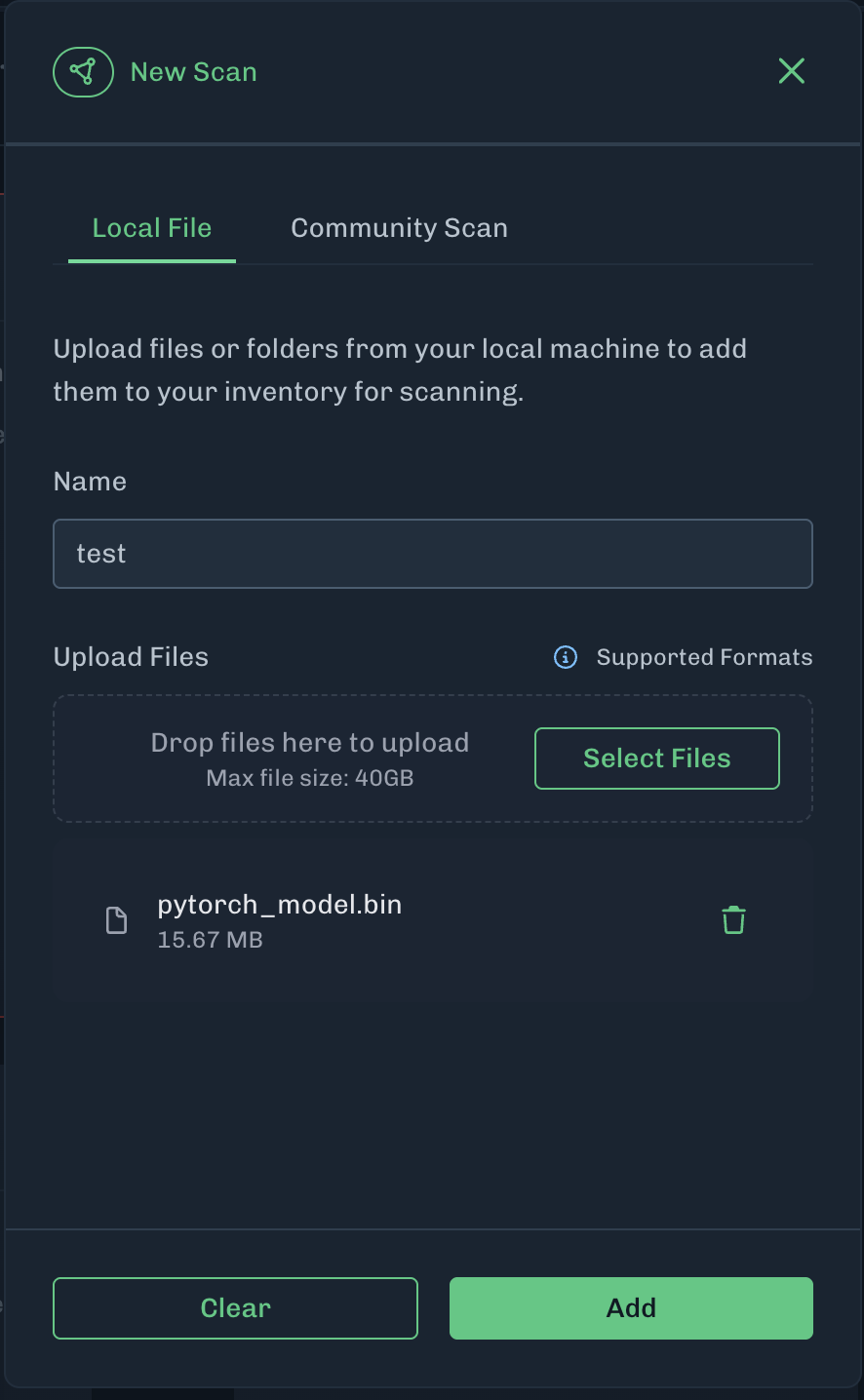
Click Add. The model file is uploaded to Supply Chain and scanned. The scan is added to your Model Inventory.
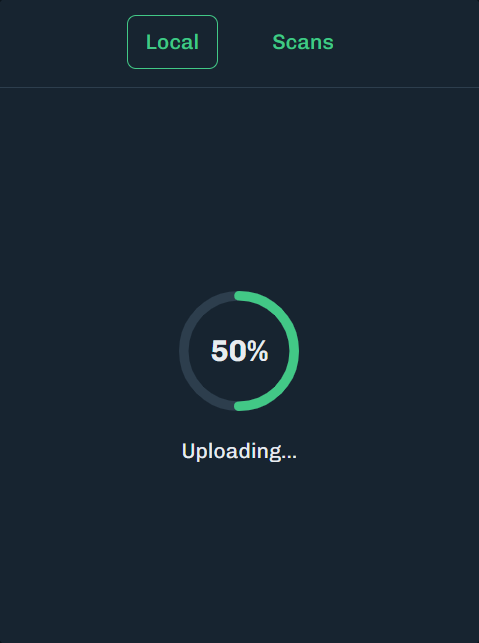
Keep Browser OpenDo not close or navigate away from the page during a Model Upload; doing so will cancel the upload. A message displays during the upload and when the upload is complete.
You can open other tabs in your browser.
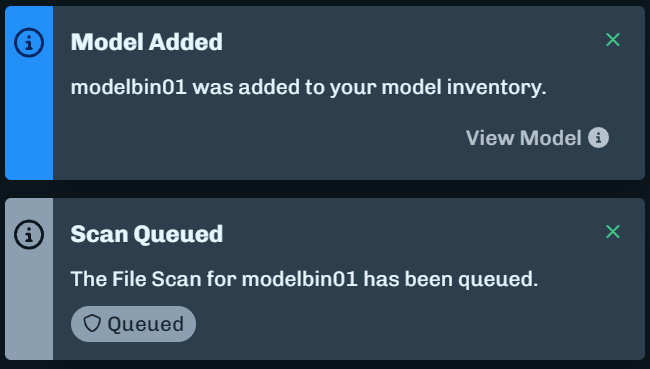
Notifications will display updates about the scan, like when a scan completes.
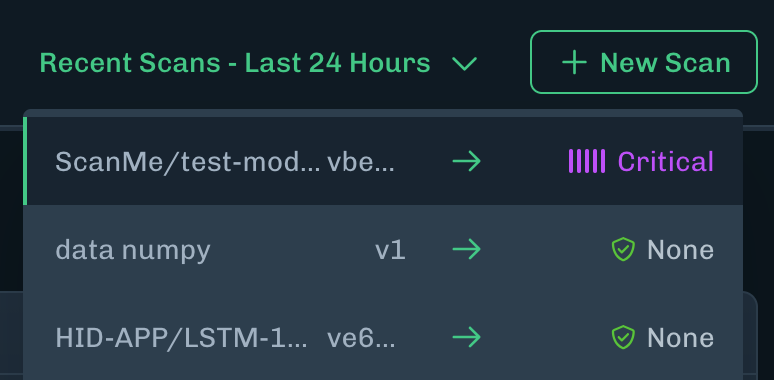
Click on the Recent Scans - Last 24 Hours drop-down menu from any page within the platform. If there are no scans within the last 24 hours, then No Local Scan History Last 24 Hours displays instead of the drop-down menu.
You can add a local model version to an existing local model in your inventory. This allows you to track the local model across multiple versions.
In the Console, go to the Model Inventory page.
Click + New Scan. The New Scan slideout displays.
Enter the name of an existing model. As you type the name, suggestions will display that you can select.
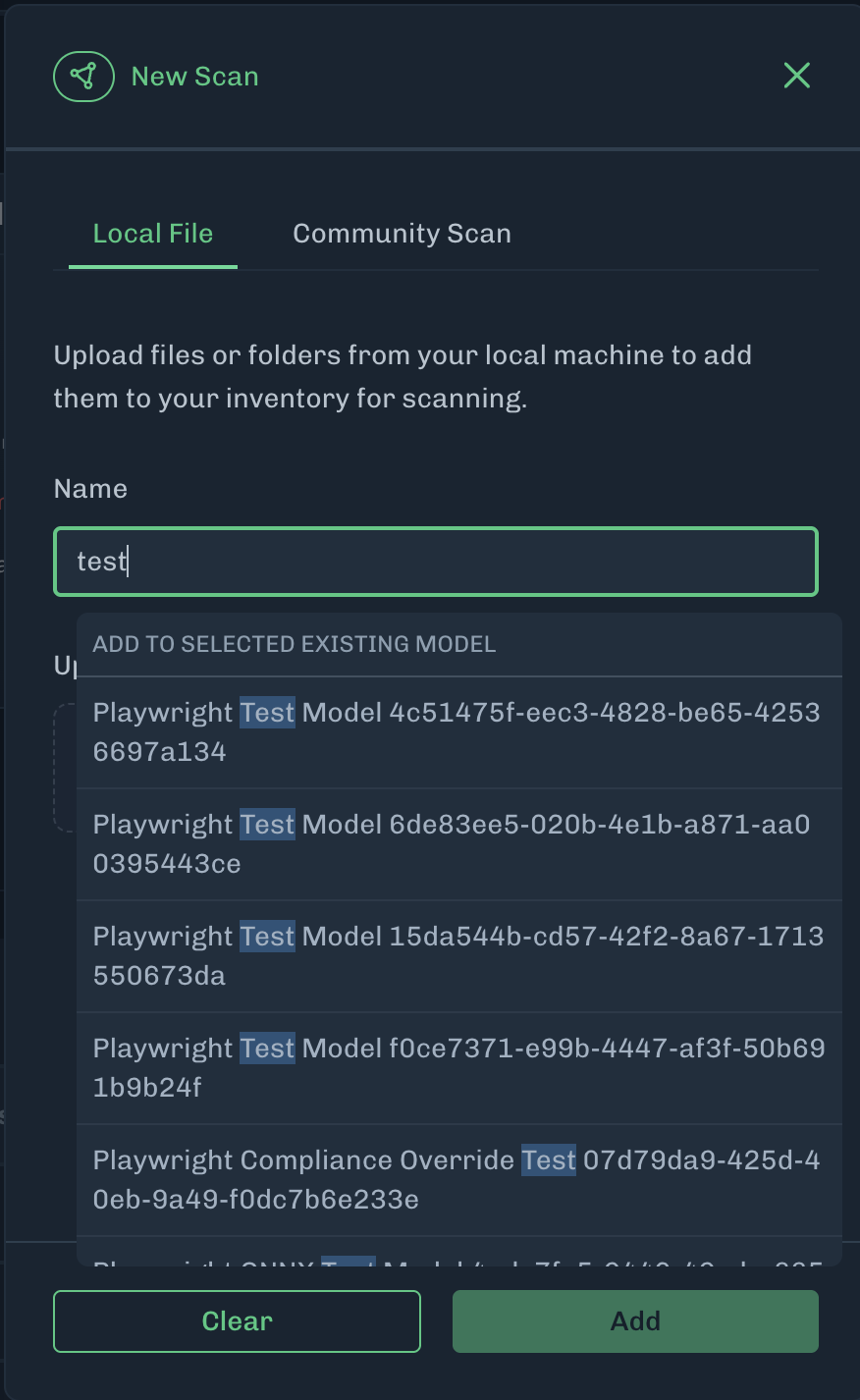
After entering the model name, the New Version field is automatically populated with a value one higher than the previous submission.
To change this value, click the edit button and enter a whole number.
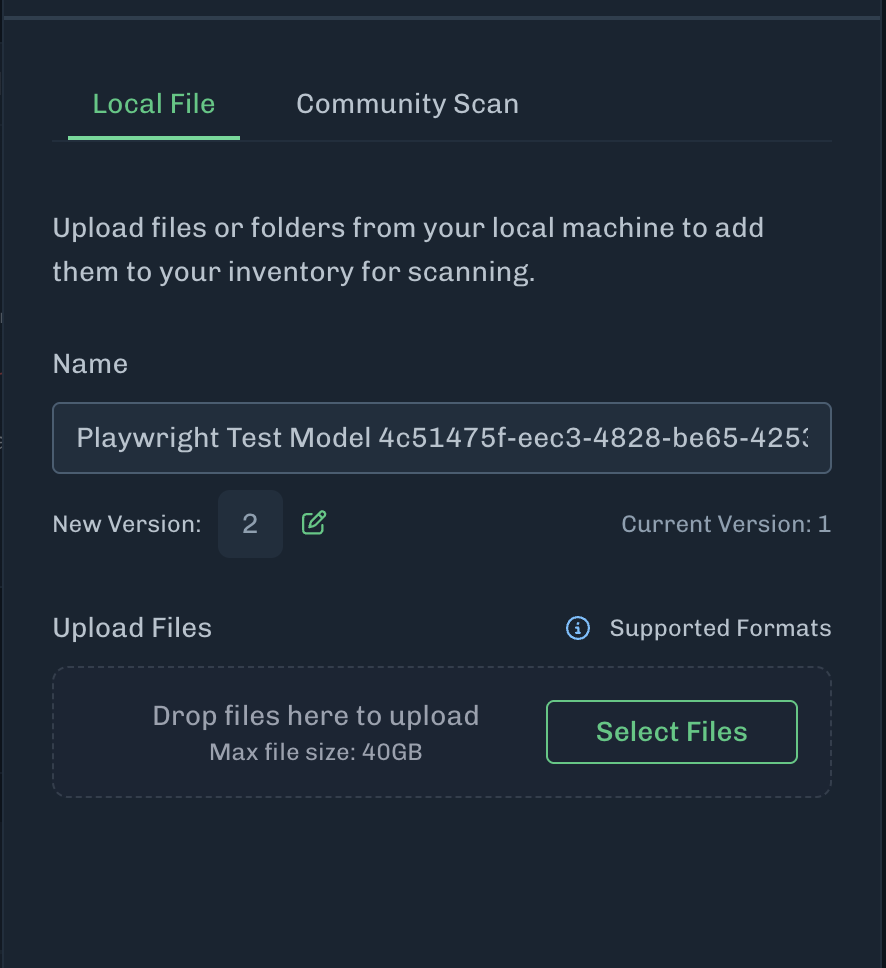
Click Select Files.
Select a file from the file browser, then click Open.
Click Add. The model file is uploaded to the Model Scanner and scanned. The scan is added to your existing model.
Keep Browser OpenDo not close or navigate away from the page during a Model Upload; doing so will cancel the upload. A message displays during the upload and when the upload is complete.
You can open other tabs in your browser.